“Database is mandatory on UserMailbox” when installing Exchange Server
When introducing a new Exchange Server into your existing Exchange environment, the installer may throw the error “Database is mandatory on UserMailbox” and prevent you from continuing.
If you examine the Exchange Setup Logs (which can be found at “C:\ExchangeSetupLogs\ExchangeSetup.txt”) you may find a few more clues as to which mailboxes are missing their databases parameter.
Towards the end of our Exchange setup log, we found the following two error lines.
[07/01/2020] [1] [ERROR] Database is mandatory on UserMailbox.
[07/01/2020] [1] [ERROR-REFERENCE] Id=SystemAttendantDependent___04cc4eded45c32a6bf14ee3fe543df60 Component=EXCHANGE14:\Current\Release\PIM Storage\Discovery
The key here is “SystemAttendant.” The System Attendant is an arbitration mailbox. Let’s check on the health of all our arbitration mailboxes. We can do this by entering the following command into the Exchange Management Shell.
 C:\> Get-Mailbox -Arbitration | Select Name | Format-Table

Name
----
SystemMailbox{bb558c35-97f1-4cb9-8ff7-d53741dc928c}
FederatedEmail.4c1f4d8b-8179-4148-93bf-00a95fa1e042
SystemMailbox{1f05a927-7f83-496b-a118-a96cdde1cd3c}
WARNING: The object SKARO.LOCAL/Users/SystemMailbox{1f05a927-7f83-496b-a118-a96cdde1cd3c}
has been corrupted, and it's in an inconsistent state. The following validation errors happened:
WARNING: Database is mandatory on UserMailbox.
WARNING: Database is mandatory on UserMailbox.
SystemMailbox{e0dc1c29-89c3-4034-b678-e6c29d823ed9}
SystemMailbox{D0E409A0-AF9B-4720-92FE-AAC869B0D201}
Migration.8f3e7716-2011-43e4-96b1-aba62d229136
SystemMailbox{2CE34405-31BE-455D-89D7-A7C7DA7A0DAA}
The output from this command identifies that we have a single broken system mailbox.
We can examine this further by launching Active Directory Users and Computers (be sure to have Advanced Features enabled under the View menu) and opening the properties of the affected system mailbox. Typically these system mailboxes are located in the default Users OU.
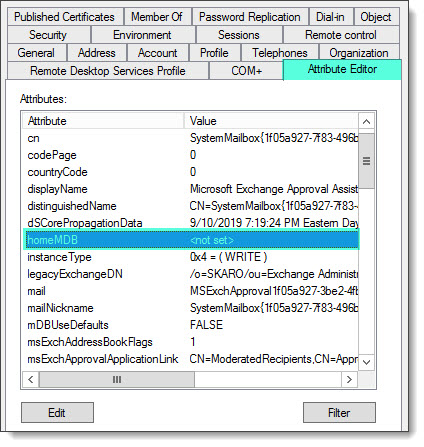
From the properties dialog, select the Attribute Editor tab. Next, look for the HomeMDB property.
It is highly likely that one of the following two scenarios will be true. Either the HomeMDB field lists a database that no longer exists, or, the HomeMDB field is null.
Regardless of the scenario, fixing this error is the same. We need to rehome the system mailbox to a new database. Keep in mind that rehoming the mailbox will create a brand new empty system mailbox.
Note: If an empty system mailbox is an issue I would recommend restoring the system mailbox from backup instead. Most backup vendors should allow you to restore a mailbox to a different database. Please consult your backup vendor for this restoration process.
To rehome our system mailbox, we are going to use the Set-Mailbox command with the Database parameter. In the example below, we are rehoming our broken system mailbox to DB03. Be sure to change the database value to a database in your environment. We will also need to use the Arbitration parameter to instruct Exchange that we are working with a system mailbox. You will receive two prompts to confirm this action. Press enter to accept the default action of Yes to each.
 C:\> Set-Mailbox -Identity "SystemMailbox{1f05a927-7f83-496b-a118-a96cdde1cd3c}" -Database "DB03" -Arbitration

Confirm
Rehoming mailbox "SystemMailbox{1f05a927-7f83-496b-a118-a96cdde1cd3c}"
to database "DB03". This operation will only modify the mailbox's Active
Directory configuration. Be aware that the current mailbox content will
become inaccessible to the user.
[Y] Yes [A] Yes to All [N] No [L] No to All [?] Help (default is "Y"): Y

Confirm
"SystemMailbox{1f05a927-7f83-496b-a118-a96cdde1cd3c}" is an arbitration
mailbox. Arbitration mailboxes are used for managing approval workflows.
Changing its configuration could have negative effects. Do you want to
continue?
[Y] Yes [A] Yes to All [N] No [L] No to All [?] Help (default is "Y"): Y

[PS] C:\>
Repeat this process for any additional broken system mailboxes you may have. Once all system mailboxes are repaired, rerunning our first PowerShell command should result in no errors.
 C:\> Get-Mailbox -Arbitration | Select Name | Format-Table

Name
----
SystemMailbox{bb558c35-97f1-4cb9-8ff7-d53741dc928c}
FederatedEmail.4c1f4d8b-8179-4148-93bf-00a95fa1e042
SystemMailbox{1f05a927-7f83-496b-a118-a96cdde1cd3c}
SystemMailbox{e0dc1c29-89c3-4034-b678-e6c29d823ed9}
SystemMailbox{D0E409A0-AF9B-4720-92FE-AAC869B0D201}
Migration.8f3e7716-2011-43e4-96b1-aba62d229136
SystemMailbox{2CE34405-31BE-455D-89D7-A7C7DA7A0DAA}
With all system mailboxes rehomed and resolved, you will now be able to proceed with your Exchange install.

Have you seen this issue before? What did you do to fix it? Drop a comment below or join the conversation on Twitter @SuperTekBoy.
The post “Database is mandatory on UserMailbox” when installing Exchange Server appeared first on SuperTekBoy.
office365
via SuperTekBoy https://supertekboy.com
August 22, 2020 at 06:53PM
Gareth Gudger
 Stack IT News