How to Use Azure REST API with PowerShell
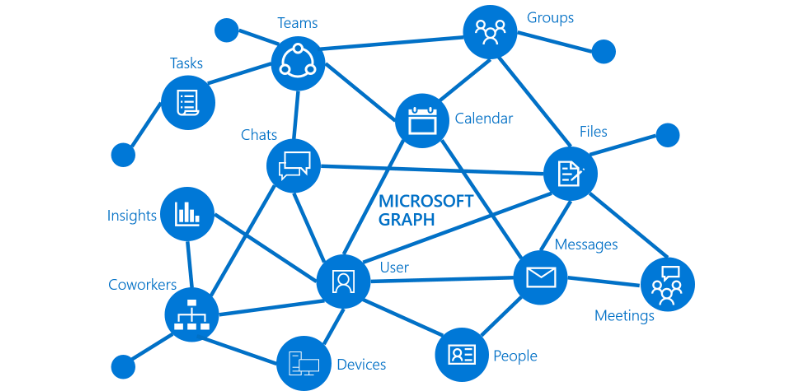
Sometimes you might want to get some information about Azure virtual machines. In this article, we will explore Azure Graph API to extract information about your virtual machines with a very simple PowerShell script.
More information about Graph API : https://docs.microsoft.com/en-us/azure/governance/resource-graph/overview
Open the Azure Portal, go to App Registrations
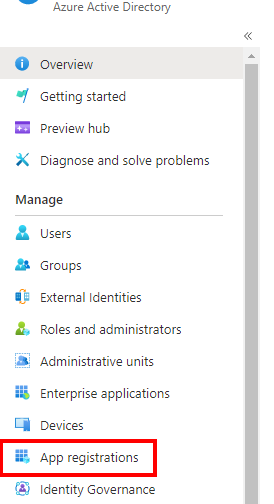
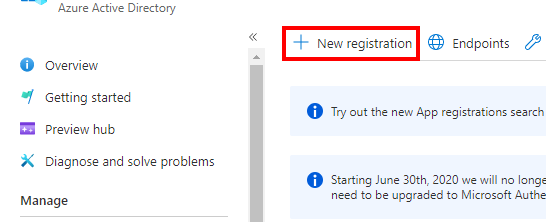
Click New Registration to create a new app
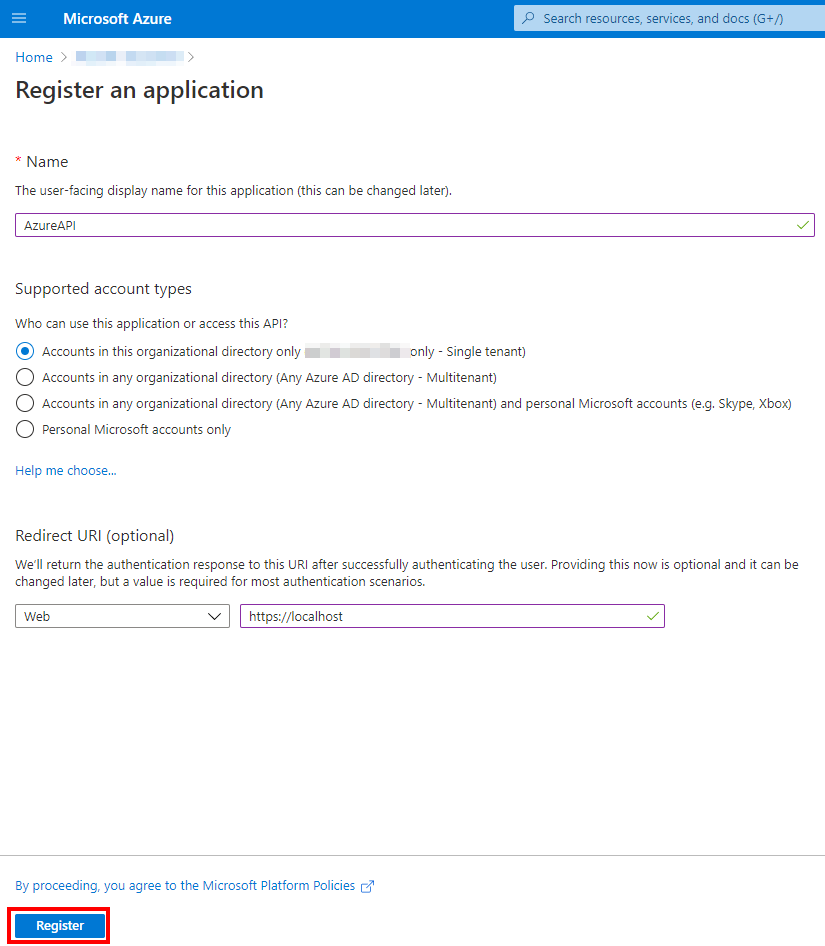
Enter a friendly name to your application. Regarding the URI, it is optional, so you can add https:///localhost
Once it is created, you will see the information on the home page. We will need to copy/paste these information later.
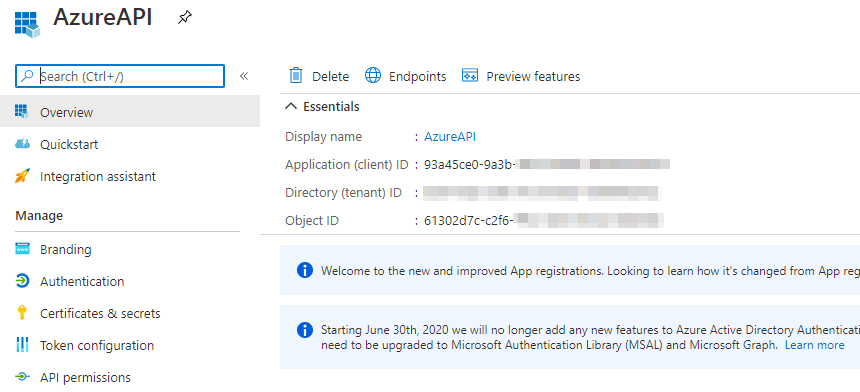
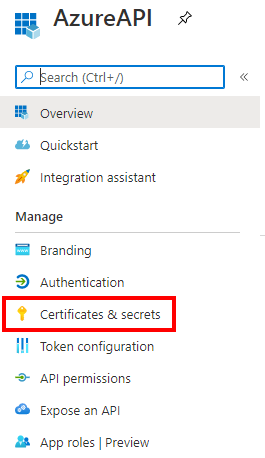
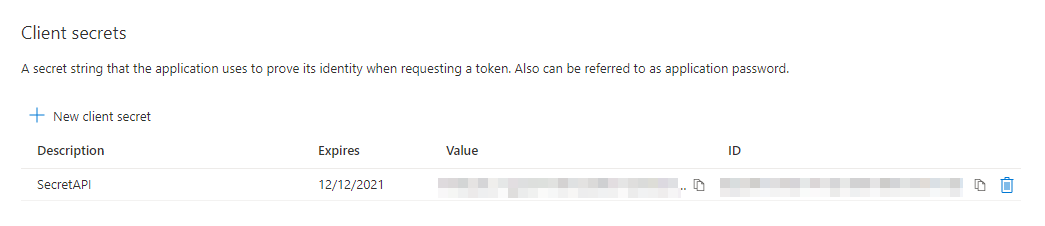
Go to Certificates & secrets to create a Client Secret that will be used to authenticate to the Azure REST API calls.
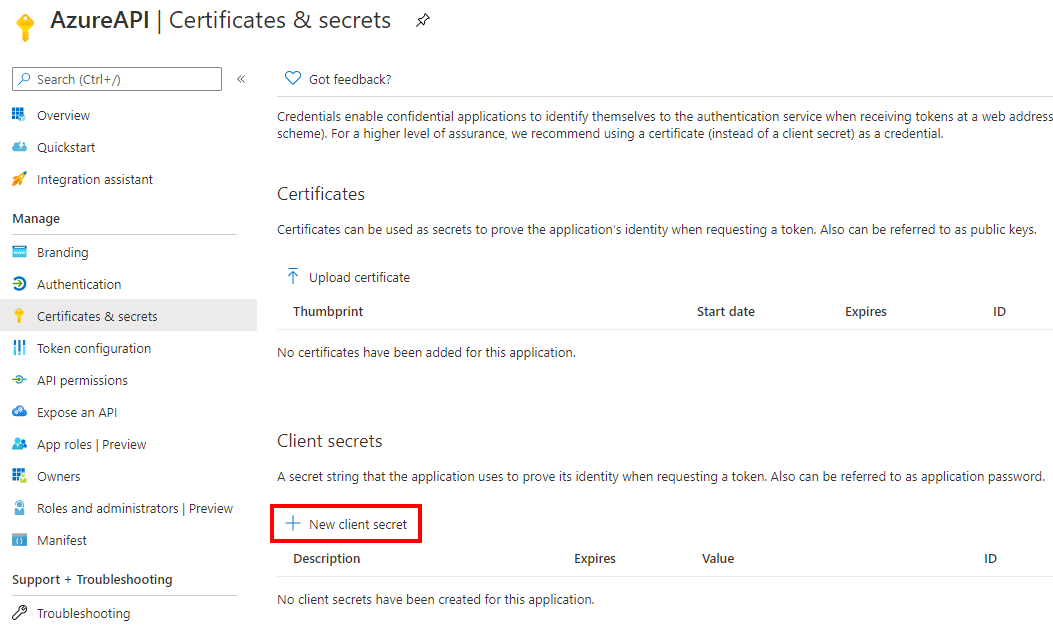
Click on New Client secret to generate the secret.
Add a description and select if you want expiration or not
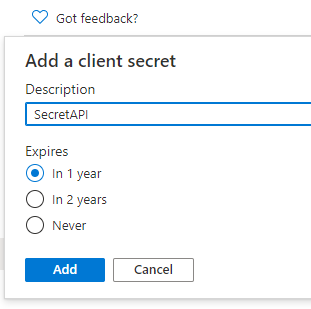
Be careful, you have to save the key somewhere as it will not be accessible after.
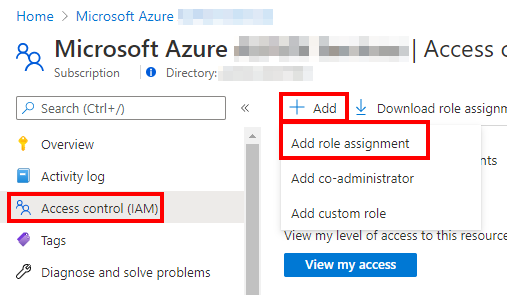
Now go to Subscription and the IAM blade. Click Add / Add role assignment
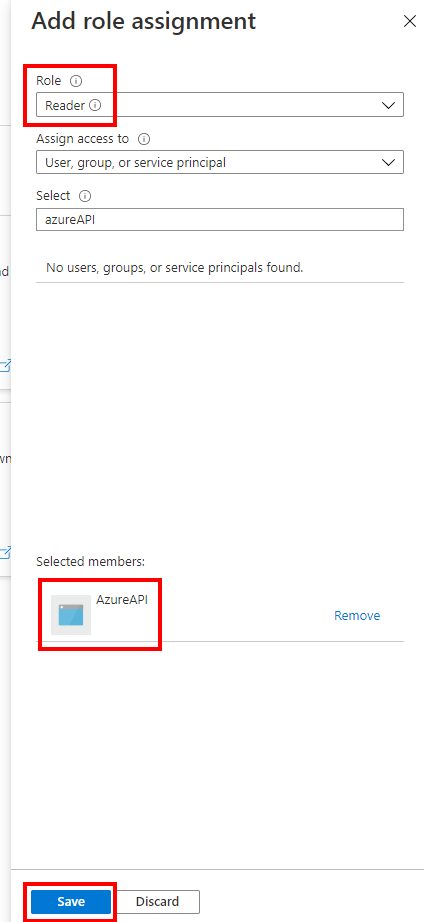
Search the App created previously and select the Reader role for your App.
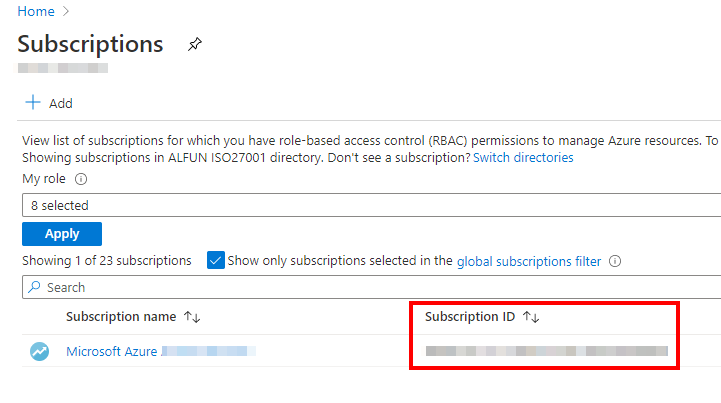
Copy/paste the subscription ID as it will be required later.
 |
StarWind VSAN for vSphere uses your local hypervisor cluster to create fault-tolerant and robust virtual shared storage, eliminating the need to buy a costly physical SAN. You can deploy it on any off-the-shelf hardware you already got. Thanks to mirroring of internal hard disks and flash between hypervisor servers, you get a 2-node Highly Available cluster. There is no need for a witness instance, and you’re not restricted on storage size, features, or number of VMs. Your IT-environment will not only achieve constant uptime and skyrocketing performance, you will also save a good deal on CapEx and OpEx. |
Find out more about  StarWind VSAN for vSphere StarWind VSAN for vSphere |
Everything is ok, so now we can use the following PowerShell script in order to query the Azure subscription.
$SubscriptionId = "zzzzzzzz-zzzz-zzzz-zzzzzzzz"

$TenantId = "yyyyyyyy-yyyy-yyyy-yyyy-yyyyyyyyyy"

$ClientId = "xxxxxxx-xxxx-xxxx-xxxx-xxxxxxxxxx"

$ClientSecret = "<client_secret>"


$Resource = "https://management.core.windows.net"

$RequestAccessTokenUri = "https://login.microsoftonline.com/$TenantId/oauth2/token"


$body = "grant_type=client_credentials&client_id=$ClientId&client_secret=$ClientSecret&resource=$Resource"


# Get Access Token

$AccessToken = Invoke-RestMethod -Method Post -Uri $RequestAccessTokenUri -Body $body -ContentType 'application/x-www-form-urlencoded'


# Get Azure Virtual Machines

$VM = "https://management.azure.com/subscriptions/$SubscriptionId/providers/Microsoft.Compute/virtualMachines?api-version=2020-12-01"


# Format Header

$Headers = @{}

$Headers.Add("Authorization","$($AccessToken.token_type) "+ " " + "$($AccessToken.access_token)")


# Invoke REST API

$VMs = Invoke-RestMethod -Method Get -Uri $VM -Headers $Headers

$VMs.value | ForEach-Object {

Write-Output $_.Name

}
This script returns information about Virtual Machines.
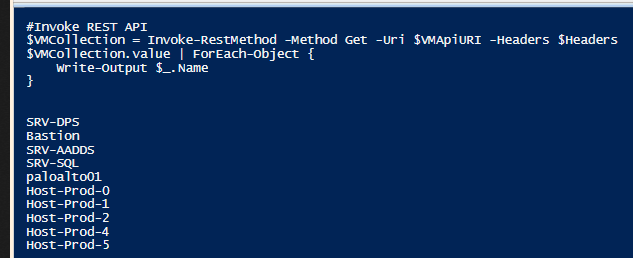
Of course, you can get information about all the Azure resources, please check the following documentation: https://docs.microsoft.com/en-us/rest/api/resources/
Related materials:
storage
via StarWind Blog https://ift.tt/2d2CNdl
January 5, 2021 at 01:52PM
Nicolas Prigent
 Stack IT News