Automate SQL database backups using Windows Task Scheduler
In this article, we will learn how we can automate the backup of SQL database created in SQL Server Express edition.
SQL Server Express edition is a lightweight database that has limited functionalities and resource allocation. The
SQL Server Express edition does not support SQL Server Agent jobs, so it is tricky to automate various database
administration tasks.
We can use the windows task scheduler to automate the maintenance of the SQL Server Express edition databases.
Windows task scheduler is a tool that is used to automate various tasks. You can schedule the execution of the various maintenance tasks. You can read this article to learn more about windows task scheduler.
We can automate the execution of the windows batch file using the task scheduler. I have used the SQLCMD command in the batch files to execute the stored procedure created in the databases. These stored procedures can be used to perform maintenance tasks.
In this article, I am covering how to back up the databases. The backup schedules are the following:
- The Full backup of the SQL database should be generated every week at 01:00 AM. The location of the backup is C:\MS_SQL\FullBackup
- The Differential SQL database backup should be generated every day at 2:00 AM. The location of the backup is C:\MS_SQL\DiffBackup
I have created two stored procedures in the master database to backup of SQL database. The stored procedure
generates full and differential backups. The following stored procedure is used to generate the full backup of the
database.
|
1 2 3 4 5 6 7 8 9 10 11 12 13 14 15 16 17 18 19 20 21 22 23 24 25 26 27 28 29 |
Create procedure sp_generate_full_backup as begin DECLARE @Date VARCHAR(30) DECLARE @FileName VARCHAr(max) DECLARE @DBName VARCHAR(150) DECLARE @BkpPath VARCHAR(max) DECLARE @backupCommmand nvarchar(max) declare @DBcount int declare @i int = 0 create table #UserDatabases(Name varchar(500)) insert into #UserDatabases select name from sys.databases where database_id>4 set @DBcount=(select count(1) from #UserDatabases) While (@DBcount>@i) Begin set @DBName = (select top 1 name from #UserDatabases) set @Date = replace(Convert(VARCHAR(10),Getdate(),23),‘-‘,‘_’) + ‘_T_’ + replace(Convert(VARCHAR(10),Getdate(),108),‘:’,‘_’) set @FileName = ‘Full_’ + @DBName + ‘_’ + ‘Backup’ + ‘_’ +@Date +‘.bak’ set @BkpPath = ‘C:\MS_SQL\FullBackup\’ set @FileName = @BkpPath + @FileName set @backupCommmand=‘Backup database [‘ +@DBName +‘] to Disk= ‘” +@FileName +”‘ WITH NOFORMAT, NOINIT ,SKIP, NOREWIND, NOUNLOAD, STATS = 10’ –Print @backupCommmand EXEC sys.sp_executesql @backupCommmand delete from #UserDatabases where name=@DBName Set @i=@i+1 End drop table #UserDatabases End Go |
Following stored procedure is used to generate the differential backup of the database.
|
1 2 3 4 5 6 7 8 9 10 11 12 13 14 15 16 17 18 19 20 21 22 23 24 25 26 27 28 29 30 |
Create procedure sp_generate_diff_backup as begin DECLARE @Date VARCHAR(30) DECLARE @FileName VARCHAr(max) DECLARE @DBName VARCHAR(150) DECLARE @BkpPath VARCHAR(max) DECLARE @backupCommmand nvarchar(max) declare @DBcount int declare @i int = 0
create table #UserDatabases(Name varchar(500)) insert into #UserDatabases select name from sys.databases where database_id>4 set @DBcount=(select count(1) from #UserDatabases) While (@DBcount>@i) Begin set @DBName = (select top 1 name from #UserDatabases) set @Date = replace(Convert(VARCHAR(10),Getdate(),23),‘-‘,‘_’) + ‘_T_’ + replace(Convert(VARCHAR(10),Getdate(),108),‘:’,‘_’) set @FileName = ‘Diff_’ + @DBName + ‘_’ + ‘Backup’ + ‘_’ +@Date +‘.bak’ set @BkpPath = ‘C:\MS_SQL\DiffBackup\’ set @FileName = @BkpPath + @FileName set @backupCommmand=‘Backup database [‘ +@DBName +‘] to Disk= ‘” +@FileName +”‘ WITH NOFORMAT, NOINIT ,SKIP, NOREWIND, NOUNLOAD, DIFFERENTIAL STATS = 10’ –Print @backupCommmand EXEC sys.sp_executesql @backupCommmand delete from #UserDatabases where name=@DBName Set @i=@i+1 End drop table #UserDatabases End Go |
Let us configure the schedules to generate the backups.
Create a task to generate the Full database backup
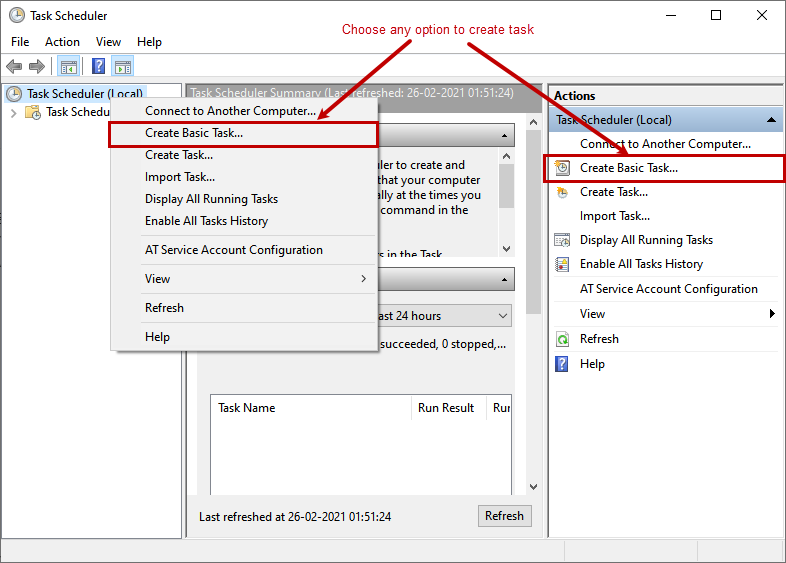
First, open the windows task scheduler. On the left pane of the task scheduler, you can view the list of the
scheduled tasks. To create a new task, right-click on Task Scheduler and select Basic tasks. Alternatively, you can
click on Create Basic Task link from the Action tab.
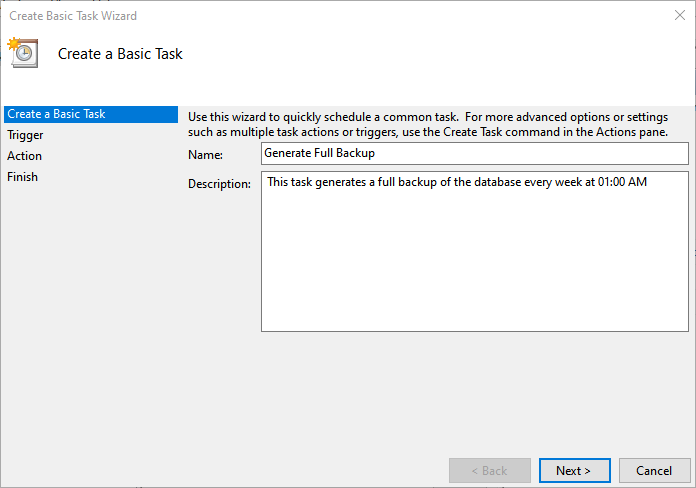
The first screen is Create a basic task. On this screen, specify the desired name of the task and description. In
our case, the first task is to generate the full backup, so the name is Generate Full Backup. In the description
text box, I have specified the time of the backup.
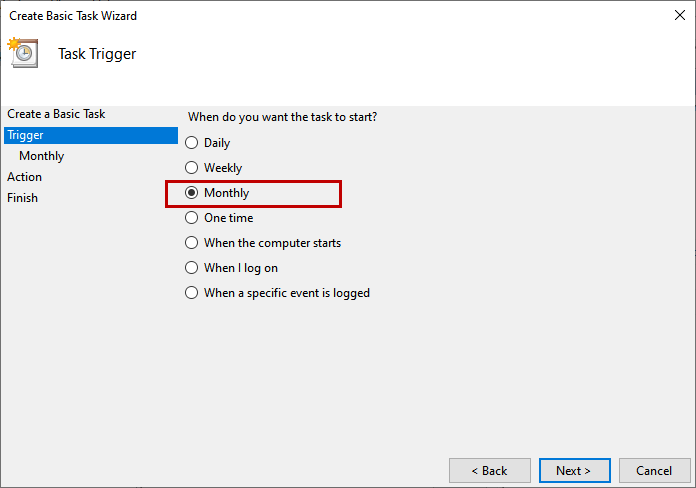
The next screen is Task trigger. On this screen, we can specify the time when you want to start the task. In our
case, the full backup should be executed every month, therefore select Monthly.
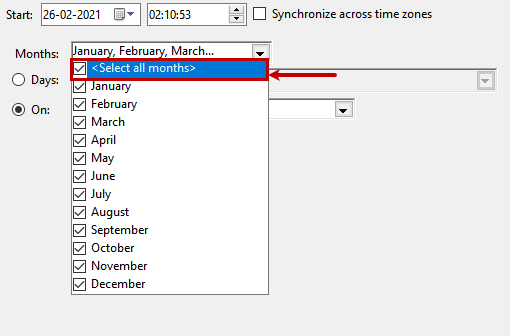
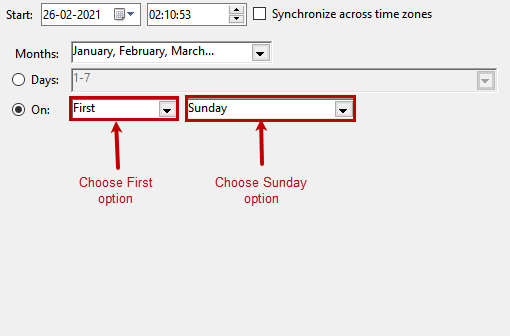
On the next screen, we can specify the start date of the job execution. The job should be executed every month so,
click on the Month drop-down box and <Select all months>.
The job must be executed on the first Sunday of every month. Click On and select the First option
from the first drop-down box and Sunday from the second drop-down box.
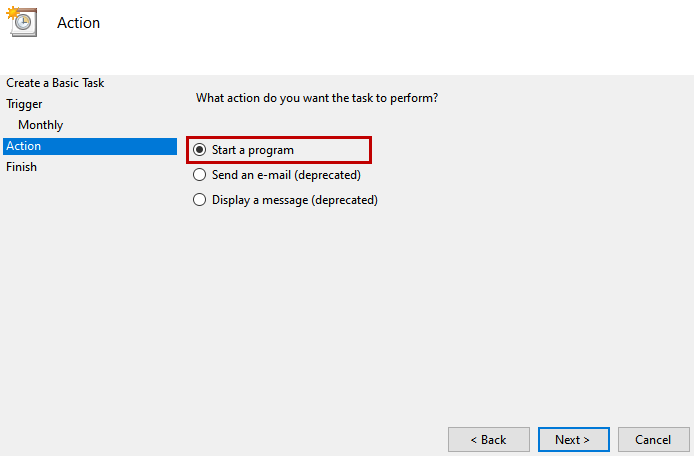
On the next screen, we should specify the task name that is executed by the task scheduler. We are running a batch
script, so click on Start a Program option.
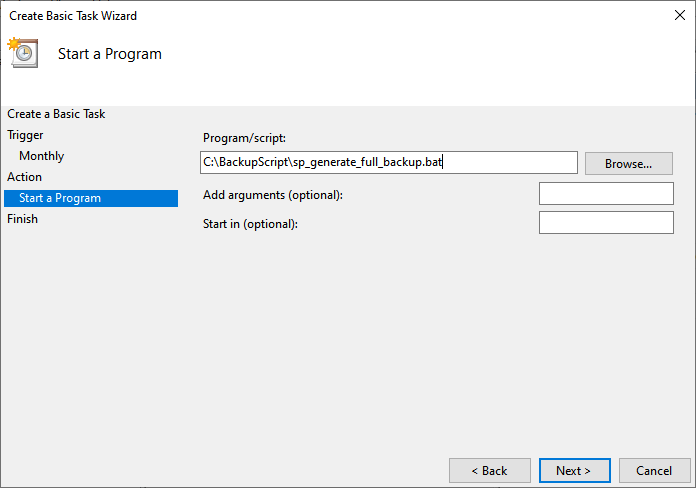
On the Start program, specify the batch file that you want to execute. To generate the full backup, I have created a
batch file. Provide the full path of the batch file in the Program/script text box. In our case, we have created the
batch file in the C:\BackupScript location.
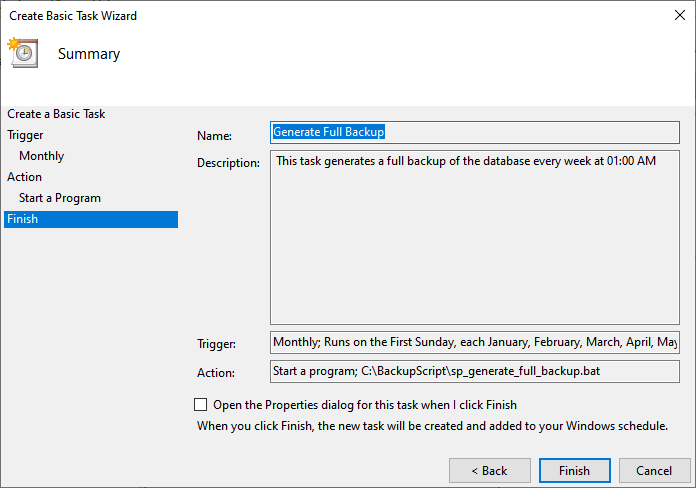
On the summary screen, you can see the details of the task. Click on Finish.
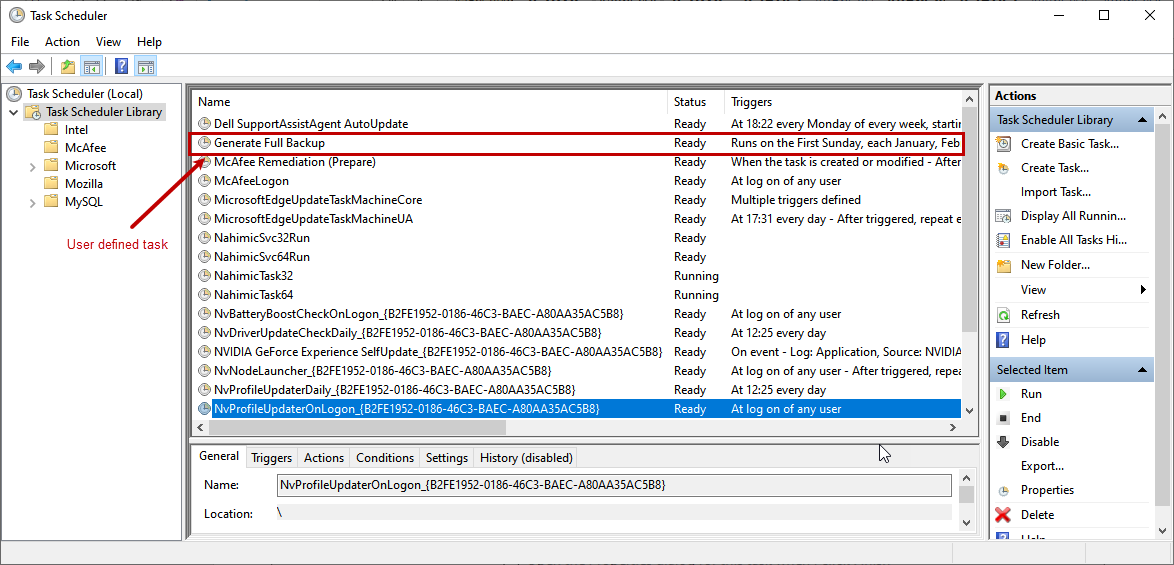
The task has been created. We can view the details of the task in the Task scheduler library. Click on Task
schedular library. You can view the list of predefined tasks and user-defined tasks. You can see the Generate Full
Backup task has been created.
Create a task to generate the differential backup
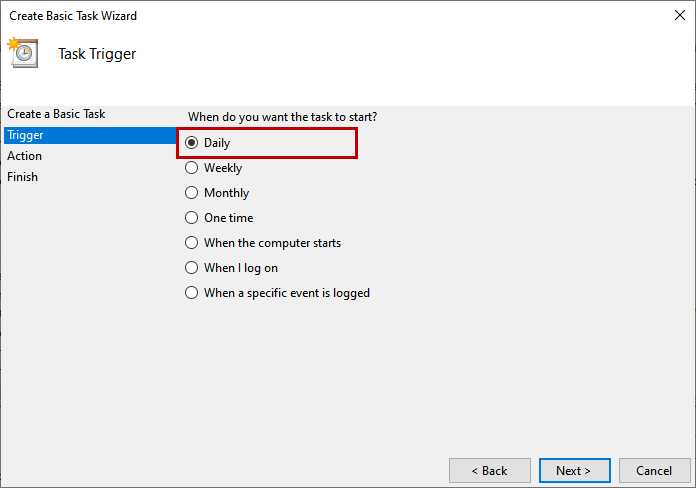
As specified, the job should be executed every day at 1:00 AM. To configure the schedule, select the Daily option on the Task Trigger screen.
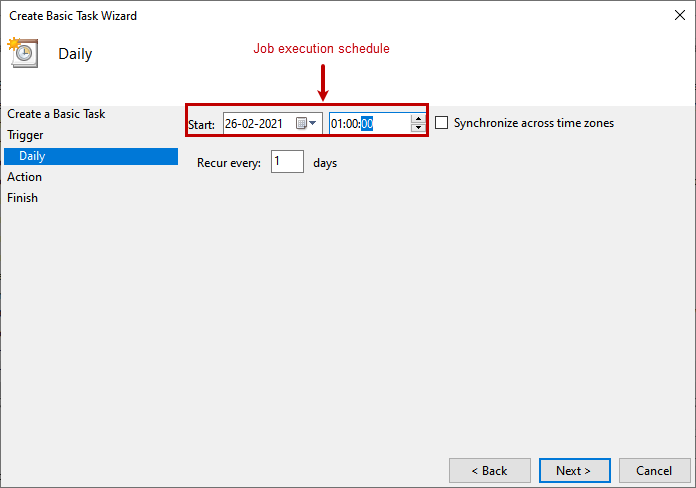
On the Daily screen, specify 1:00:00 in the time text box. The job should execute once a day, so specify 1 in Recur every text box.
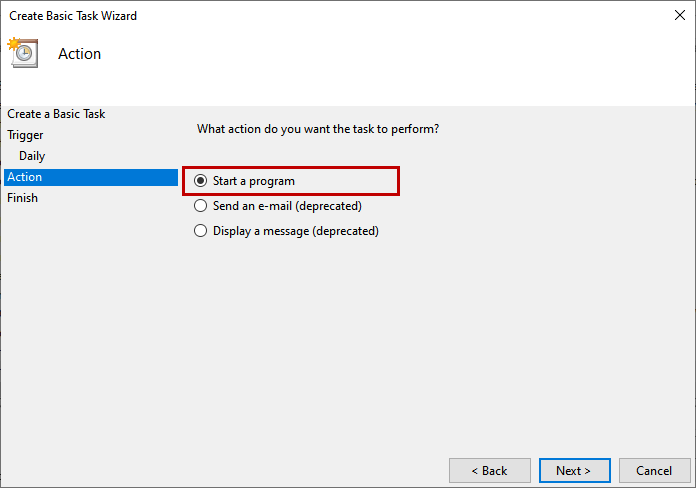
To execute the batch file to generate the differential backup, Choose the Start a Program
option on the Action screen.
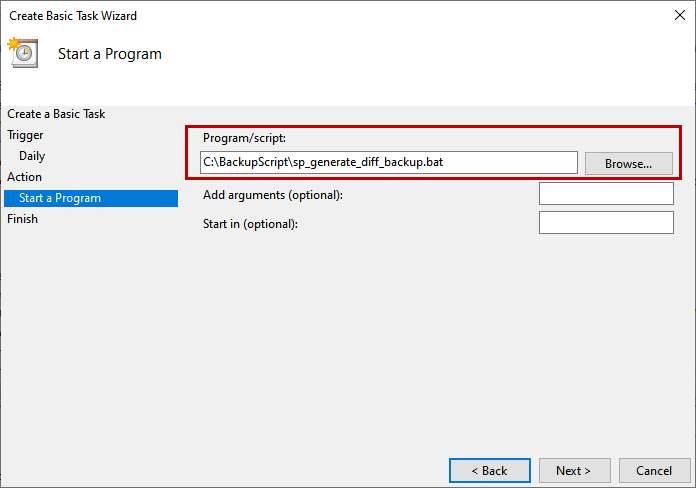
On the Start, a Program screen, enter the full path of the batch file used to generate the
differential backup.
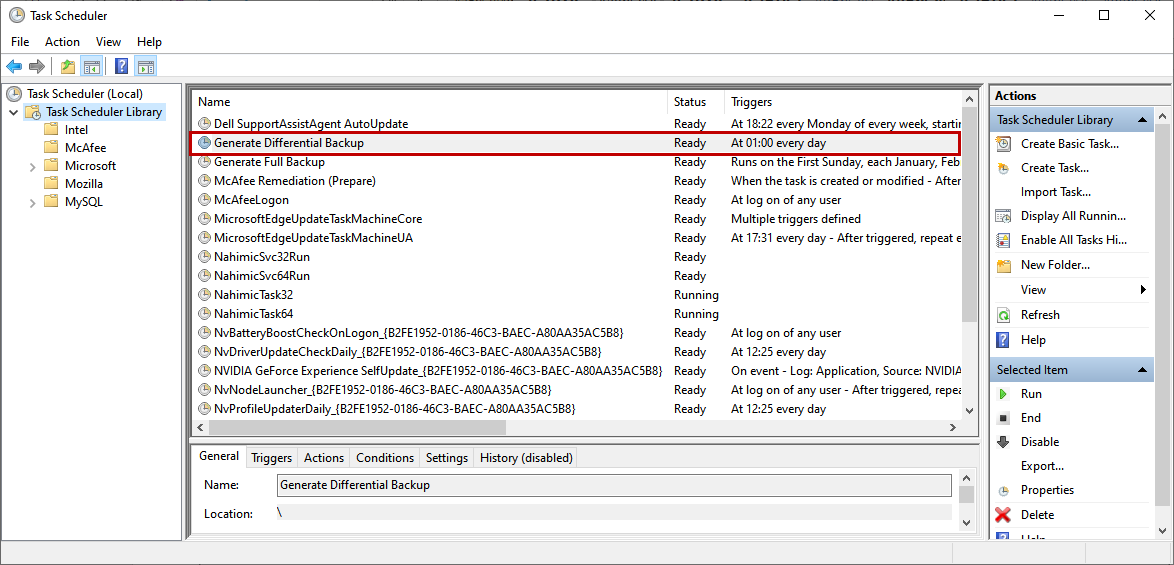
On the summary screen, you can view the details of the task and click on Finish to create the task. You can view the task in the list of task scheduler library.
Test the backup tasks
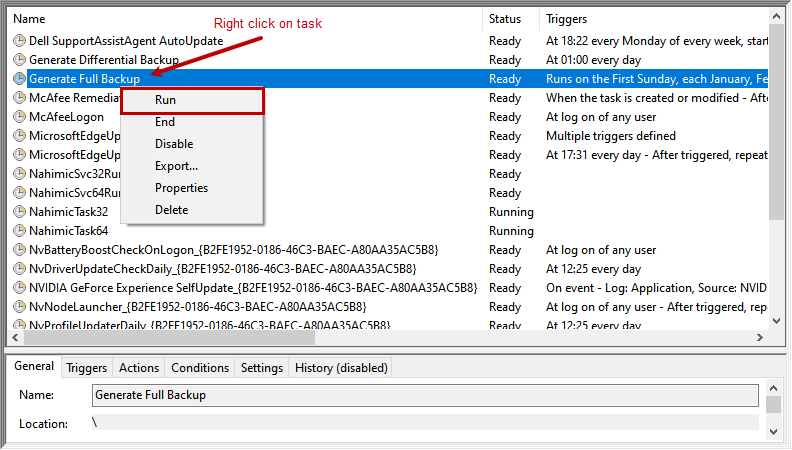
Now, let us test all the tasks that have been created. First, let us run the Full backup job. Right-click on
Generate Full Backup task and click on Run.
In our case, the database is small, so it does not take a long time to finish. We can confirm the execution status
from the history of the task schedular.
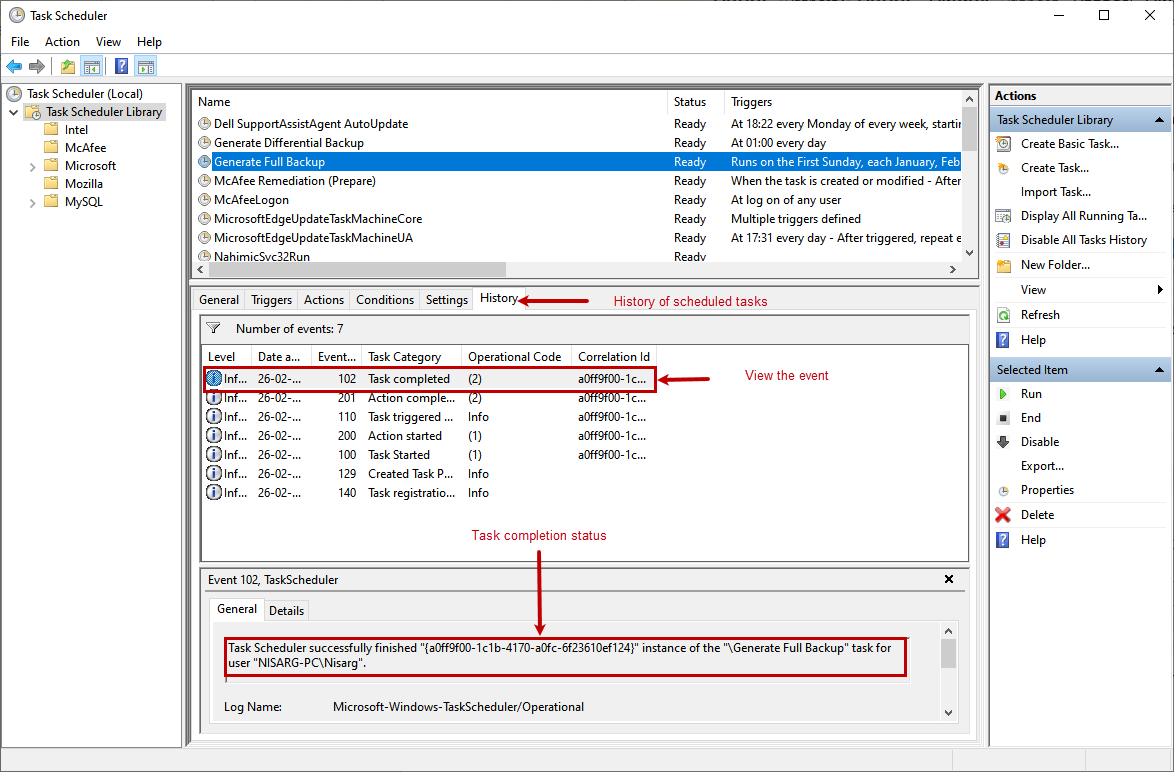
As you can see in the above image, the Generate Full Backup has been completed successfully. Open the backup
destination.
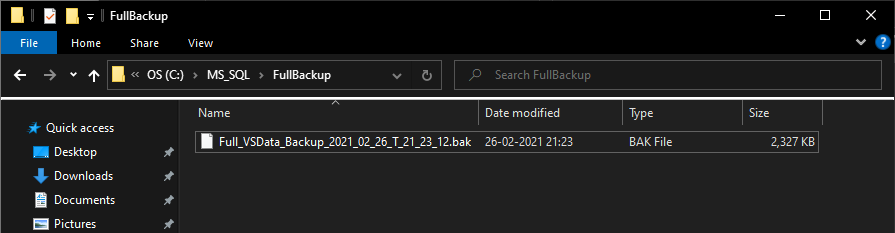
As you can see, the backup has been created. Now, let us test the Generate Differential Backup task. The process is
the same. Once the task completes, you can view the execution task from the history tab.
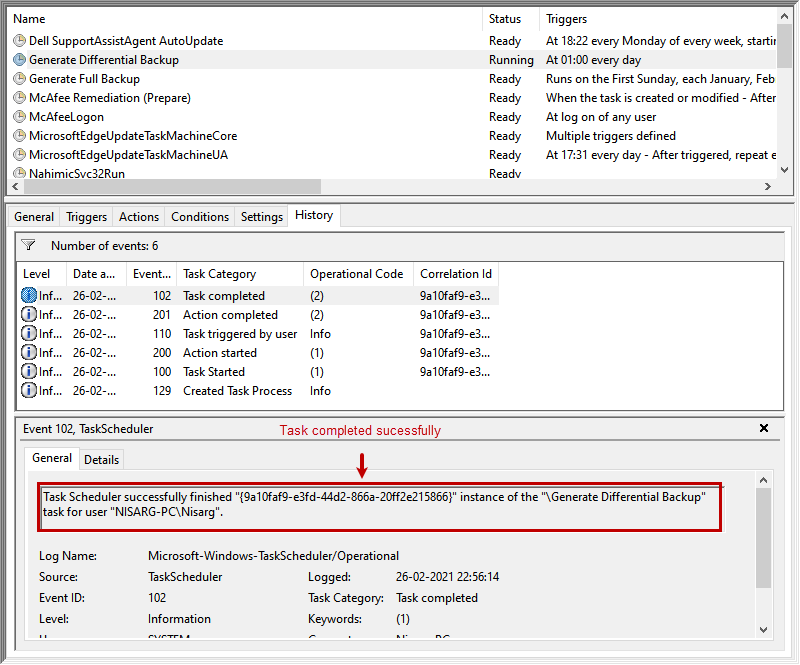
As you can see in the above image, the task was executed successfully. Open the backup destination.
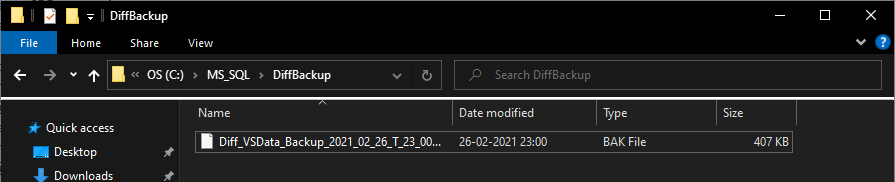
The backup has been created successfully.
Summary
This article explained how we can use the Windows task scheduler to automate the SQL database backup. This article can be useful to the database administrators who want to automate the backup of SQL database created in SQL Server Express edition. In the next article, I will explain how we can automate the index maintenance of SQL database created in SQL Server Express edition using a windows task scheduler. Stay tuned!
Nisarg Upadhyay is a SQL Server Database Administrator and Microsoft certified professional who has more than 8 years of experience with SQL Server administration and 2 years with Oracle 10g database administration.
He has expertise in database design, performance tuning, backup and recovery, HA and DR setup, database migrations and upgrades. He has completed the B.Tech from Ganpat University. He can be reached on
Latest posts by Nisarg Upadhyay
(see all)
SQL
via SQL Shack – articles about database auditing, server performance, data recovery, and more https://ift.tt/2nZ7eJ9
April 15, 2021 at 10:47AM
Nisarg Upadhyay
 Stack IT News