Send emails in Exchange Online using an alias address: Configuration with PowerShell and admin center
Each Exchange mailbox can be assigned multiple email addresses. These proxy addresses are also called aliases. Until now, you could use them to receive messages, but to send emails, you had to use the standard address. Now Microsoft 365 also allows you to send email via an alias.
Benjamin Bürk is a senior systems engineer who has been managing IT infrastructures for companies since 2002. His focus is on server operations and especially on Remote Desktop Services (RDS) environments. Further competences are unified communications, virtualization, and Active Directory management. He holds MCSA 2008 and 2012 certifications.
Latest posts by Benjamin Bürk
(see all)
Previously, if you wanted to send an email from an alias address, workarounds such as using a shared mailbox or distribution group were necessary.
Sending messages on behalf of an alias is on Microsoft’s roadmap, and it is currently being introduced in Exchange Online. This option is available in both the Outlook desktop client and the web app.
Changing the tenant configuration ^
To enable sending email from an alias address, you first need to modify the organization’s configuration at the tenant level. The following PowerShell command serves this purpose:
Set-OrganizationConfig -SendFromAliasEnabled $true

Changing the organizational configuration with PowerShell
Use the following cmdlet to ensure your configuration is successful:
Get-OrganizationConfig | Select-Object SendFromAliasEnabled
Managing alias addresses ^
Alias addresses can be maintained via several administration options. If you prefer a graphical interface, you can find it in the Microsoft 365 Admin Center or the Exchange Admin Center.

The link to the aliases can be found in the user properties
There, follow the link Manage username and email in the account properties. On the following page, you can add aliases using the corresponding field.

Adding alias addresses via the Exchange Admin Center
In PowerShell, the Set-Mailbox cmdlet is used to manage aliases (the respective parameter is named EmailAdresses). The following command adds additional SMTP addresses:
Set-Mailbox -Identity [Identity] -EmailAddresses @{add=”[alias-address]”}

Adding aliases for Exchange Online with PowerShell
Sending from the alias address ^
In my test environment, sending from the additional SMTP address was possible after a few minutes. It might take a bit longer if the change hasn’t taken effect yet. For testing, I used a current Outlook version.
There, you first have to open the “From” field and then select Other Email Address. In the dialog box that appears, you can enter the desired sender address.
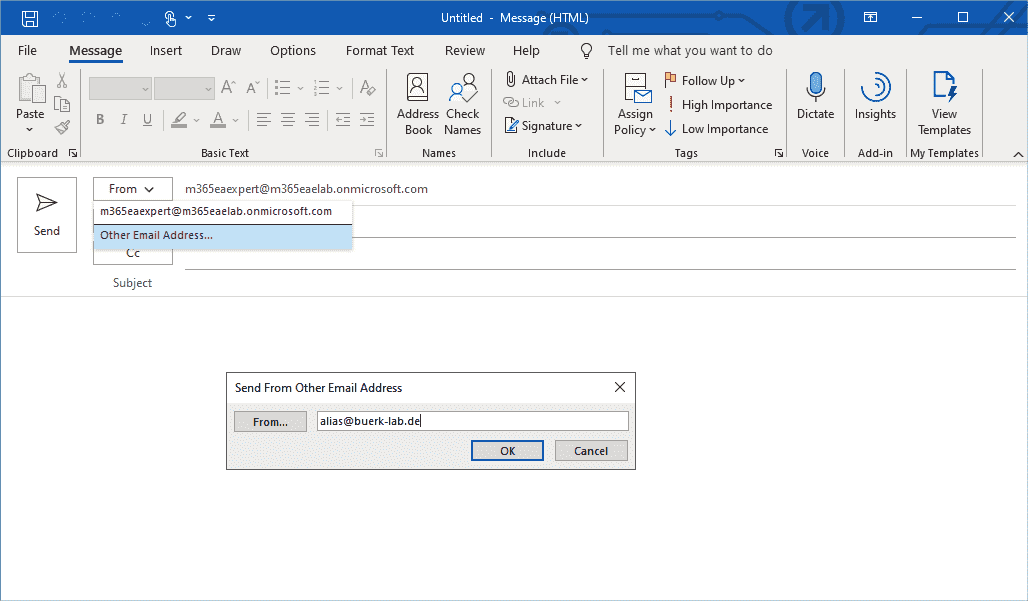
Sending mail from an alias address in Outlook
To the recipient, the mail looks as if the alias were the primary SMTP address (as shown in the following figure).
Subscribe to 4sysops newsletter!

In the email header the alias address appears as the sender
The alias also appears in the email header as the From address.
windows
via 4sysops https://4sysops.com
June 29, 2021 at 04:38PM
Benjamin Bürk
 Stack IT News