Use Azure Policy to Allow Only Certain Resource Types in Resource Groups
In medium to large deployments, you may want to create resource groups for some kinds of resources. For example, you can create a resource group for network resources while another resource group is used for virtual machines. This way of managing resources can be quite interesting, especially, for Role-Based Access Management (RBAC). In such an example, you can create a security group for network administrators and assign a contributor role to the network resource group.
In addition, we can enforce which kind of resource types can be deployed in the resource groups thanks to Azure Policy. The example above ensures that only specific network resource types can be deployed in the resource group. This allows you to manage the compliance of your deployments in your tenant.
In this topic, I’ll show you how to handle Azure Policy to allow only a certain resource type in resource groups.
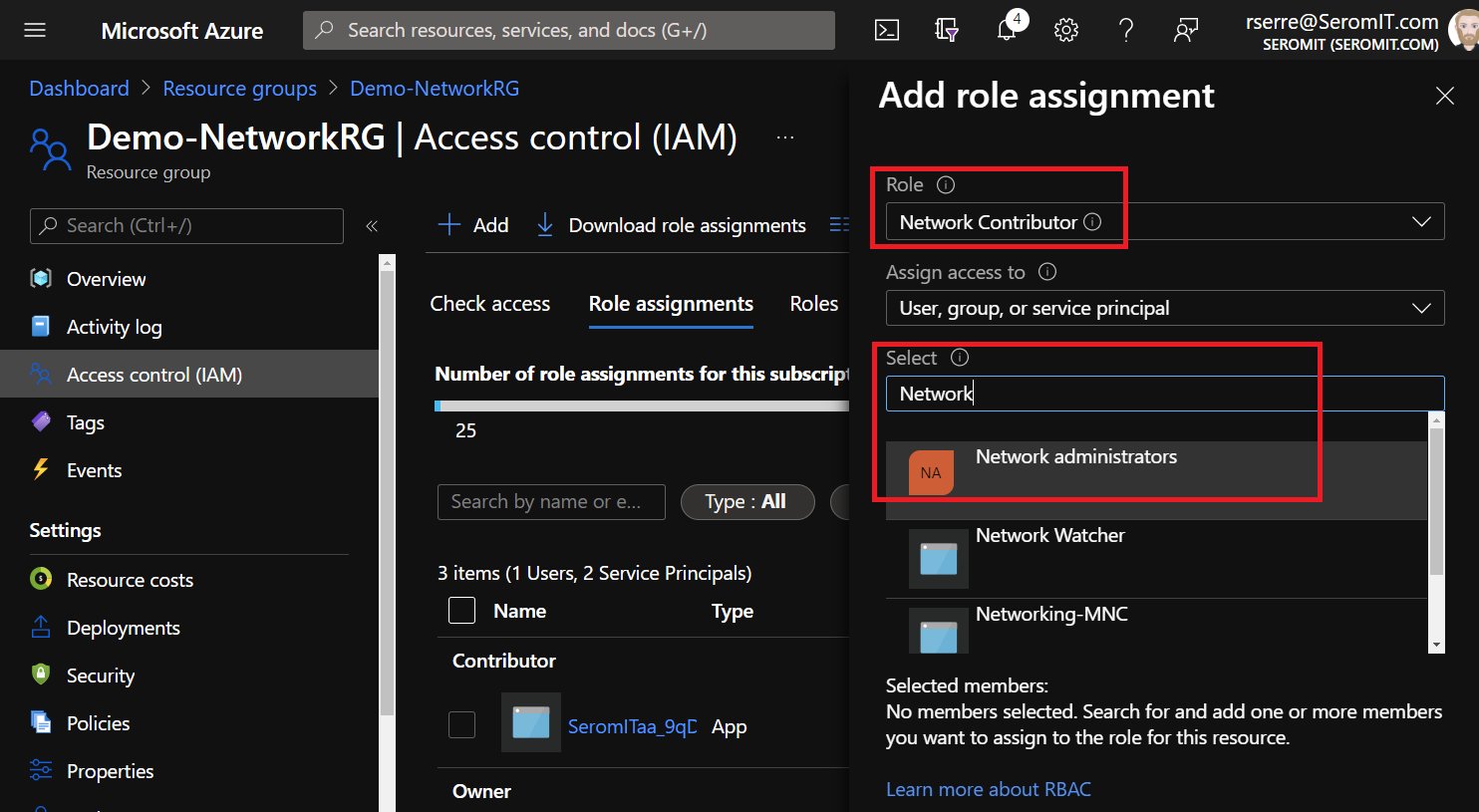
Give network contributor permission to a group
For the purpose of this topic, I have created a security group called Network Administrators. Inside this group, I have a user called netadmins. Now that this group is created, I’ll assign network contributor role in the network resource group. To do that, navigate to your resource group used for network resources and select Access Control (IAM). Then navigate to role assignments and select add.
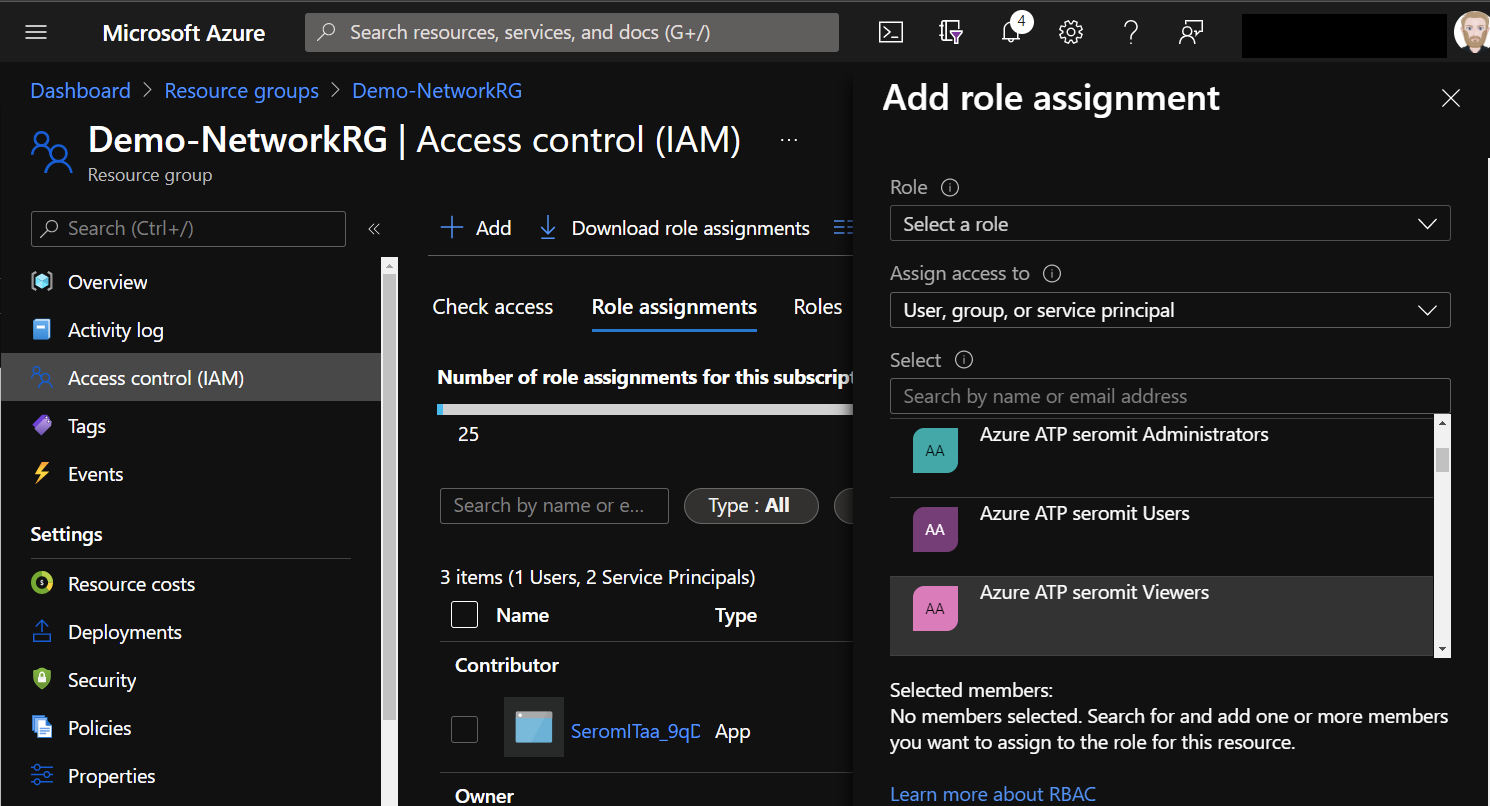
Select Network Contributor role and select the group you want:
Assign Azure Policy
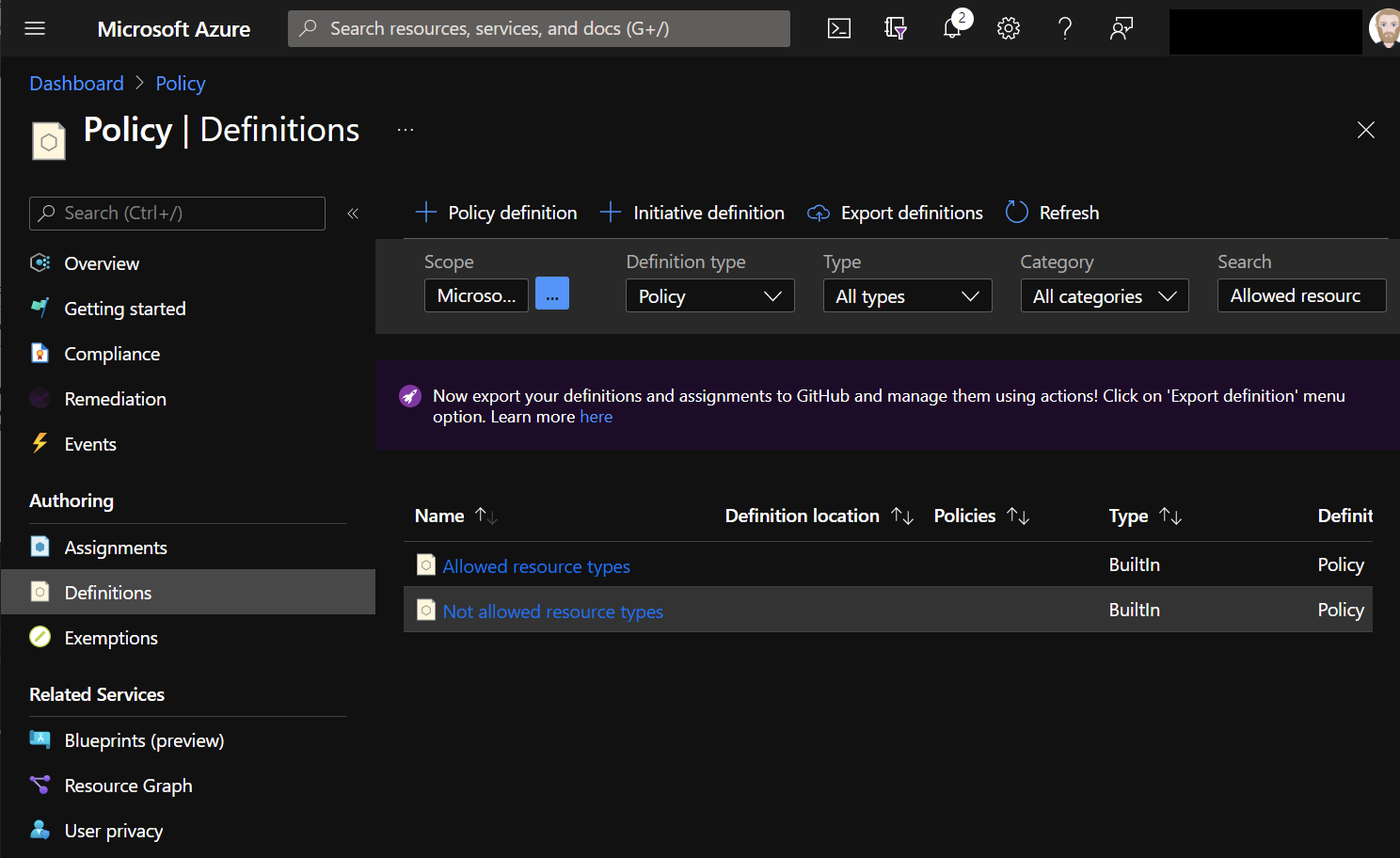
To manage Azure Policy, open Azure Portal and search for Policy. Then navigate to Definitions and search for Allowed resource. Select Allowed resource types.
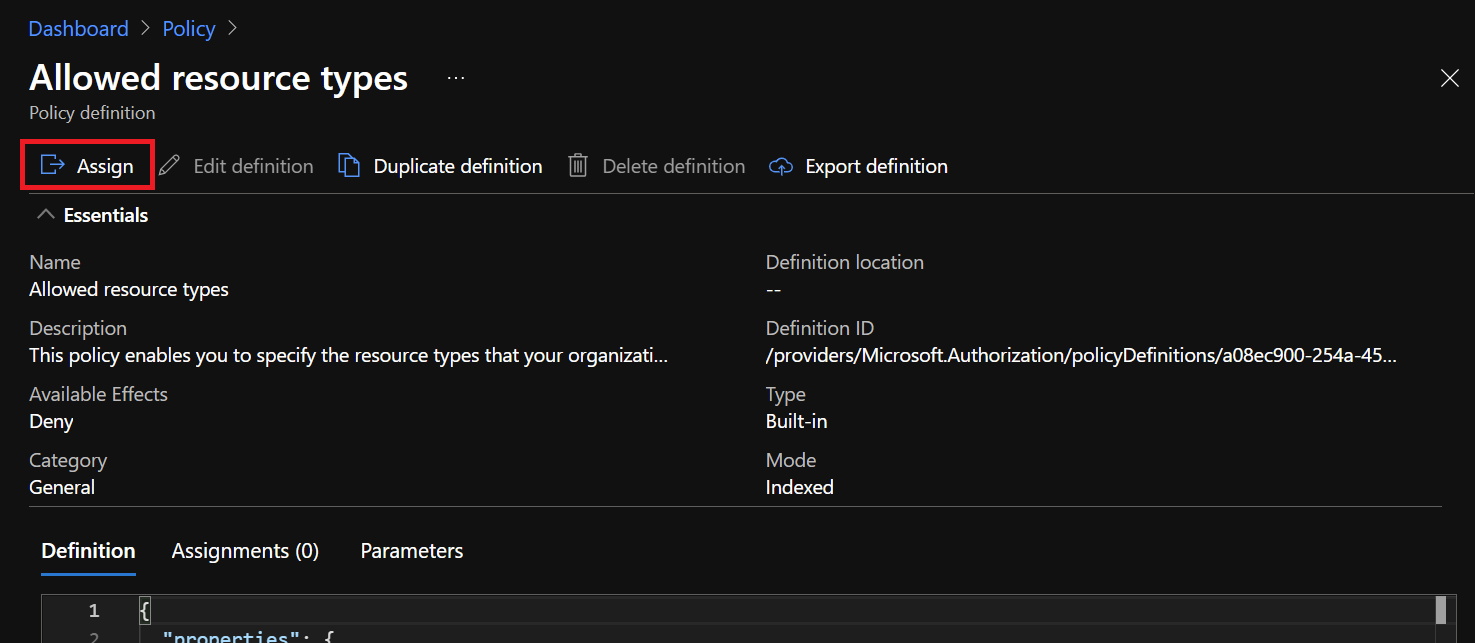
In the policy, click on Assign:
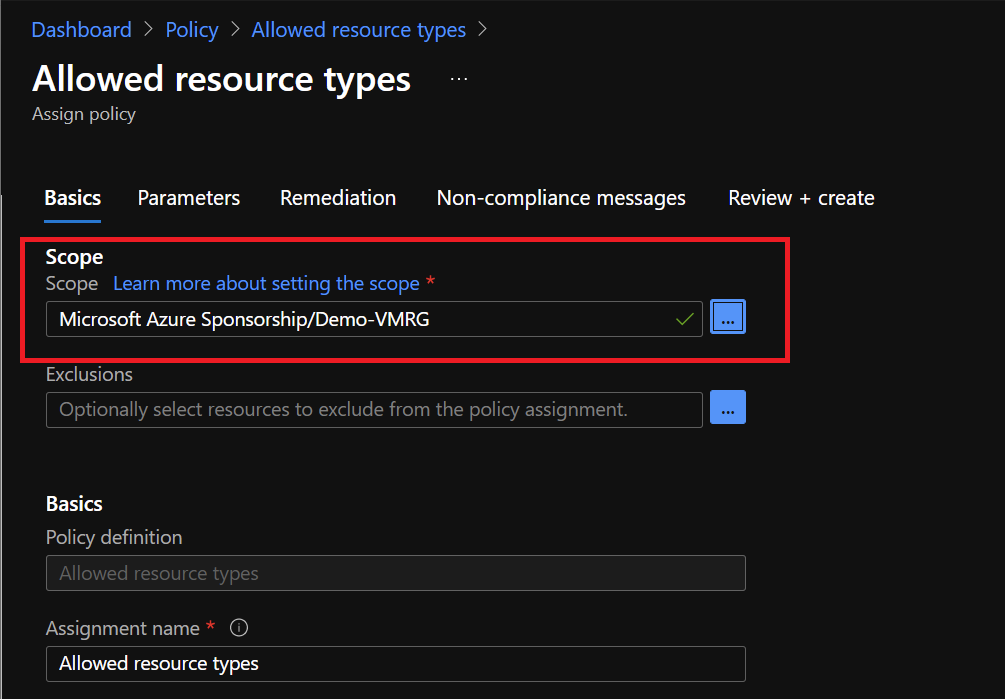
In Scope, select the right subscription and the right resource group and then click on next:
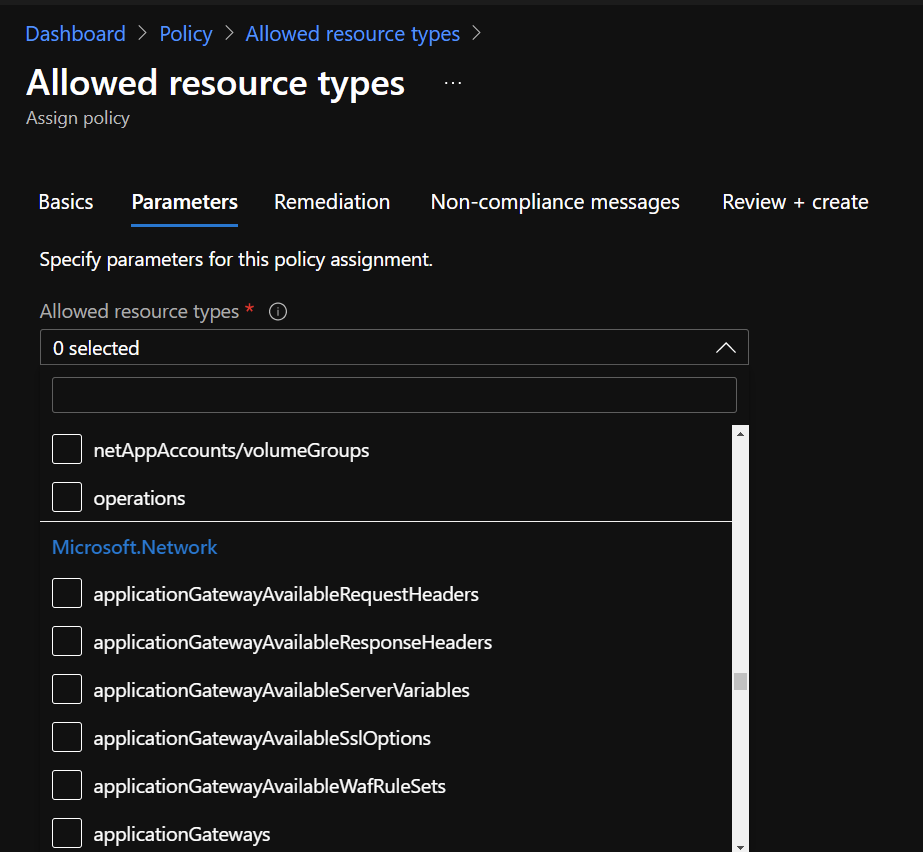
Select allowed resources in Microsoft.Network (if you want to only allow network resources):
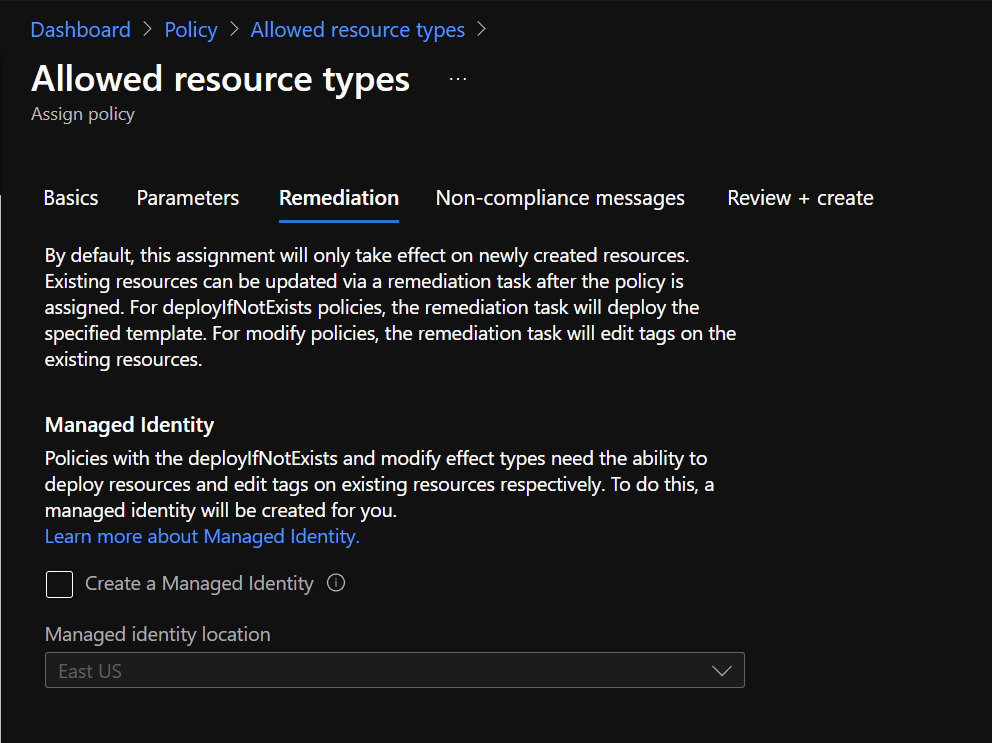
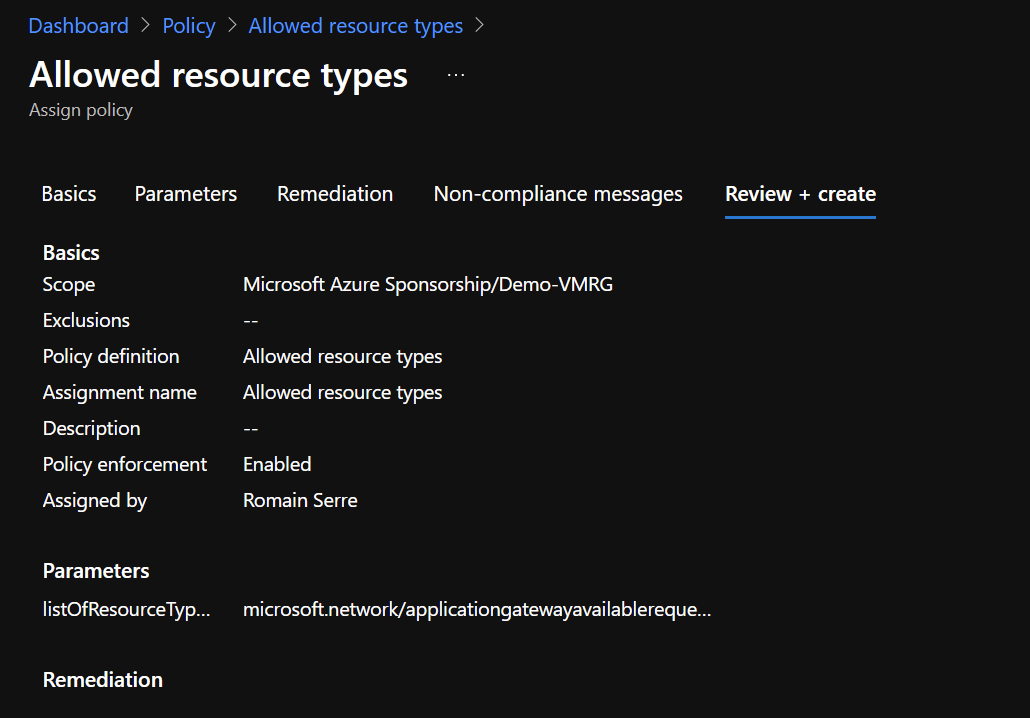
Azure Policy takes effect only on newly created resources. That means that if for example VMs are created inside the resource group we are configuring, the VM will not be removed. However, you won’t be able to create anything else than network resources. Remediation can help you to solve the issues that may arise for the existing resource. For this example, I have created a new resource group, so I don’t have to configure remediation:
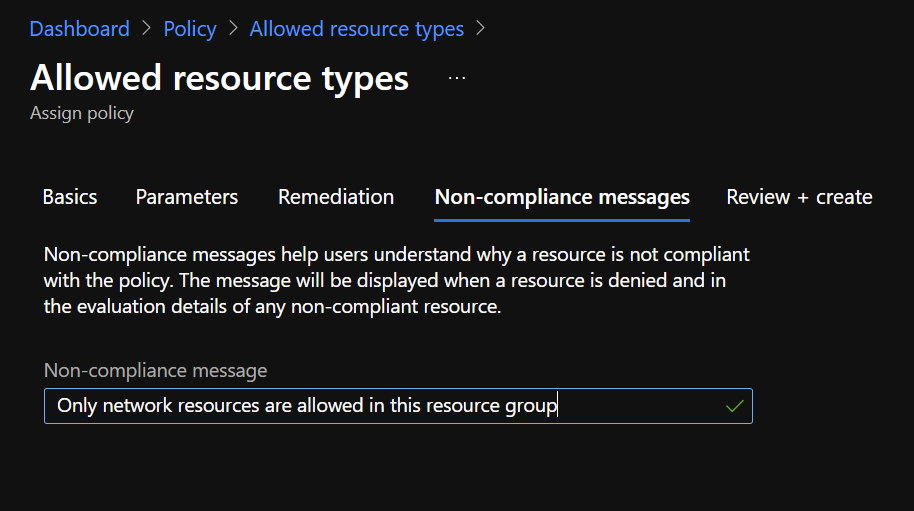
Next, you can add a message to help people understand why a resource is not compliant:
To finish the configuration, you can click on create to assign the policy:
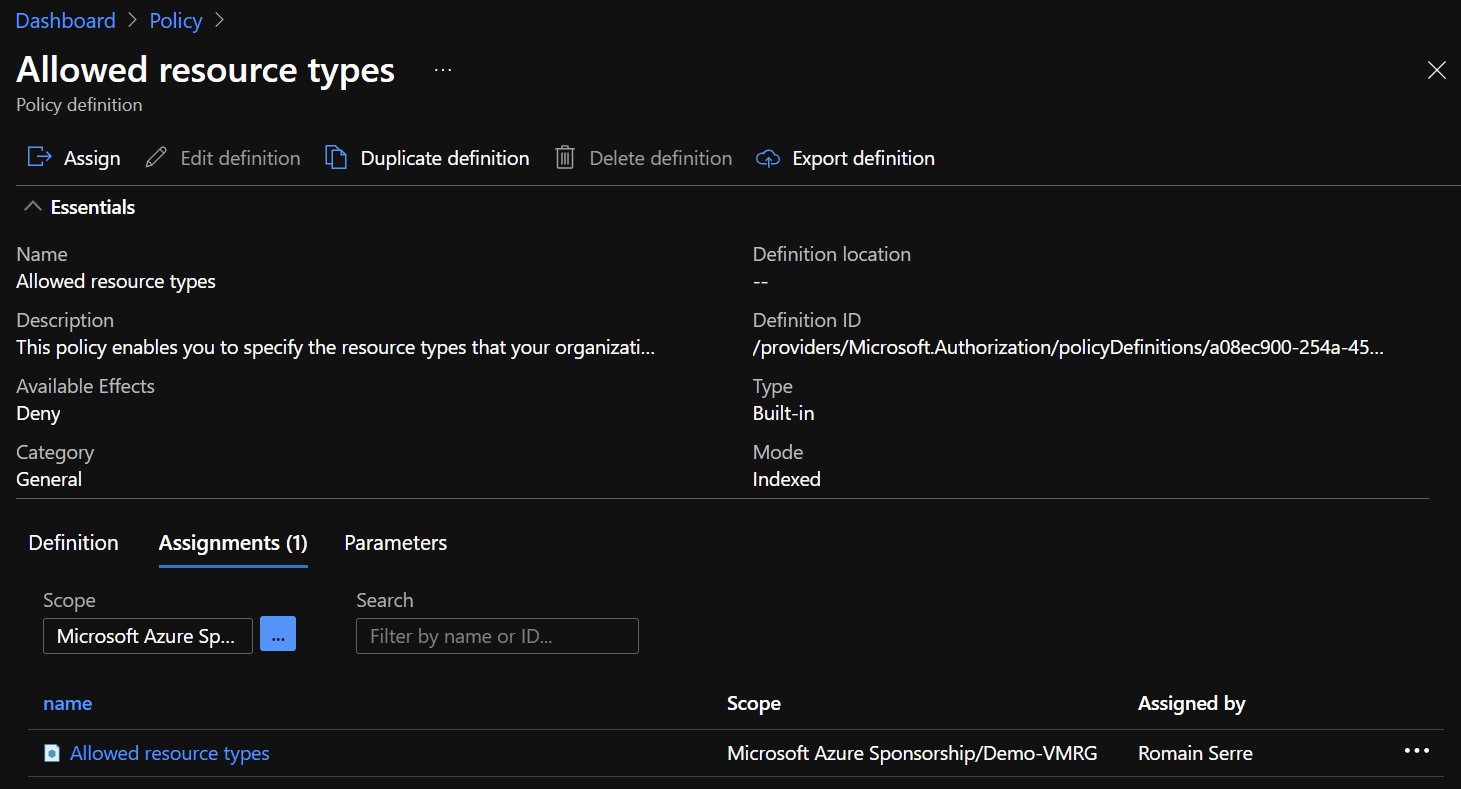
Now, in assignments, you should get the following information:
VSAN from StarWind is software-defined storage (SDS) solution created with restricted budgets and maximum output in mind. It pulls close to 100% of IOPS from existing hardware, ensures high uptime and fault tolerance starting with just two nodes. StarWind VSAN is hypervisor and hardware agnostic, allowing you to forget about hardware restrictions and crazy expensive physical shared storage.
Build your infrastructure with off-the-shelf hardware, scale however you like, increase return on investment (ROI) and enjoy Enterprise-grade virtualization features and benefits at SMB price today!
Test 1: Creation of a VM in the resource group with a tenant owner
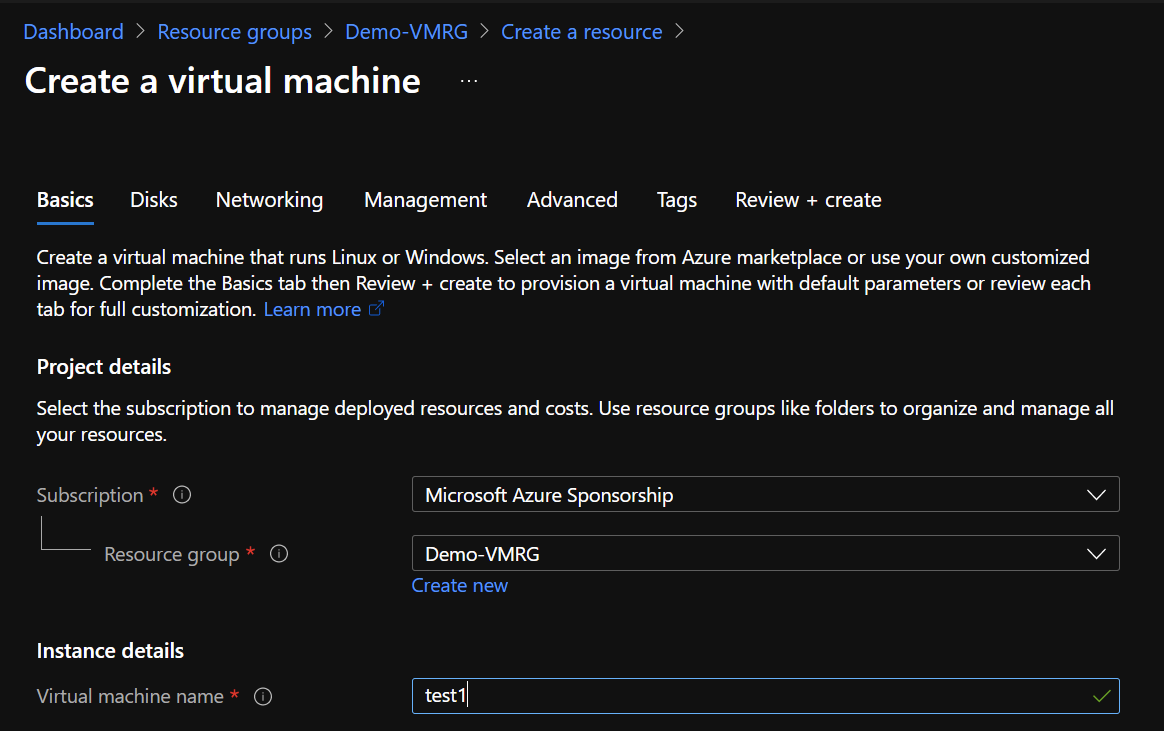
To test the policy, I use my tenant owner user to try to create a VM in my network resource group:
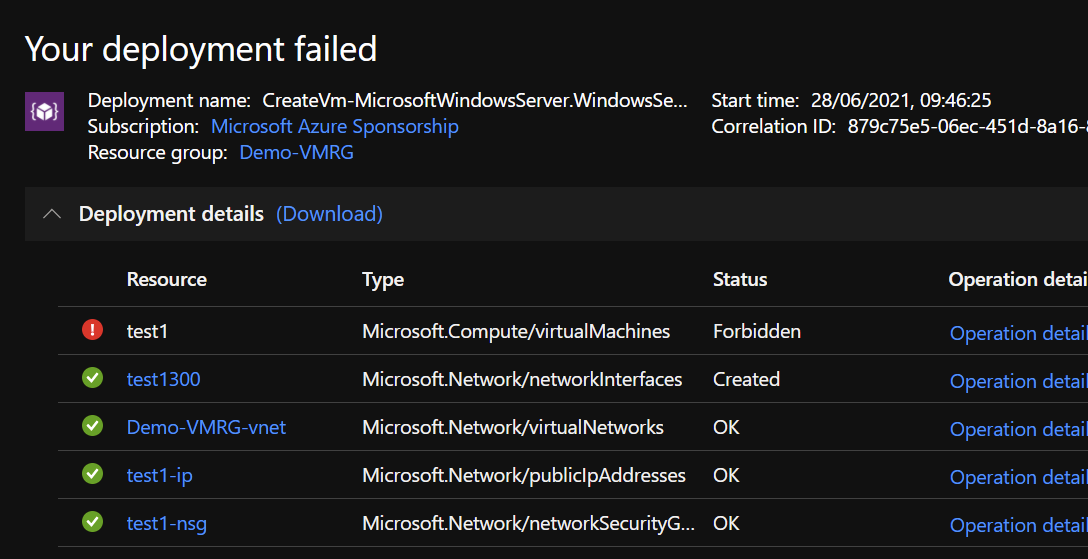
As you can see, all network resources have been created. However, the creation of the VM is forbidden:
Test 2: Create a virtual network with a network contributor
Now I use my netadmins account to create a virtual network in my resource group:
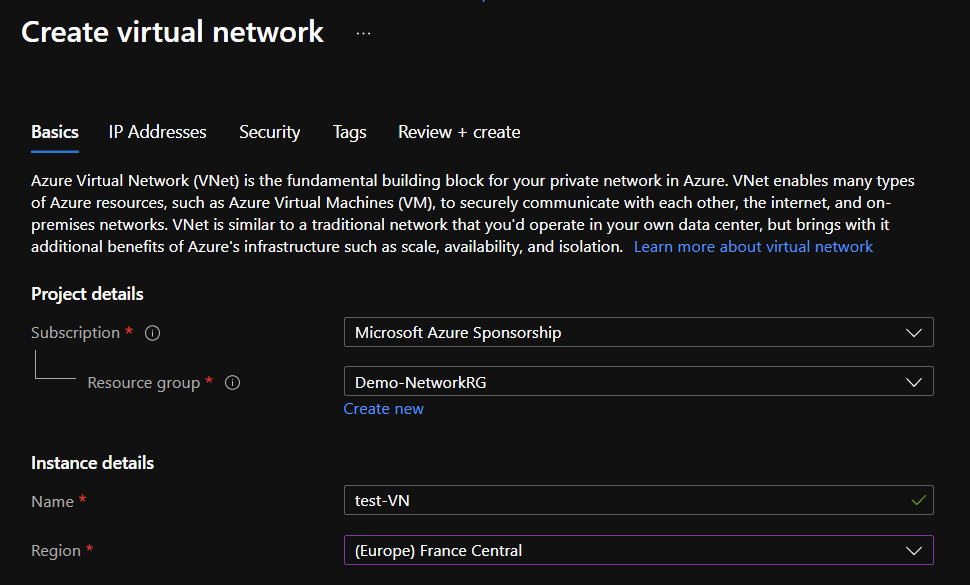
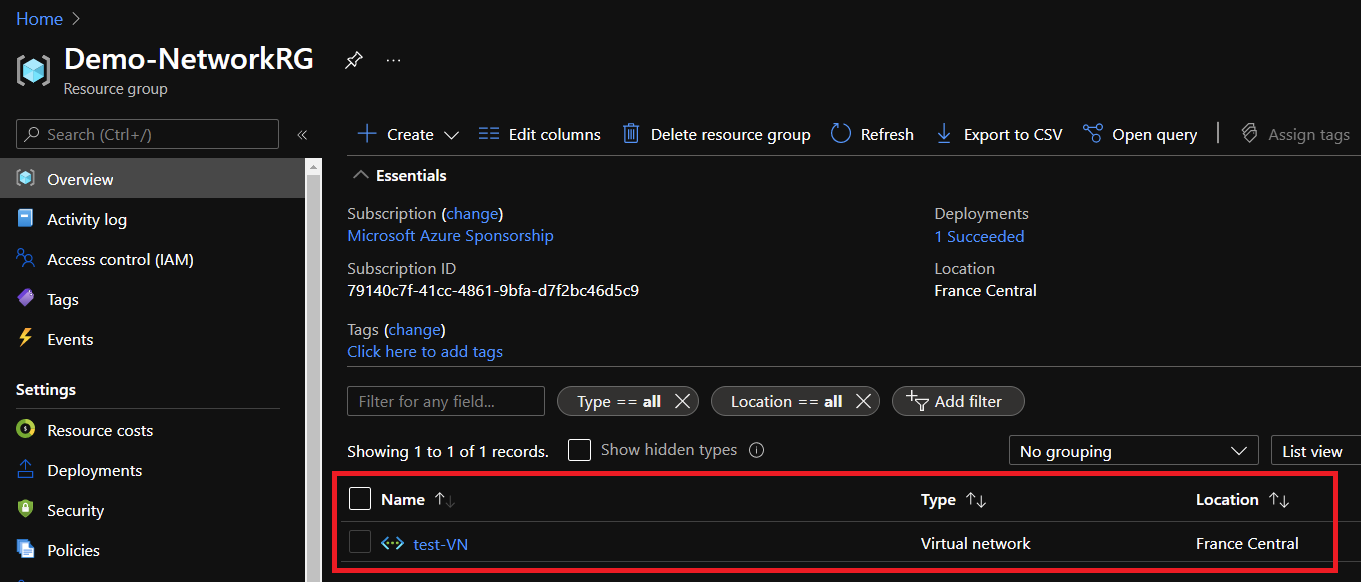
The virtual network was well deployed. So my netadmins account can manage the network resources in this resource group.
Conclusion
Thanks to RBAC, you can configure which users can manage resources in subscription/resource groups/resources. But that doesn’t prevent “super users” with a lot of permissions to create resources where they want. To handle that, you can use Azure Policy to force the resource types you want in designated resource groups. Thanks to Azure Policy, you ensure the conformity of your deployments your established compliance standards.
Related materials:
- Configure Conditional Access to enforce Multi-Factor Authentication to access Azure Portal
- Populate Computer Groups Automatically from Registry Key for Azure Update Management
storage
via StarWind Blog https://ift.tt/2d2CNdl
July 20, 2021 at 03:23PM
Romain Serre
 Stack IT News