How to migrate Active Directory Certificate Services to SHA-2 and Key Storage Provider
Businesses need to migrate from the deprecated SHA-1 to SHA-2 to bolster their cybersecurity posture. They may still be running Active Directory Certificate Services (AD CS) using the SHA-1 cryptographic hash, along with the weaker Cryptographic Service Provider (CSP). In my previous post I discussed
considerations when migrating AD certificate services to SHA-2
. Let’s look at how to replace them with SHA-2 and Key Storage Provider (KSP).
Brandon Lee has been in the IT industry 15+ years and focuses on networking and virtualization. He contributes to the community through various blog posts and technical documentation primarily at
.
Latest posts by Brandon Lee
(see all)
To bring your AD CS infrastructure forward to secure standards, you want to use the modern KSP and SHA-2. These standards are included as part of Microsoft’s Cryptography API: Next Generation (CNG). You will need a Windows Server 2012 operating system or higher to take full advantage of KSP and SHA-2.
In the walkthrough below, we have a Windows Server 2019 Certificate Authority running certificate services using the traditional CSP and SHA-1. While newer Windows Server operating systems will default to the latest standards, Certificate Services may have been migrated from a legacy Windows Server operating system and may have retained the original settings.

Windows Server 2019 Certificate Authority using legacy cryptography settings
If your AD CS is already using KSP and you only need to update them from SHA-1 to SHA-2, you can skip the section about CSP to KSP migration and jump directly to “Migrating the CA hash algorithm to SHA-2.” This might be the case if your CA is running on a Windows Server 2012 server.
Back Up the CA
Before making significant changes to any part of your infrastructure, you want to have good backups. Making changes to AD CS is no exception. To back up the CA, use the following commands (depending on the OS level):
- Windows Server 2012 R2 & higher: Backup-CARoleService –path C:\CA-Backup -Password (Read-Host -Prompt “Enter Password” -AsSecureString)
- Windows Server 2012: Certutil –backup C:\CA-Backup

Make a backup of your AD CS server
After running the command, verify that you have files as expected in the backup folder.

Backup files created in the backup folder for the AD CS server
Next, we want to back up the registry on the CA. To do that, run the following command:
- reg export HKLM\SYSTEM\CurrentControlSet\services\CertSvc c:\<Backup directory>\CAregistry.reg

Export a backup of the CA registry
After exporting the registry, we can stop the CS service. To do so, run the following command from an administrator prompt:

Stop the AD CS service
Get the CA certificate details
Next, we want to view the details of our CA certificates. An easy way to do this is to export the details to a text file, which makes it easy to copy and paste certificate information as needed. Run the following command:
|
certutil -store my > output.txt |

View the details of your CA certificates

They contain the certificate hash and provider details
The next step involves deleting the existing CA certificate and private key. Yes, delete it. We already have a backup, so doing this is safe. However, we can verify a few things. Run the following commands:
|
cd cert:\localmachine\my ls |
From here, compare the values in the output text file created earlier with the details found in the command line. We can see that the thumbprints are the same.

Compare the details in the output file and those from the command line
This thumbprint value is the identity of the certificate we need to delete.

Delete the CA certificate
Migrate the CA certificate and private key to a KSP
Now, we can migrate the CA certificate and private key to the newer KSP. To do so, run a command from the command line, and import the CA certificate that we exported at the beginning. Next, the command changes the CSP to the Microsoft Software KSP.
|
Certutil –csp Microsoft Key Storage Provider -importpfx |

Migrating to the Microsoft Key Storage Provider
Next, we want to export the certificate as a PFX file from the KSP.
|
Certutil –exportpfx my \backupfile.pfx |
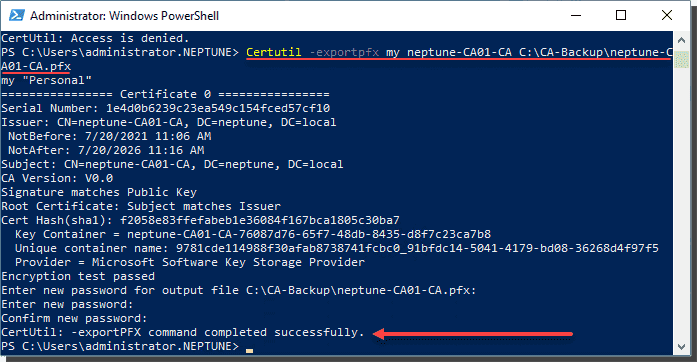
Export the certificate as a PFX file
Restore the PFX file using the command below:
|
Certutil -restorekey c:\\\your backup.pfx |

Restore the exported PFX file to the CA
Import registry settings for the CSP
First, verify that the CA indeed uses SHA-1 as the hash algorithm. Use the following command to do so:
|
Certutil –v –getreg ca\csp\HashAlgorithm |

Verify the SHA 1 hash algorithm
We now need to create two registry files to import to the CA. The first imports the hash algorithm settings to the CA.
|
Windows Registry Editor Version 5.00
[HKEY_LOCAL_MACHINE\SYSTEM\CurrentControlSet\Services\CertSvc\Configuration\ “ProviderType”=dword:00000000 “Provider”=”Microsoft Software Key Storage Provider” “CNGPublicKeyAlgorithm”=”RSA” “CNGHashAlgorithm”=”SHA1” |
Next, do the same thing for the encryption algorithm. Verify that your CA uses 3DES encryption. Use the following command to verify the encryption algorithm used:
|
certutil -v -getreg ca\encryptioncsp\EncryptionAlgorithm |

Verify the encryption algorithm for the CA
Create a registry key with the following contents, replacing your CA server’s common name:
|
Windows Registry Editor Version 5.00
[HKEY_LOCAL_MACHINE\SYSTEM\CurrentControlSet\Services\CertSvc\Configuration\\EncryptionCSP] “ProviderType”=dword:00000000 “Provider”=”Microsoft Software Key Storage Provider” “CNGPublicKeyAlgorithm”=”RSA” “CNGEncryptionAlgorithm”=”3DES” “MachineKeyset”=dword:00000001 “SymmetricKeySize”=dword:000000a8 |
Save the file and merge it into the registry.
Migrating the CA hash algorithm to SHA-2
The process of changing to the SHA256 encryption algorithm is fairly straightforward. We can do this with the certutil command:
|
certutil -setreg ca\csp\CNGHashAlgorithm SHA256 |

Migrate from SHA1 to SHA2
Even after running the above command, the root certificate is still SHA-1.

View the current root certificate from the CA
Hence, we need to renew the certificate. This is not mandatory but is recommended. The new root certificate does not replace the existing one, which will continue to validate all previously issued certificates. They can also chain up to the new root certificate as long as you keep the existing key pair.
Choose Renew CA Certificate under All Tasks for your AD CS CA.

Start the process of renewing the CA certificate
To continue with this operation, confirm the restart of the services. Next, you will be prompted to regenerate the signing key. In most cases, you will not generate a new key pair.

Generating a new signing key is only necessary in a few scenarios e.g. when it has been compromised
After renewing the certificates, you can check the new root certificate in the certificate store and verify that you now see SHA256 for the signature algorithm and hash algorithm.

Verify that the new root certificate hash is now SHA256
To finalize, Active Directory CS needs to be restarted.
Start CS and verify the settings
After importing the registry keys, we are in a position to start AD CS. Ping the service, and verify the provider and hash algorithm. Note the following commands:
|
Start-service certsvc Certutil -ping Certutil -getreg ca\csp\Provider Certutil -getreg ca\csp\CNGHashAlgorithm |
As shown below, we now see both the provider and the hash algorithm reflecting the Microsoft Software KSP and SHA256.
Subscribe to 4sysops newsletter!

Verify all settings after the migration of the CA to SHA 1 and KSP
As shown, the process is tedious but straightforward to migrate from the legacy Microsoft Software CSP and SHA-1 to the newer Microsoft Software KSP and SHA256. However, this is a worthwhile endeavor, as it helps to strengthen the internal PKI infrastructure and cybersecurity posture of internal certificate services hosted by AD CS.
windows
via 4sysops https://4sysops.com
August 9, 2021 at 07:40PM
Brandon Lee
 Stack IT News