Storing BitLocker Recovery Keys in Active Directory
You can use Active Directory to securely store backups of BitLocker recovery keys (passwords) from client computers. It is very convenient if you have multiple users using BitLocker to encrypt their data. You can configure Group Policies in your domain so that when encrypting any drive with BitLocker, the computer will save the recovery key in its computer object account in AD (like storing a local computer administrator password generated using LAPS).
To configure storing BitLocker keys in Active Directory, your infrastructure must meet the following requirements:
- Client computers running Windows 10 or Windows 8.1 with Pro and Enterprise editions;
- AD schema version: Windows Server 2012 or higher;
- Your GPO ADMX files must be updated to the latest versions.
How to Configure Group Policy to Store BitLocker Recovery Keys in AD?
To automatically save (backup) BitLocker recovery keys to the Active Directory domain, you need to configure a special GPO.
- Open the Domain Group Policy Management console (
gpmc.msc), create a new GPO and link it to an OU with the computers you want to enable automatic BitLocker key saving in AD; - Go to Computer Configuration -> Administrative Templates -> Windows Components -> BitLocker Drive Encryption;
- Enable the Store BitLocker recovery information in Active Directory Domain Services policy with the following settings: Require BitLocker backup to AD DS and Select BitLocker recovery information to store: Recovery passwords and key packages;

- Then go to Computer Configuration -> Policies -> Administrative Templates -> Windows Components -> BitLocker Drive Encryption -> Operating System Drives and enable the policy Choose how BitLocker-protected operating system drives can be recovered. Note that it is recommended to check Do not enable BitLocker until recovery information is stored to AD DS for operating system drives. If you check the option, BitLocker will not start drive encryption until the computer saves a new recovery key in AD (if you are a mobile user, you will have to wait for the next connection to the domain network);
- In our case, automatic saving of a BitLocker key is enabled for the operating system drive. If you want to save BitLocker recovery keys for external media devices or other drives, configure a similar policy in these GPO sections: Fixed Data Drives and Removable Data Drives;

- Update Group Policy settings on the clients:
gpupdate /force - Encrypt the system drive of your computer running Windows 10 Pro using BitLocker (Turn BitLocker on);

- Windows 10 will save the BitLocker recovery key for the computer in Active Directory and encrypt the drive.
You may have multiple BitLocker recovery passwords for a single computer (for example, for different removable devices).
If a computer disk is already encrypted using BitLocker, you can manually sync in AD. Run the command:
manage-bde -protectors -get c:
Copy the Numerical Password ID value (for example, 22A6A1F0-1234-2D21-AF2B-7123211335047).
Run the command below to save the recovery key to the current computer’s AD account:
manage-bde -protectors -adbackup C: -id {22A6A1F0-1234-2D21-AF2B-7123211335047}
You will see this message:
Recovery information was successfully backed up to Active Directory
Or you can backup the BitLocker recovery key for your system drive to Active Directory using PowerShell:
BackupToAAD-BitLockerKeyProtector -MountPoint $env:SystemDrive -KeyProtectorId ((Get-BitLockerVolume -MountPoint $env:SystemDrive ).KeyProtector | where {$_.KeyProtectorType -eq "RecoveryPassword" }).KeyProtectorId
How to View and Manage BitLocker Recovery Keys in Active Directory?
To manage BitLocker recovery keys from the Active Directory Users and Computers snap-in (ADUC, dsa.msc), you must install the Remote Server Administration Tools (RSAT).
In Windows Server, you can install the BitLocker Drive Encryption Administration Utility feature using Server Manager (it contains BitLocker Drive Encryption Tools and BitLocker Recovery Password Viewer) .
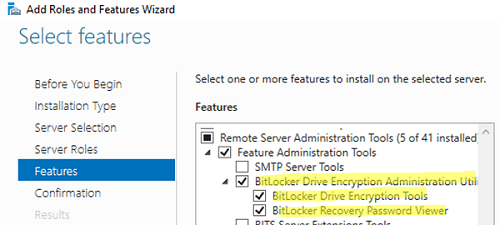
Or you can install these Windows Server features using PowerShell:
Install-WindowsFeature RSAT-Feature-Tools-BitLocker-BdeAducExt, RSAT-Feature-Tools-BitLocker-RemoteAdminTool, RSAT-Feature-Tools-BitLocker

Now, if you open the properties of any computer in the ADUC console, you will see a new BitLocker Recovery tab.
Here you can view when a password was created, get the Password ID and the BitLocker recovery key.

Then if a user forgets his BitLocker password, he can tell the first 8 symbols of the recovery key displayed on the computer screen to the administrator, and the administrator can find the recovery key of the computer in ADUC using Action —> Find BitLocker recovery password and tell it to the user. The recovery password (48-digit number) will help to unlock a Bitlocker-protected drive.


By default, only domain administrators can view BitLocker recovery keys. In Active Directory, you can delegate permissions to view BitLocker recovery keys in a specific OU to any user group. To do it, delegate the permission to view msFVE-RecoveryInformation attribute value.
So, in this article, we have shown how to configure an automatic backup of BitLocker recovery keys in Active Directory. If a user forgets the BitLocker password, you can get it and restore access to the data on the user’s device.
If the BitLocker system information area of the hard drive is damaged, you can try to decrypt the data according to
.
powershell,virtualization,windows
via Windows OS Hub http://woshub.com
September 28, 2021 at 09:01AM
admin
 Stack IT News