Send from Alias (SMTP Proxy Address) in Exchange Online (Microsoft 365)
An Exchange mailbox can be assigned a number of additional SMTP addresses, which are known as proxy addresses (aliases). These addresses allow the user to receive e-mails that are sent to different SMTP addresses. Exchange uses the user’s primary SMTP address when sending e-mail. Exchange Online (Microsoft 365) introduces the ability to send e-mails from an additional SMTP address (alias), assigned to a user’s mailbox.
Previously in Exchange, you could use the Send As feature as a workaround when you needed to send mail on behalf of another user’s, group’s, or shared mailbox’s SMTP address.
Sending on behalf of aliases is disabled in Exchange Online by default. To enable it:
- Connect to Exchange Online using the EXOv2 PowerShell module:
Connect-ExchangeOnline - Verify whether your Microsoft 365 tenant allows sending on behalf of aliases:
Get-OrganizationConfig| ft SendFromAliasEnabled
- In this example SendFromAliasEnabled = False. To enable sending using proxy addresses:
Set-OrganizationConfig -SendFromAliasEnabled $TrueYou can also enable this option from the Exchange Admin Center -> Settings -> Mail flow ->
Turn on sending from aliases.
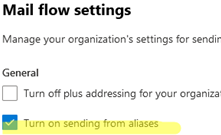
- Now you can use Outlook or Outlook for Web to send e-mails from users’ alternate SMTP addresses.
Add an additional SMTP alias to the user via EAC ( Mailboxes -> select the user -> Email addresses -> Manage Email Address types -> add an additional SMTP address) or using PowerShell:Set-Mailbox max.wolff -EmailAddresses @{add="sysops_alias@woshub.com"}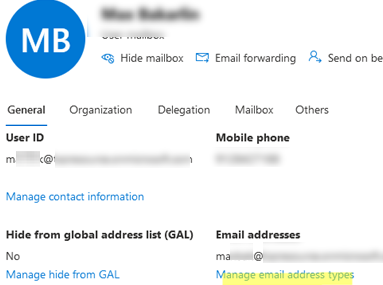
A list of all SMTP addresses assigned to a user mailbox can be displayed in this way:
Get-Mailbox max.wolff | fl EmailAddresses, PrimarySmtpAddress

You can now send an e-mail from any of the additional SMTP addresses.
If you are using Outlook for Web, open your mailbox settings (Settings -> Mail -> Compose and reply). Find out the Addresses to send from section. Here you can check additional SMTP addresses that will be available in the From field when you send an e-mail from Outlook.
Check those of the assigned aliases that you want to use.

Create a new e-mail message and enable the Show From option. You can now choose which SMTP address you want to send the e-mail from.
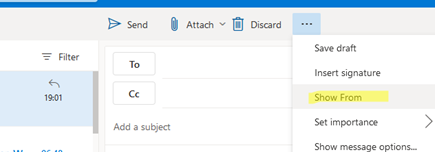
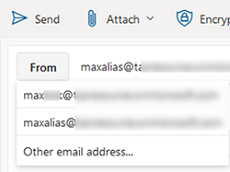
Click on the From field, select the SMTP address from the list, and send an e-mail.
When you trace a message in the Exchange Online logs, it will be displayed with an alias address in the Sender field.
The Send on behalf of aliases feature only works for mailboxes in Exchange Online and is not available for on-premises Exchange Server.
powershell,virtualization,windows
via Windows OS Hub https://woshub.com
April 6, 2023 at 05:07PM
admin
 Stack IT News