Cisco ISE – Admin Certificate Expired – Force De-Register Node from Deployment to fix it
In this article, we take a look at the scenario in which the Admin certificate of one of your ISE nodes has expired, making the node become “stuck”, and how you can force de-register the node from the ISE deployment and fix it.
Introduction
When the Admin certificate of an ISE node in an ISE deployment expires before you had a chance to change it to a new one, the behavior of that ISE node can be unpredictable. Sometimes, that ISE node continues to function for a while before it starts causing issues, giving you a chance to fix its certificate before it’s too late.
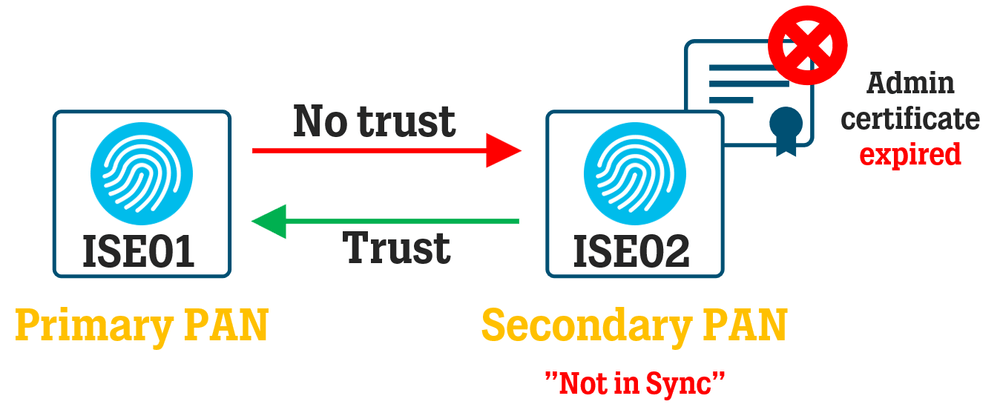
Other times, you are not so lucky, and the ISE node with the expired certificate gets rejected from the ISE deployment because the Primary Policy Administration Node (PAN) is no longer able to establish a two-way trust with the faulty ISE node.
Unfortunately, you cannot access most of the menus on a non-Primary PAN ISE node and fix the certificate issue there because the node is completely controlled by the Primary PAN node. So, to make things right, we might have to take some drastic measures.
In this scenario, we have the nodes ISE01 and ISE02:
-
ISE01 is the Primary PAN (and also an MNT/PSN node).
-
ISE02 is the Secondary PAN (and also an MNT/PSN node). The Admin certificate of ISE02 has expired, leaving it in a “Not in Sync” state. At this point, ISE01 no longer has control of ISE02.
Force De-register the ISE node from the deployment
By visiting a specific URL on the ISE node with the expired Admin certificate, it can be forcibly de-registered from its ISE deployment and put back into Standalone mode, which will give you full access to all of the GUI menus of the ISE node. This allows you to access the certificate management menu, where a new certificate can be installed.
https://<ISE-IP>/deployment-rpc/deregister-node
For example:
https://10.10.10.112/deployment-rpc/deregister-node
At this URL, you will be asked to log in using the Admin account of the ISE node. Enter the username and password and click on Sign In.
After this is done, a somewhat strange message might be displayed:

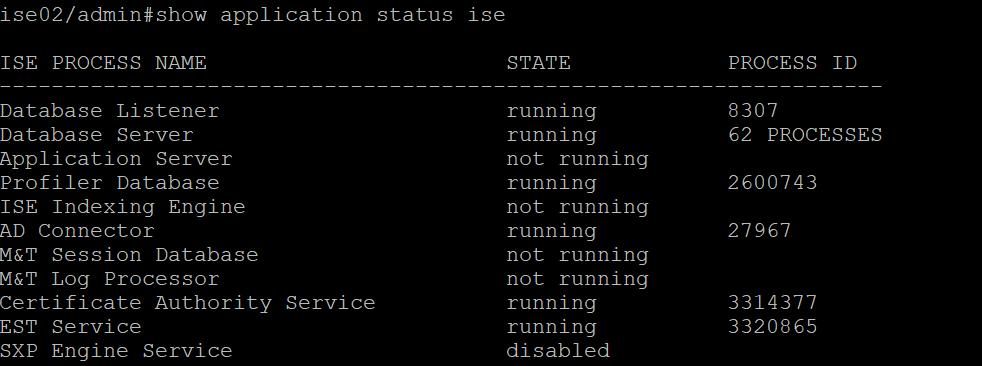
If you now log in to the ISE02 node via SSH/Console and run the “show application status ise” command, you can see that its services are being restarted.
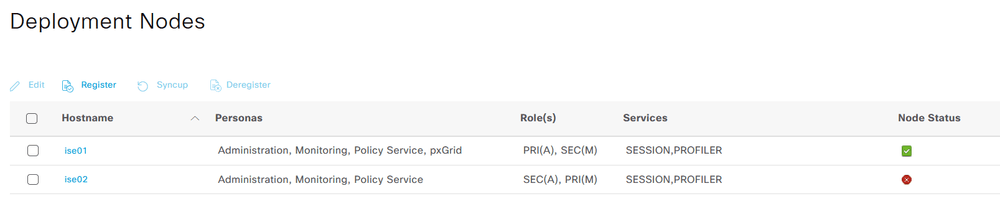
From the view of the rest of the ISE deployment (ISE01 in this case), navigate to Administration > System > Deployment in the Web GUI. You can now see that the ISE02 node is marked as Disconnected in the Node Status column.
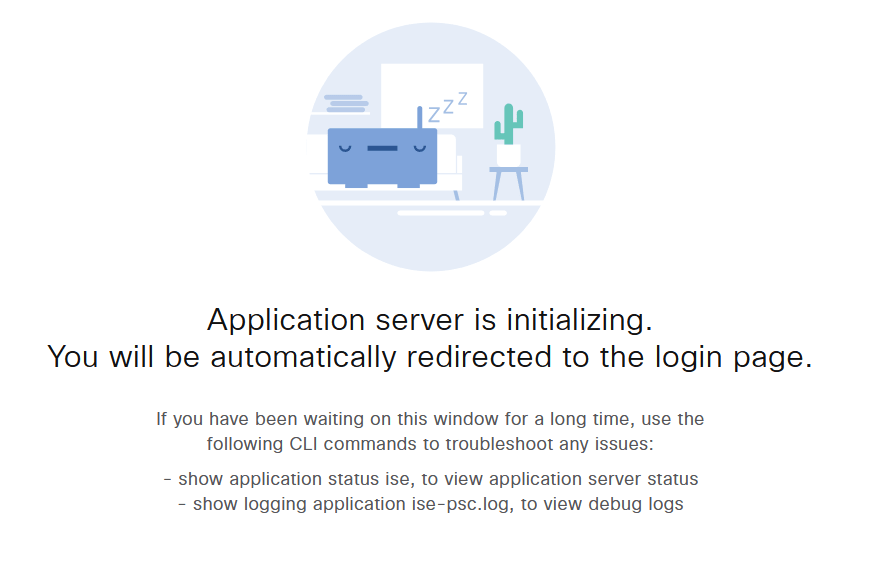
The reboot of the ISE02 node will take some time (longer than a normal restart), but given some time, the Application Server will initialize.
After ISE02 has restarted, it will NOT be removed from deployment as seen from the Primary PAN’s (ISE01) view. It will be put in “Replication Stopped” status.

Clicking on the small info button next to the node status icon will show the following info.
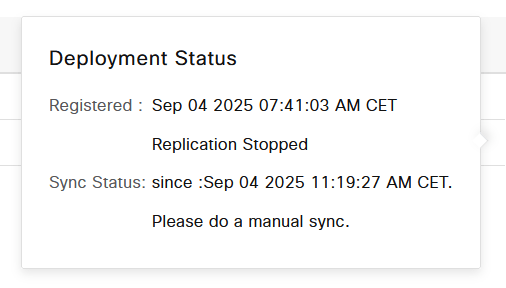
After a few more minutes, ISE02 is now up and running on its own, although ISE01 is not aware of its current state (it is now a Standalone node).
Log into the GUI of ISE02 to confirm it is a Standalone node:
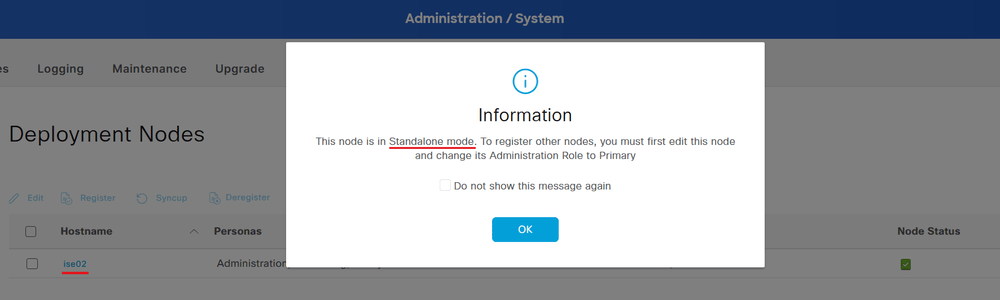
Now’s your chance: you can now import and update the Admin certificate of ISE02 to a valid certificate, which will restart the Application Server once again. This article will not cover the detailed steps of how to get a hold of a new certificate for your ISE node; there are too many ways to do it, depending on your environment and use case.
When ISE02 is up and running again, go back to ISE01 and select to Deregister the ISE02 node from the deployment, so it can be added back later.
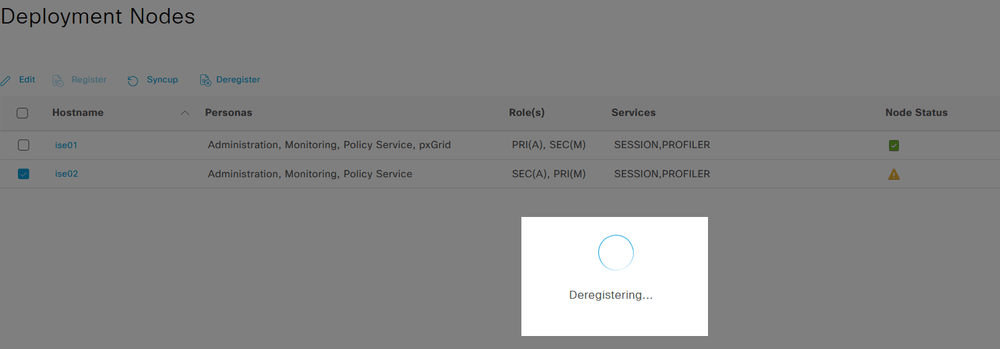
Since the node might not be completely reachable in an ISE sense, there might be an error message telling you that de-registering the node completely was not successful. In any case, ISE02 is now gone from the deployment seen from ISE01.
The last step is to finally re-register ISE02 back to ISE01 from the GUI of ISE01. This will result in the final restart of ISE02’s Application Server process, and after that, it’s good to go as part of the ISE deployment once again.
References
Troubleshoot Expired ISE Admin Certificate – (cisco.com)
networks
via Blog – WIRES AND WI.FI https://ift.tt/HkQ815W
March 15, 2026 at 10:53AM
Jacob Fredriksson
 Stack IT News