Complete Guide to Set up Windows Autopatch
This post is a step-by-step guide to set up Windows Autopatch and configure it. You can use this guide to implement Windows Autopatch in your setup.
In May 2022, the Windows Autopatch service was initially released for Public Preview. Starting July 11, 2022, Autopatch is generally available for customers with Windows Enterprise E3 and E5 licenses.
Before you set up Windows Autopatch Service in Intune and configure it, let’s understand some basics about the Autopatch service. If you want to enable Autopatch for your tenant, ensure you understand its capabilities and what this can service can do.
What is Windows Autopatch?
Windows Autopatch is a cloud service that automates Windows, Microsoft 365 Apps for enterprise, Microsoft Edge, and Microsoft Teams updates to improve security and productivity across your organization. It’s a new and useful service by Microsoft that follows best practices of updating the Windows 10/11, Microsoft Edge, and Microsoft 365 software.
Windows Autopatch can take over software update management of supported devices as soon as an IT admin decides to have their tenant managed by the service.
Prerequisites for Windows Autopatch
Let’s understand what prerequisite do you need to set up Windows Autopatch:
- Windows Autopatch requires Windows 10/11 Enterprise E3 (or higher) to be assigned to your users.
- You will also require Azure Active Directory Premium. The user accounts must exist in Azure Active Directory or the accounts must be synchronized from on-premises Active Directory to Azure AD using Azure AD connect.
- Autopatch devices will require connectivity to multiple Microsoft service endpoints from the corporate network.
- Windows Autopatch devices must be managed by Microsoft Intune. Intune should be set as the Mobile Device Management (MDM) authority or co-management must be turned on and enabled on the target devices.
Autopatch Licensing Details
Windows Autopatch is available for following licenses:
- Microsoft 365 E3
- Microsoft 365 E5
- Windows 10/11 Enterprise E3
- Windows 10/11 Enterprise E5
- Windows 10/11 Enterprise VDA
Note: Windows Autopatch is available at no extra cost to Windows Enterprise E3 and above license holders.
Windows Autopatch Missing in Intune Portal
There is a reason why the Windows Autopatch Tenant Enrollment blade is missing in Intune portal. That’s because either you haven’t assigned proper licenses to devices or the Autopatch Service prerequisites are not met.
The below screenshot illustrates the issue where the Autopatch Tenant Enrollment blade is missing in the Intune portal.

Once you have met all the required Windows Autopatch prerequisites and assigned proper licenses to your users, the Windows Autopatch Tenant Enrollment option appears in Endpoint Manager portal.

Windows Autopatch Supported Operating Systems
The following Windows 64-bit editions are required for Windows Autopatch:
- Windows 10/11 Pro
- Windows 10/11 Enterprise
- Windows 10/11 Pro for Workstations
Enroll in Windows Autopatch
There are multiple steps that you need to perform to enroll in Windows Autopatch. While performing each of these steps, ensure you use an account that is Global Administrator.
Step 1. Review All Autopatch Service Prerequisites
Before you enroll your tenant in Windows Autopatch, you must meet all the prerequisites required by Autopatch Service. For more information, refer to Windows Autopatch prerequisites documentation.
Step 2. Run the Readiness Assessment Tool
The Readiness assessment tool checks the readiness of your tenant to enroll in Windows Autopatch for the first time. You cannot run this tool once you enroll your tenant for Autopatch service.
This tool should be run before you enroll your tenant in Autopatch. It checks the settings in Microsoft Endpoint Manager (Microsoft Intune) and Azure Active Directory (Azure AD) to ensure they’ll work with Windows Autopatch.
If you have not run the Readiness Assessment tool for Autopatch Service, you will see the message Assessment not started – Select Run checks to begin assessment.
Use the following steps to run the Readiness Assessment Tool:
- Sign in to the Microsoft Endpoint Manager admin center.
- Select Tenant Administration and navigate to Windows Autopatch Tenant enrollment.
- Click on Run Checks to initiate Readiness Assessment Tool.
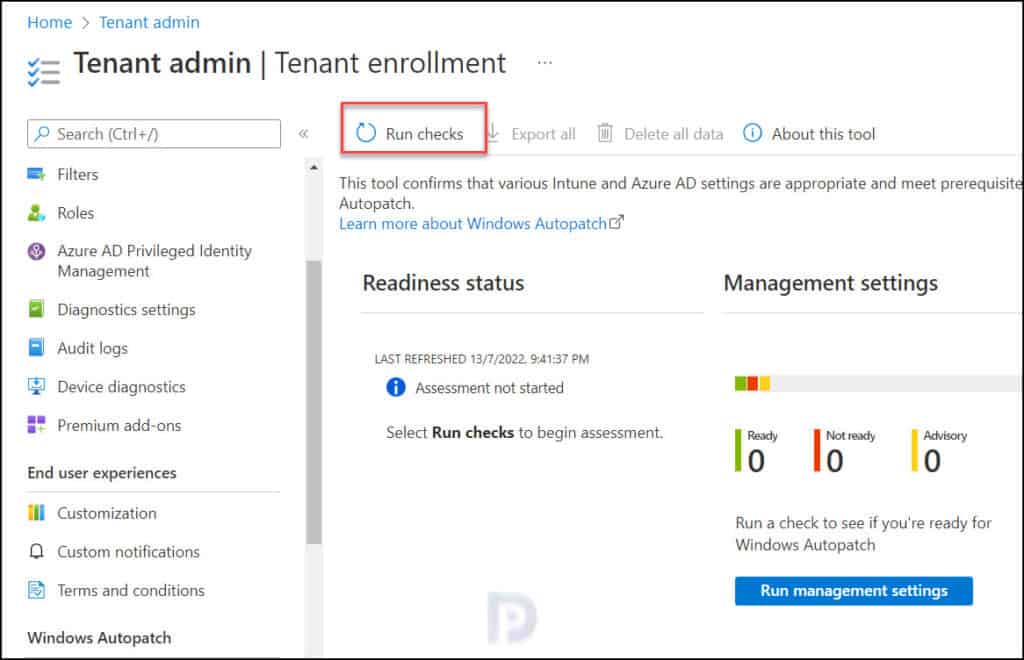
The Readiness Assessment tool will now run in the background to determine if your tenant is ready for Windows Autopatch. Any issues with your tenant will be reported by this tool.
In case the assessment tool finds an error, you cannot enroll your tenant in Autopatch until you fix it. If you notice advisory warnings, try to fix them before you begin enrollment.
Once all the management settings checks are completed, A notification will appear automatically in the top right-hand corner with a message – “Management Settings Checks are complete”.
The following message confirms that your tenant is ready for Windows Autopatch enrollment. Ready – You are ready to enroll in Windows Autopatch.

List of Readiness Statuses of Windows Autopatch Enrollment
After the Readiness Assessment Tool completes its operation, the tool shows the status which can have these options:
- Ready: This means your tenant is ready for Autopatch enrollment.
- Advisory: With Advisory status, you can continue enrolling your tenant however it is good to resolve those issues. If you skip them, you cannot run the Readiness Assessment Tool again.
- Not Ready: This means you cannot enroll your tenant for Autopatch. You have to fix these errors that prevent the enrollment. Clicking the error will show the steps to resolve the error.
- Error: This means your tenant hasn’t met prerequisites for Autopatch enrollment. The Azure Active Directory (AD) role you’re using doesn’t have sufficient permissions to run this check.
Step 3: Start Windows Autopatch Enrollment
Once the Readiness Assessment Tool shows the status as Ready, click Enroll to proceed with the enrollment of your tenant to the Windows Autopatch service.

You must allow administrator access for Microsoft for the following:
- Create accounts to manage and license your registered devices.
- Manage devices using Intune
- Collect and share info on usage, status, and compliance for devices and apps.
- Remove Microsoft administrator accounts from Multifactor authentication and conditional access policies.
Select the checkbox to provide consent to the terms and conditions and allow administrator access for Microsoft and click Agree.

On the Welcome screen, provide the contact info for your organization’s Windows Autopatch admin. The mandatory details include: Phone number, Email address, Name and preferred language. Click Complete.

Now we see Setting up Windows Autopatch message. The Autopatch service set up takes few minutes to complete.

After few minutes, we see Windows Autopatch setup is complete. This confirms that you have successfully enrolled your tenant for Windows Autopatch service.

Step 4. Windows Autopatch Device Registration
Once you enroll in Windows Autopatch, the first step that you need to register your devices with this service. You can begin by registering few devices and test the Autopatch service.
When you register devices for Autopatch service, the Windows Autopatch will take over software update management of these devices. For initial testing, you can add few test devices and even Windows 365 Cloud PCs are also be registered.
You can use one of the following built-in roles in Windows Autopatch to register devices:
- Azure AD Global Administrator
- Intune Service Administrator
- Modern Workplace Intune Administrator
Note: Devices that are intended to be managed by the Windows Autopatch service must be added into the Windows Autopatch Device Registration Azure AD assigned group. You can add the devices either through direct membership or other Azure Active Directory dynamic or assigned groups as nested groups in the Windows Autopatch Device Registration group.
The steps to register devices into Windows Autopatch are as follows:
- Sign in to the Microsoft Endpoint Manager admin center.
- Select Windows Autopatch from the left navigation menu and select Devices.
- Select the Ready tab, then select the Windows Autopatch Device Registration hyperlink. The Azure Active Directory group blade opens.
- Add either devices through direct membership, or other Azure Active Directory dynamic or assigned groups as nested groups in the Windows Autopatch Device Registration group.

Once you add members (devices) to Windows Autopatch, a notification appears in the top right-handcorner with a message “Group members successfully added“.
Once you have added the devices or Azure AD groups containing devices to the Windows Autopatch Device Registration group, the Autopatch discovers these devices, and runs software-based prerequisite checks to try to register them with its service.

Missing Devices under Windows Autopatch Device Registration?
After registering the devices with Windows Autopatch service, you may notice that under Windows Autopatch Device Registration the devices are missing. This happens because the Windows Autopatch automatically runs every hour to discover new devices added to this group. Once new devices are discovered, Windows Autopatch attempts to register these devices and devices will be visible under device registration section.
Step 5. Manually Discover Devices for Windows Autopatch
Initially when you register devices with Autopatch, it can take up to an hour for registered devices to appear in the console.
You can manually discover registered devices in Autopatch with following steps. Go to Tenant Administration > Windows Autopatch – Tenant Enrollment > Tenant Admin > Devices. Now for Windows Autopatch devices, click Discover Devices.

The following message box appears: Discover devices – Scan Windows Autopatch Device Registration group to register devices for recently added members. This process can up to an hour. Click OK to begin the device discovery process.

In few seconds, you will see the devices are discovered and listed under Discover Devices.

Step 6. Update Rings in Windows Autopatch
Each of the update rings in Windows Autopatch has a different purpose and assigned a set of policies to control the rollout of updates in each management area.
After you enroll a device into the Windows Autopatch service, you assign an update ring for the device and based on the update ring, update management happens. Each ring has a description, and it is listed below.
There are four rings provided by Windows Autopatch and you can’t create additional rings for managed devices.
- Automatic: Select Automatic when you want Microsoft Managed Desktop to automatically assign devices to one of the other groups.
- Test: Devices in this group are intended for your IT Administrators and testers since changes are released here first.
- First: The First ring is the first group of production users to receive a change. This group is the first set of devices to send data to Windows Autopatch.
- Fast: The Fast ring is the second group of production users to receive changes.
- Broad: The Broad ring is the last group of users to receive changes.
Step 7. Adding Devices to Update Rings in Windows Autopatch
To assign update ring to devices, go to Windows Autopatch – Devices and click Device Actions. Now select Assign device group and select the devices that you want to assign an update ring.
Note: You must use the same steps to change the update ring for device(s).

You must now select a deployment group to assign the device. The available options are Automatic, Test, First, Fast and Broad. Select an option and your devices will be added to that deployment group. You cannot add a device to more than one deployment group.

Now we see the devices have been added to Fast deployment group. You can change the deployment group when you feel a device needs to be added to a different update ring.

During enrollment, Windows Autopatch creates four Azure Active Directory groups that are used to segment devices into update rings:
- Modern Workplace Devices – Test
- Modern Workplace Devices – First
- Modern Workplace Devices – Fast
- Modern Workplace Devices – Broad
You can view these groups in Azure portal or even in Intune Portal. Go to Groups and select All Groups. You can search for “Modern Workplace Devices – Windows Autopatch” to view all the Autopatch Azure AD groups.

Step 8. Verify Autopatch Deployment on Client
Login to the device that is part of deployment group and wait for sync to happen. Once it is complete, you can see new Windows Update rings policies are applied.
The device will download and install the patch based upon the update rings settings. You will see the notification generated to restart the device with Grace period specified for one of the deployment rings.
The below screenshot shows an example of what the user sees when Windows Autopatch software update deployment is successful. The user can pick a time to restart the computer, set to restart tonight or can immediately restart with Restart now option.

it,virtualization,System Center,windows,microsoft
via Prajwal Desai https://ift.tt/ivnb7TR
July 13, 2022 at 07:32PM
Prajwal Desai
 Stack IT News