Windows LAPS Management, Configuration and Troubleshooting Using Microsoft Intune
Windows Local Administrator Password Solution (Windows LAPS) is a Windows Feature that allows IT Administrators to secure and protect local administrator passwords. This includes automatic rotation of passwords as well as backing up the passwords to Azure Active Directory or Active Directory. You can configure Windows LAPS on your Windows endpoints using Microsoft Intune.
Pre-requisites
To use Windows LAPS in Intune, ensure you’re using a supported Windows platform:
You might also have to enable Azure AD Local Administrator Password Solution (LAPS) within your Azure Tenant.
- Azure Active Directory > Devices > Device Settings > Azure AD Local Administrator Password Solution (LAPS)
Note: You may not have to do this once the product is out of Public Preview.
Configure LAPS with Intune
Create Account Protection Policy
In the Microsoft Intune Portal (Intune.Microsoft.com) go to Endpoint Security > Account Protection and click + Create Policy
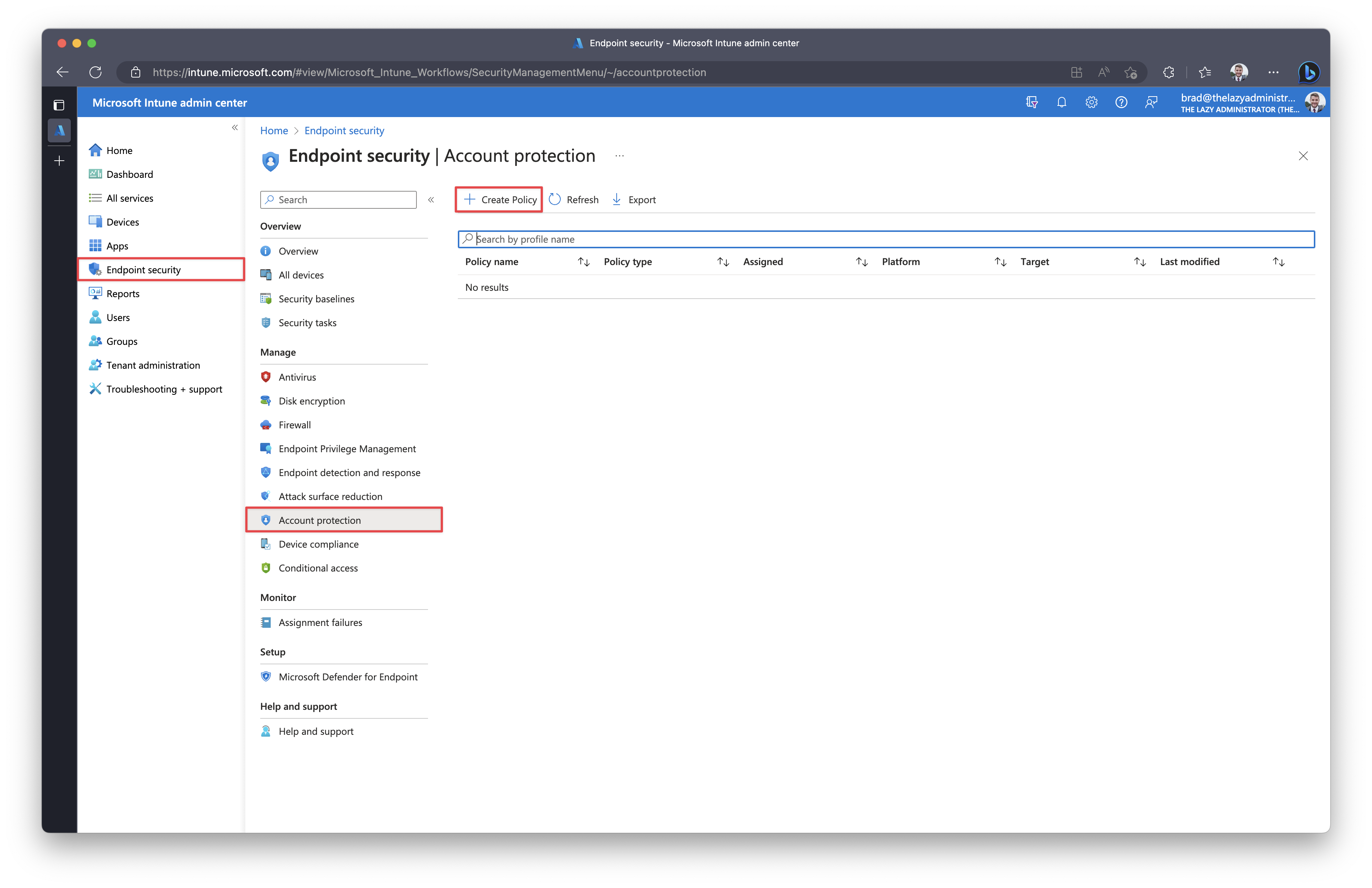
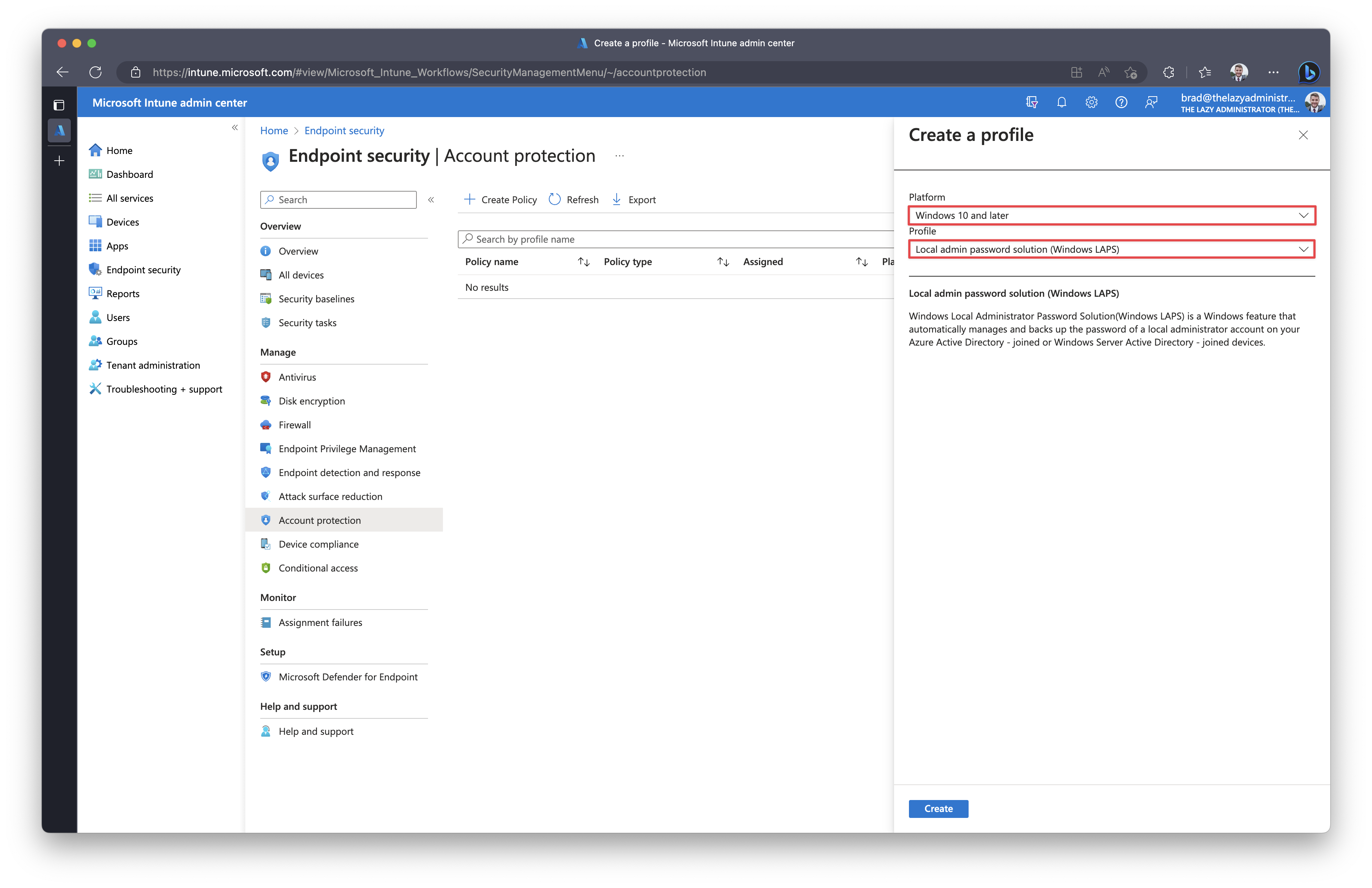
For Platform select, “Windows 10 or later” and for Profile select, “Local admin password solution (Windows LAPS)”
Once completed, click Create
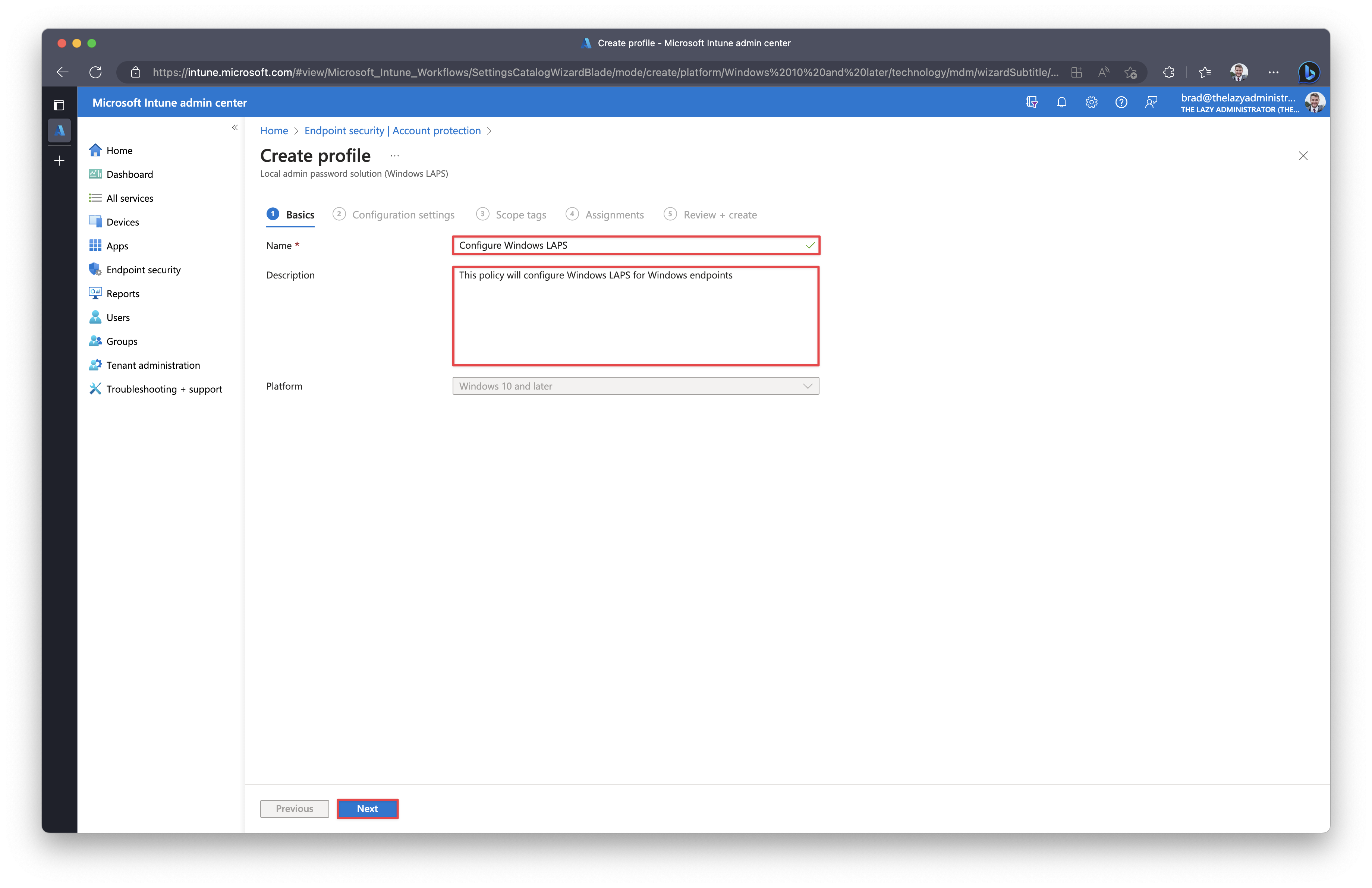
Give your new policy a proper name and description (optional) and then click Next
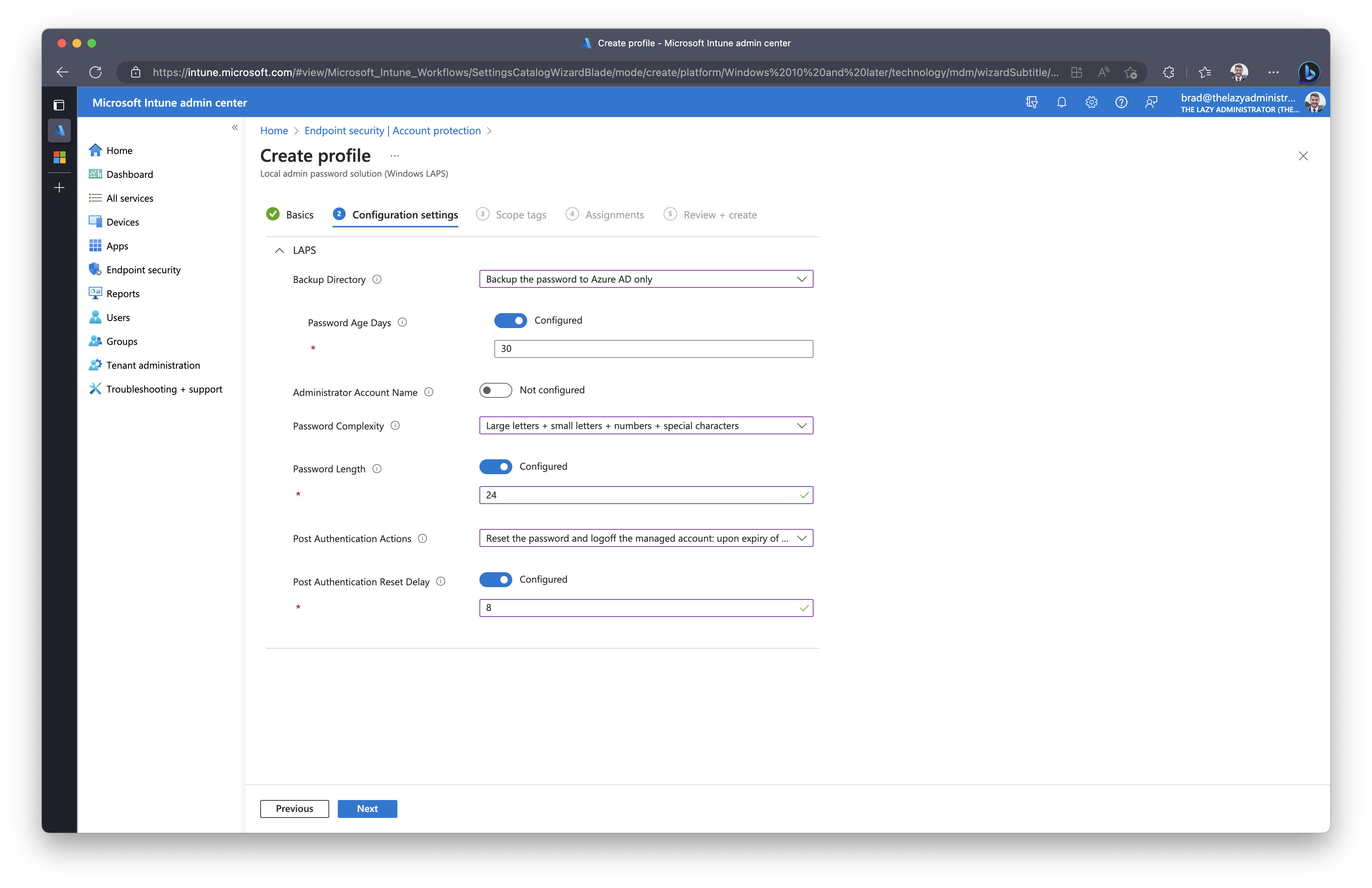
Configuration Settings
Below I will review the different configuration options that are available. Microsoft also maintains documentation for all settings here.
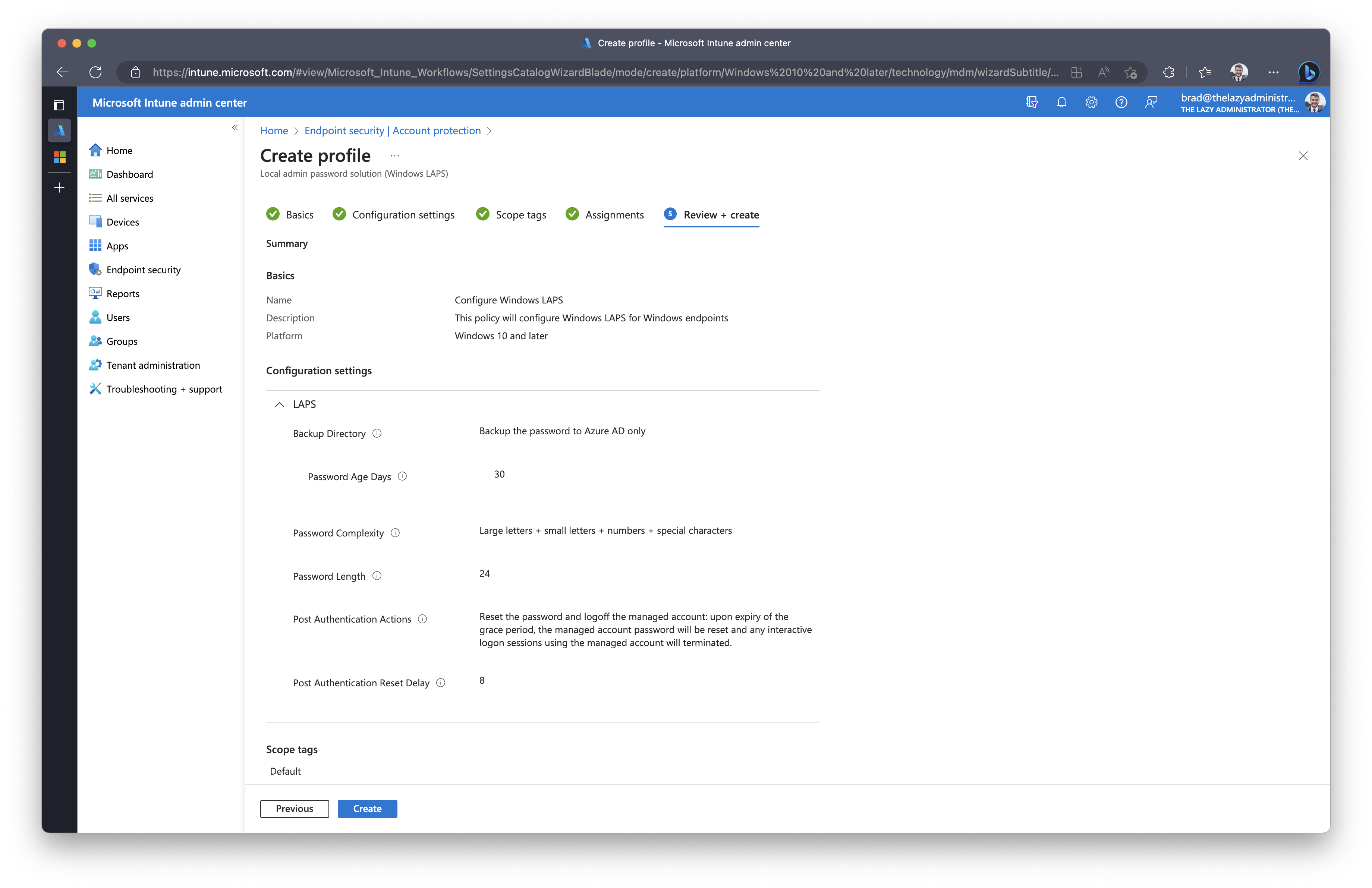
Backup Directory: Allows you to backup the Local Administrator password to Azure Active Directory or Active Directory.
Administrator Account Name: If configured, the specified account’s password will be managed via the policy. If not specified, the default built-in local administrator account will be located by well-known SID (even if it has been renamed)
Note: if a custom managed local administrator account name is specified in this setting, that account must be created via other means. Specifying a name in this setting will not cause the account to be created.
Password Complexity: Allows an IT admin to configure password complexity of the managed local administrator account.
Password Length: Configure the length of the password. By default the value is 14, the minimum value is 8 and maximum value is 64.
Post Authentication Actions: This setting specifies what LAPS should do with the account after a successful authentication. By default it will log off the managed account and reset the password.
Post Authentication Reset Delay: How long it will wait until it performs the Post Authentication Action that we specified above. Default is 24 hours.
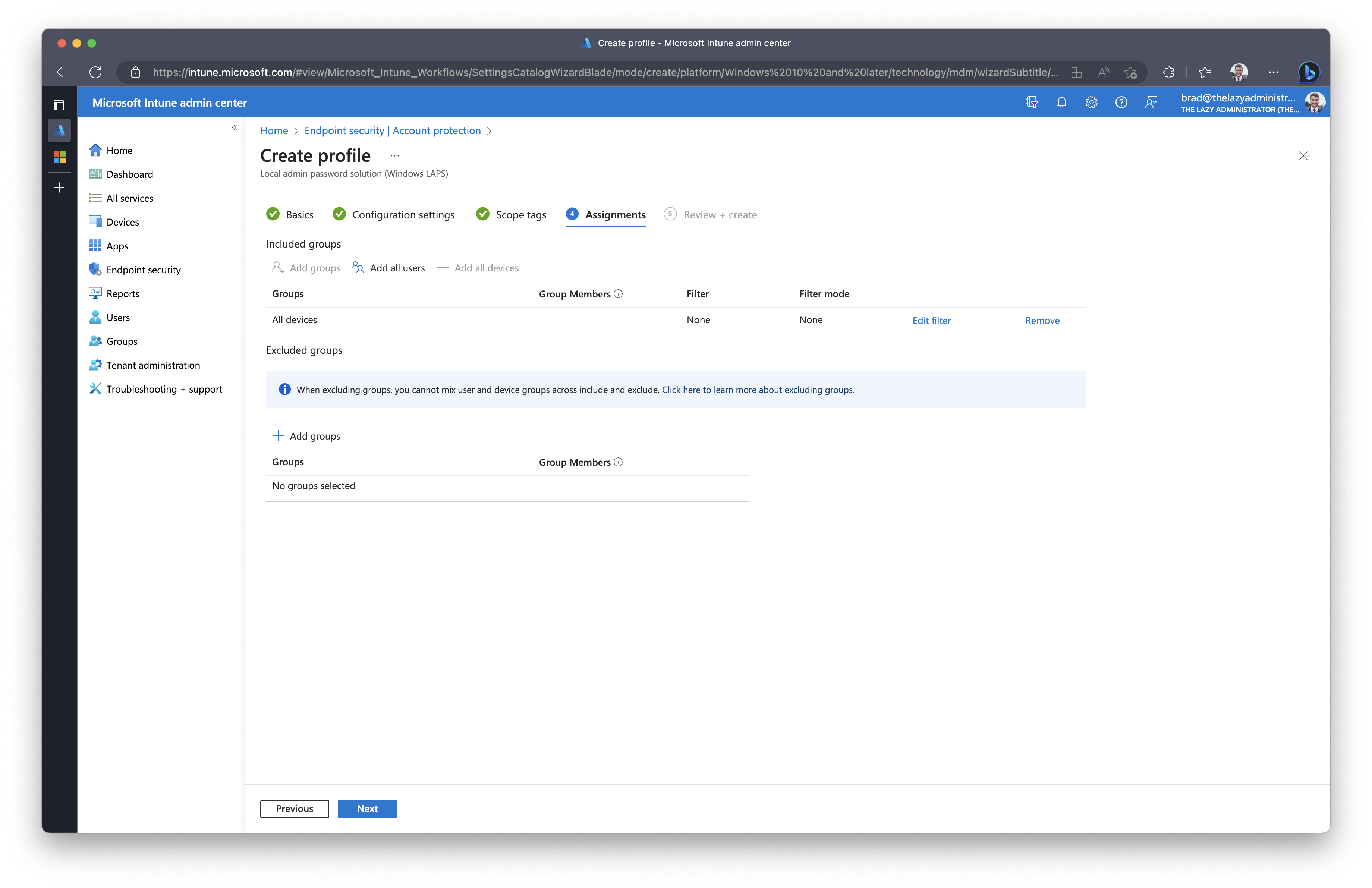
In the Assignments tab, assign the new policy to a group, device, or user(s).
In the Review + Create pane, verify the policy meets your requirements prior to finishing.
Viewing a Device’s Local Admin Password
There are several ways an IT administrator can view an endpoints local administrator password, from the Intune Admin Portal, Microsoft Entra, to even using PowerShell.
Microsoft Entra
First, navigate to the Microsoft Entra admin portal here.
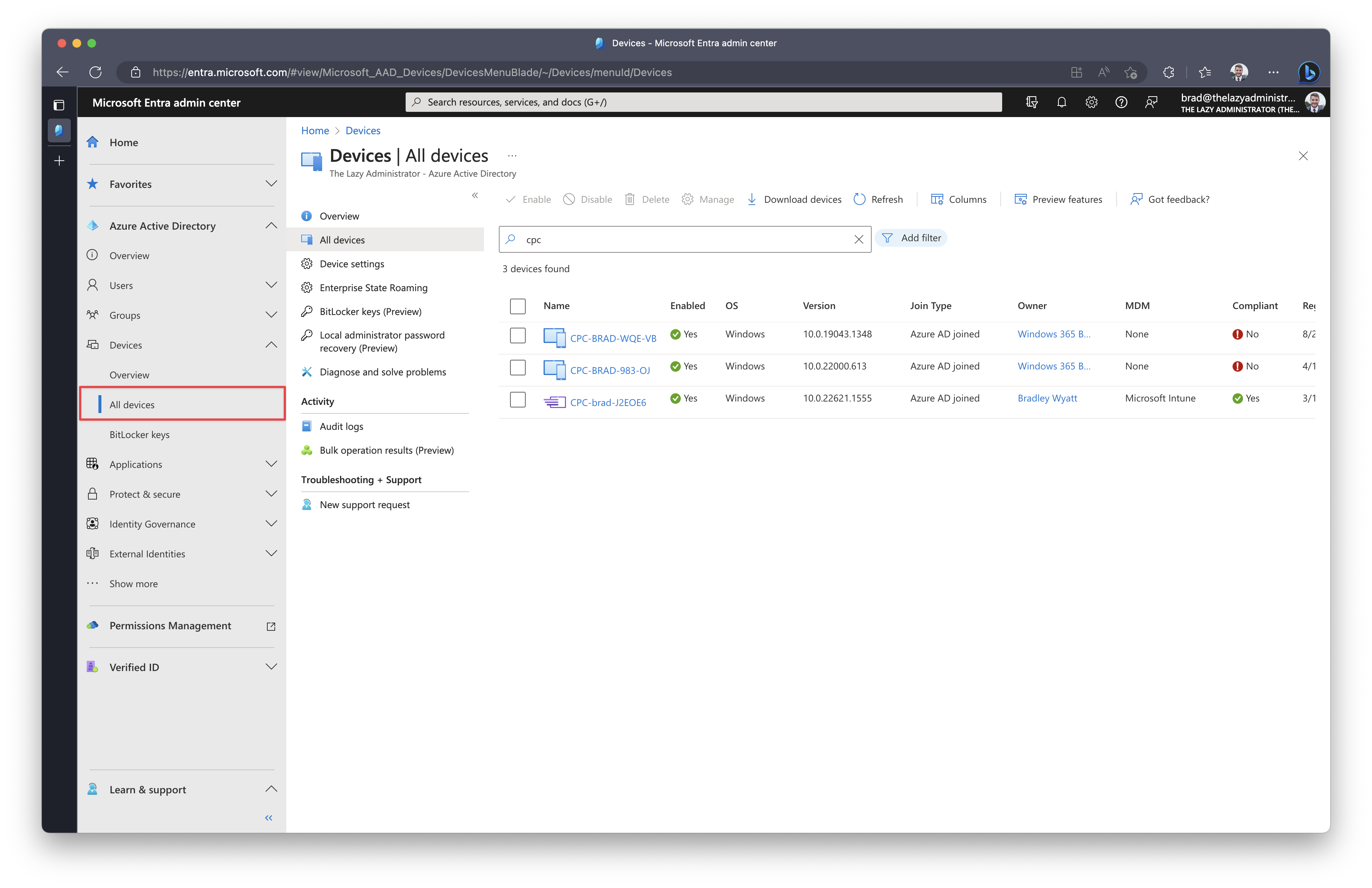
On the left pane under Azure Active Directory > Devices > click All Devices
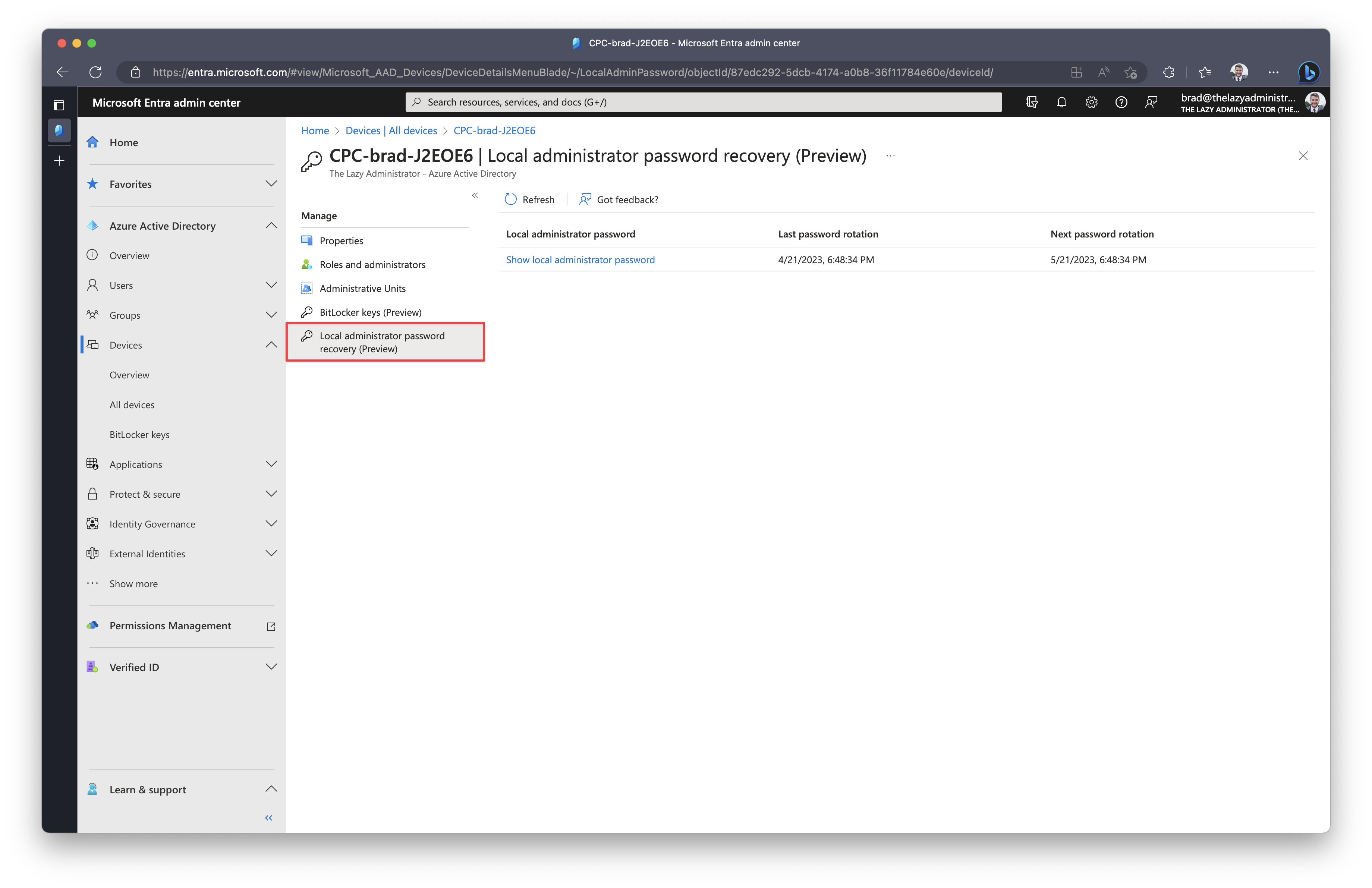
On the left pane you can select Local Administrator Password Recovery and from there show the administrator password.
Intune Portal
Navigate to the Intune Portal at intune.microsoft.com and go to Devices and then select your device. On the left Pane you will see Local admin password.
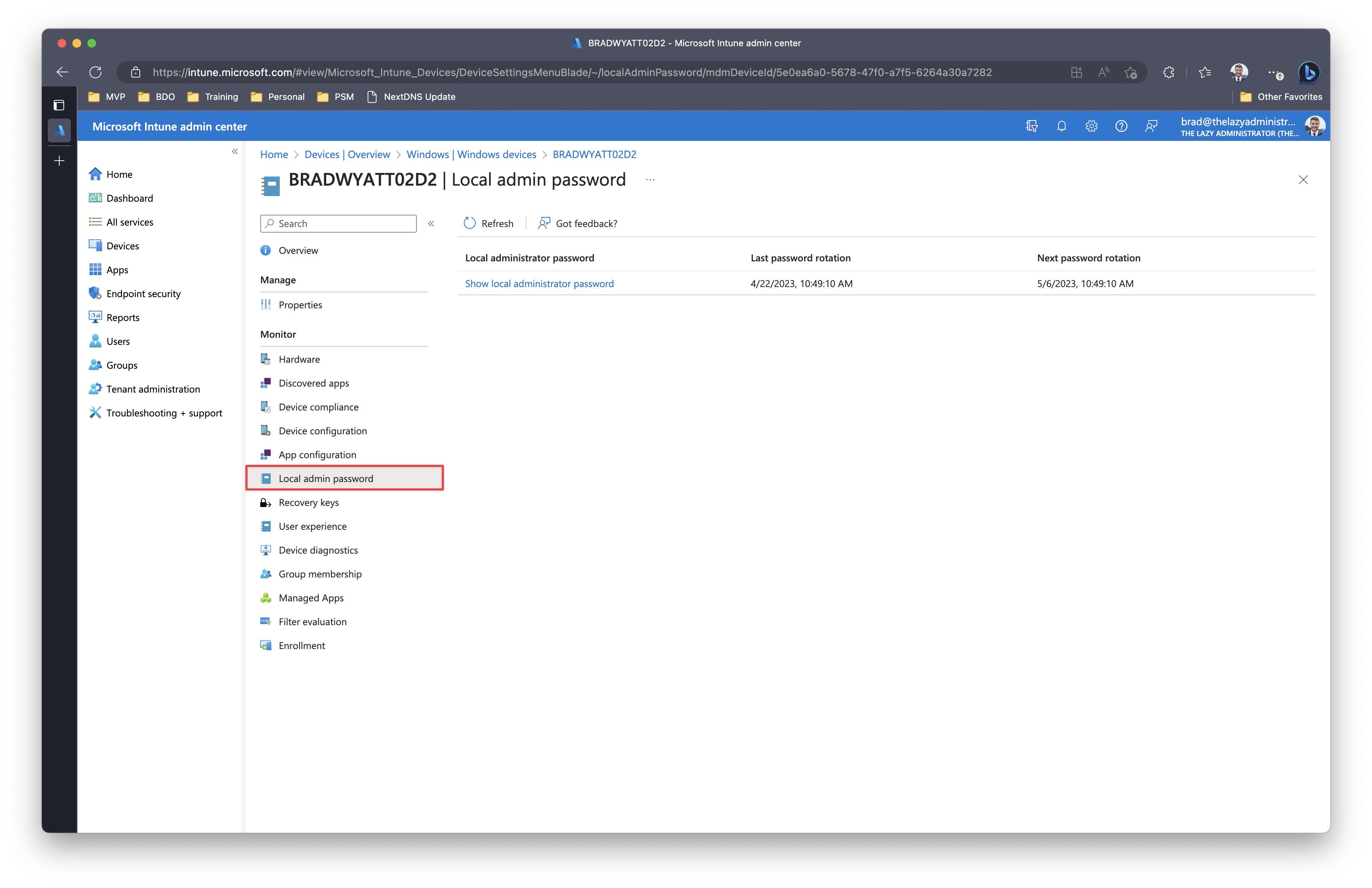
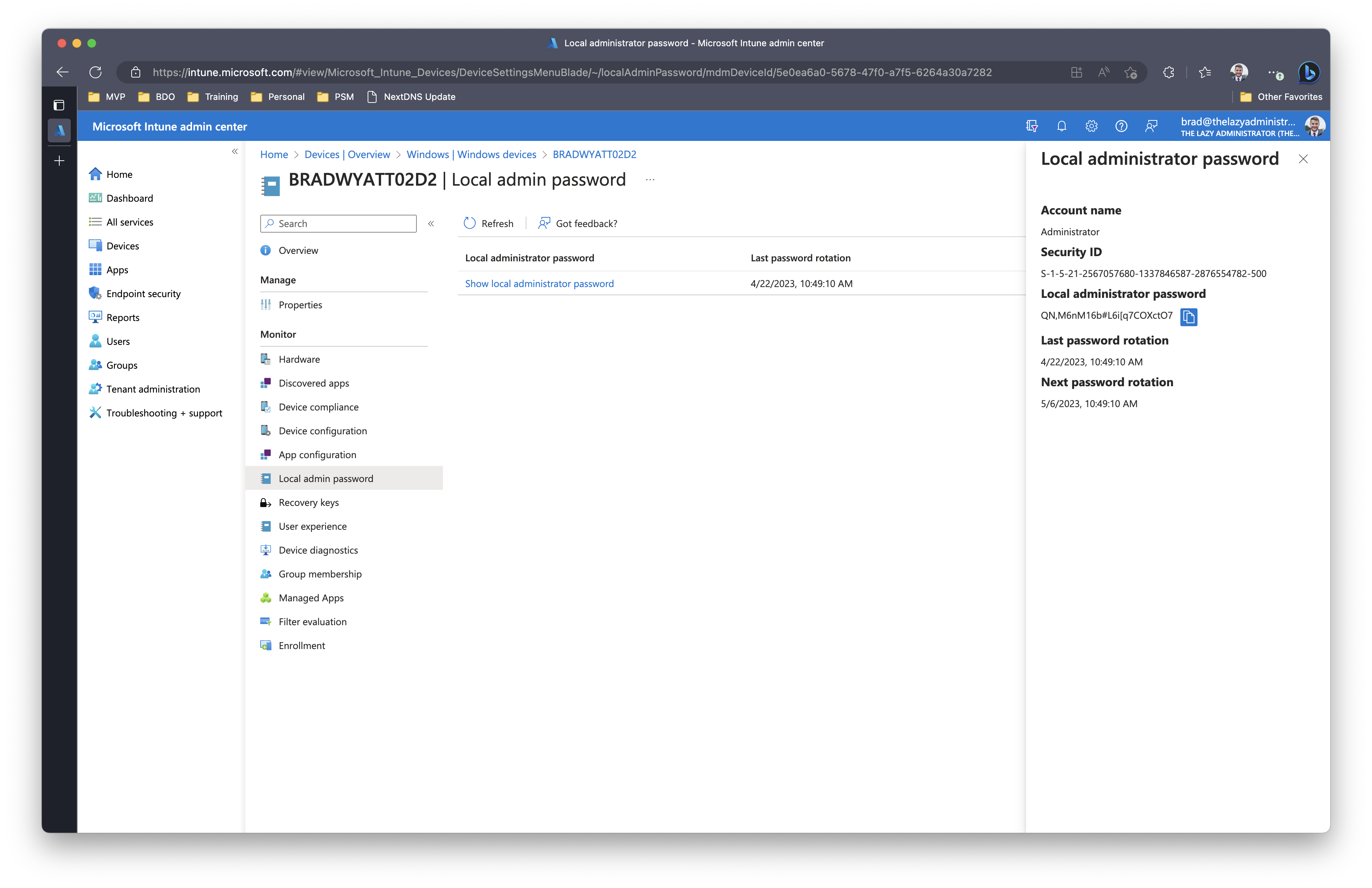
Next, you can click to view the local administrator password.
Note: If admins don’t have the correct permissions, they won’t be able to view the relevant information. This information is controlled by the deviceLocalCredentials.Read.All permissions that are specific to Global Admin, Cloud Device Admin, and Intune Admin, which only allows them to recover the Windows LAPS password.
PowerShell
Install the PowerShell Modules
First, Install the Microsoft Graph SDK
Install-Module Microsoft.Graph -Scope AllUsersNext, install the Az module
Install-Module Az -Scope AllUsersCreate an Azure Active Directory registered app to retrieve Windows LAPS passwords
Using the Az module, connect to Azure by running Connect-AzAccount
Next, we need to create the Azure AD registered application. Using the PowerShell code below, we can create a new application called IntuneLAPSadmin.
$AppRegistrationSplat = @{
	DisplayName    = "IntuneLAPSadmin"
}

$AzureADApp = New-AzADApplication @AppRegistrationSplat
Next, we need to grant the proper permissions to our newly created Application. The application must have the Device.Read.All permission and then one of the following two, DeviceLocalCredential.Read.All or DeviceLocalCredential.Read.All.
- Use
DeviceLocalCredential.ReadBasic.Allto grant permissions for reading non-sensitive metadata about persisted Windows LAPS passwords. Examples include the time the password was backed up to Azure and the expected expiration time of a password. This permissions level is appropriate for reporting and compliance applications. - Use
DeviceLocalCredential.Read.Allto grant full permissions for reading everything about persisted Windows LAPS passwords, including the clear-text passwords themselves. This permissions level is sensitive and should be used carefully.
The table below will list the permission and its corresponding permission ID. Take note of the permission ID for the next step.
| Permission | ID |
| Device.Read.All | 7438b122-aefc-4978-80ed-43db9fcc7715 |
| DeviceLocalCredential.Read.All | 884b599e-4d48-43a5-ba94-15c414d00588 |
| DeviceLocalCredential.ReadBasic.All | db51be59-e728-414b-b800-e0f010df1a79 |
$AppPermissions = @(
	"7438b122-aefc-4978-80ed-43db9fcc7715"
	"884b599e-4d48-43a5-ba94-15c414d00588"
)

$AppPermissions | ForEach-Object {
	Add-AzADAppPermission -ObjectId $AzureADApp.id -ApiId '00000003-0000-0000-c000-000000000000' -PermissionId $_ -Type Role
}Note: In my example above I am using the DeviceLocalCredential.Read.All permission. Ensure that you choose the correct permission.
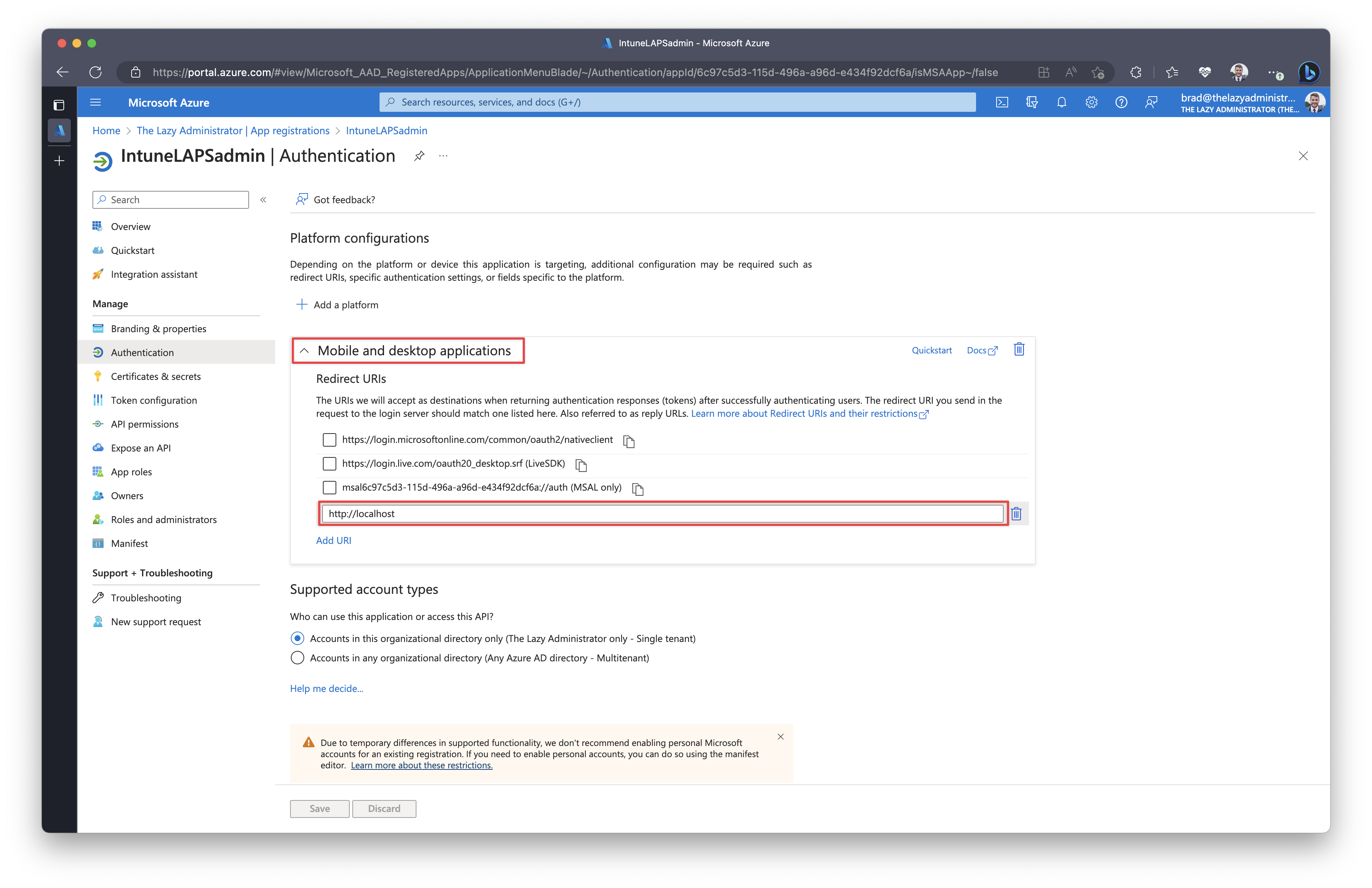
In the Azure Portal, we need to create a Redirect URI for Mobile and desktop applications. This is done in the Azure Portal to Active Directory > App Registrations > [ Your Newly Created Application ] > Authentication and add a custom redirect URI of ‘http://localhost’.
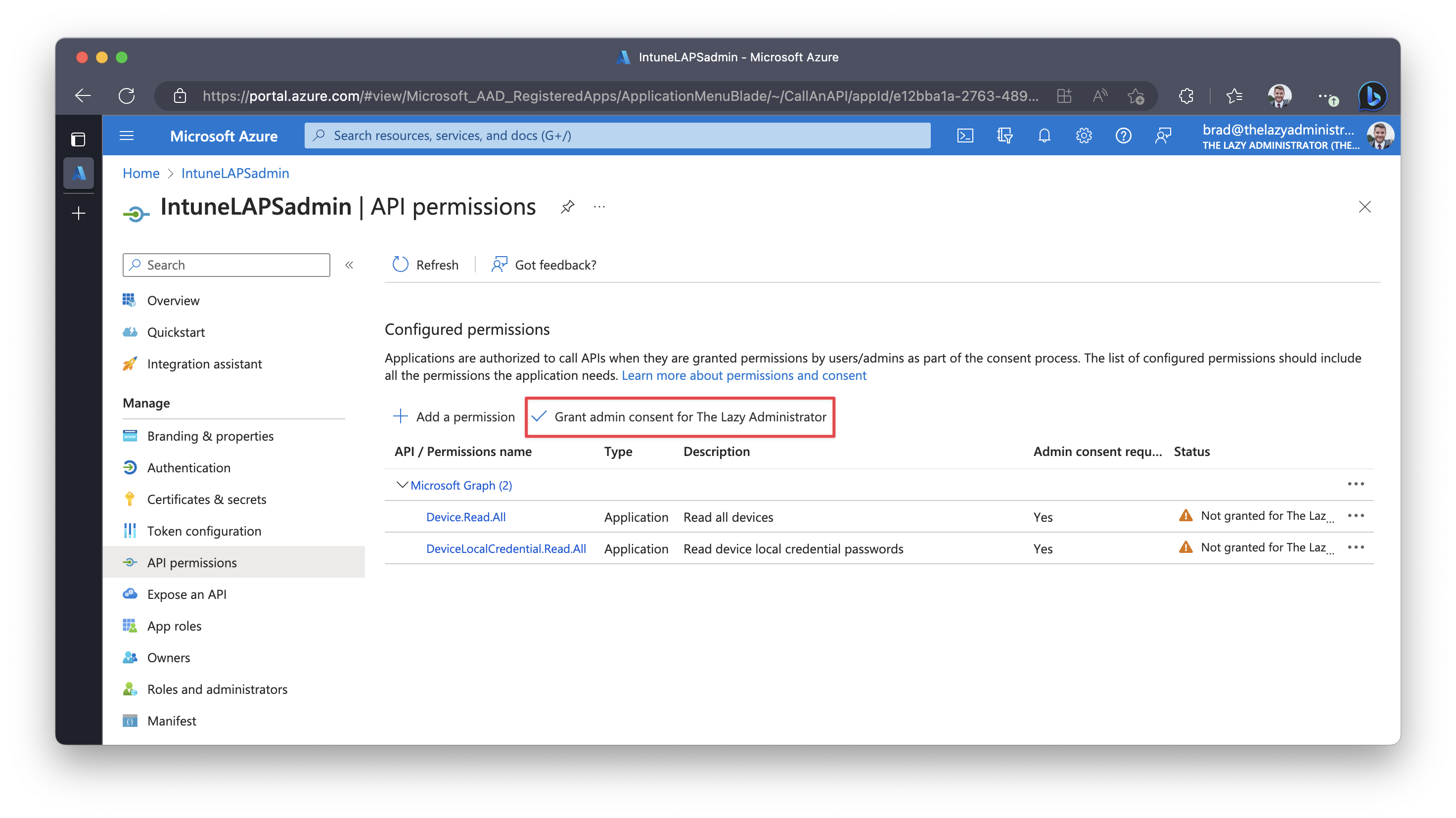
Finally, grant admin consent for the permissions. For this you must go to the Azure Portal to Active Directory > App Registrations > [ Your Newly Created Application ] > API Permissions.
Retrieve Password
First we need to get two items, the ClientID of our application and our tenantID.
ClientID: Azure Portal to Active Directory > App Registrations > [ Your Newly Created Application ]
TenantID: Either use this website, or go to the Azure Portal > Azure Active Directory
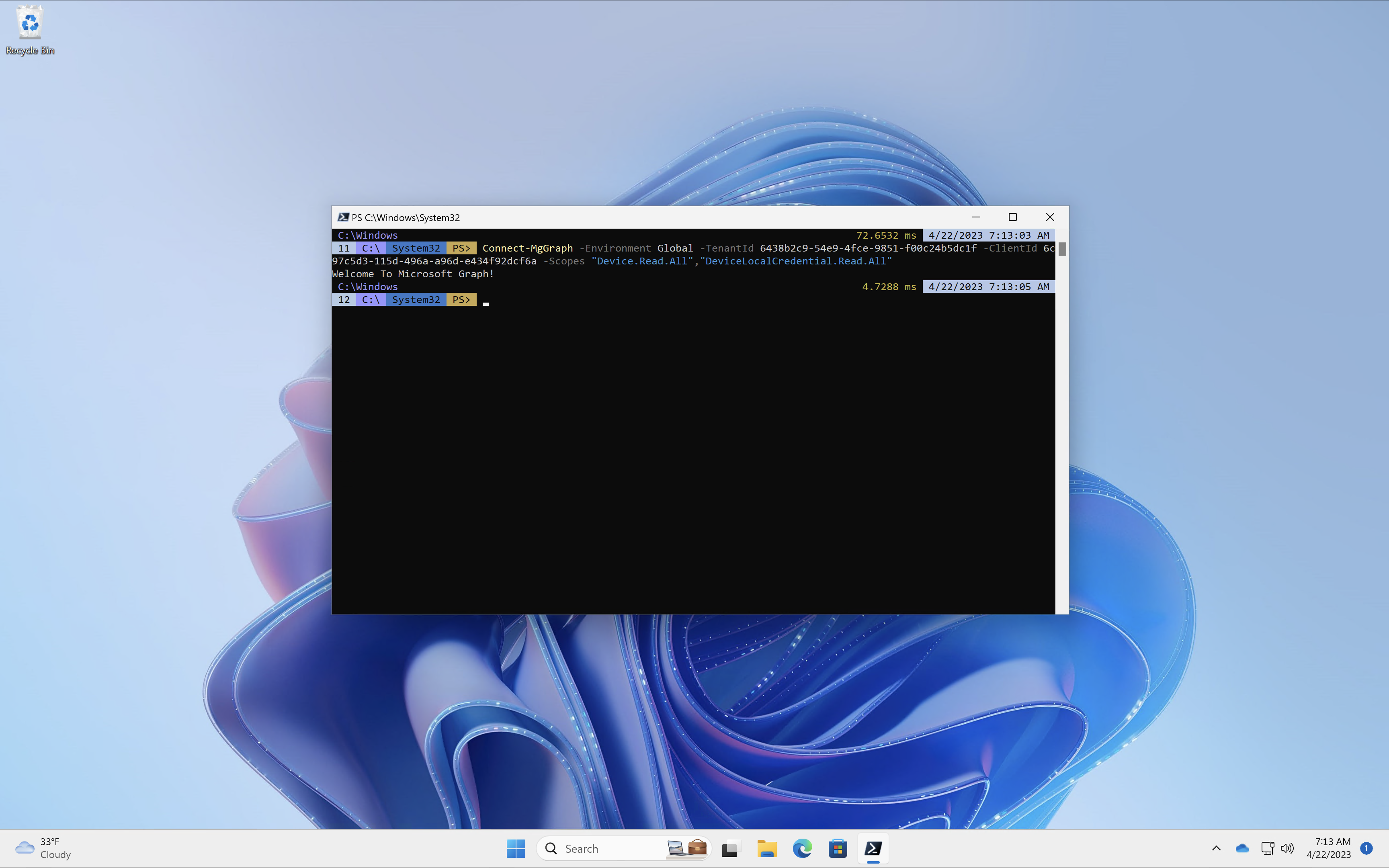
Next, using PowerShell and the information gathered above, sign into Microsoft Graph
Connect-MgGraph -Environment Global -TenantId 6438b2c9-54e9-4fce-9851-f00c24b5dc1f -ClientId e12bba1a-2763-4899-9e67-e434f92dcf6a -Scopes "Device.Read.All","DeviceLocalCredential.Read.All"Note: If you granted the permission ‘DeviceLocalCredential.ReadBasic.All’ and not ‘DeviceLocalCredential.Read.All’ then replace the scope with ‘DeviceLocalCredential.ReadBasic.All’
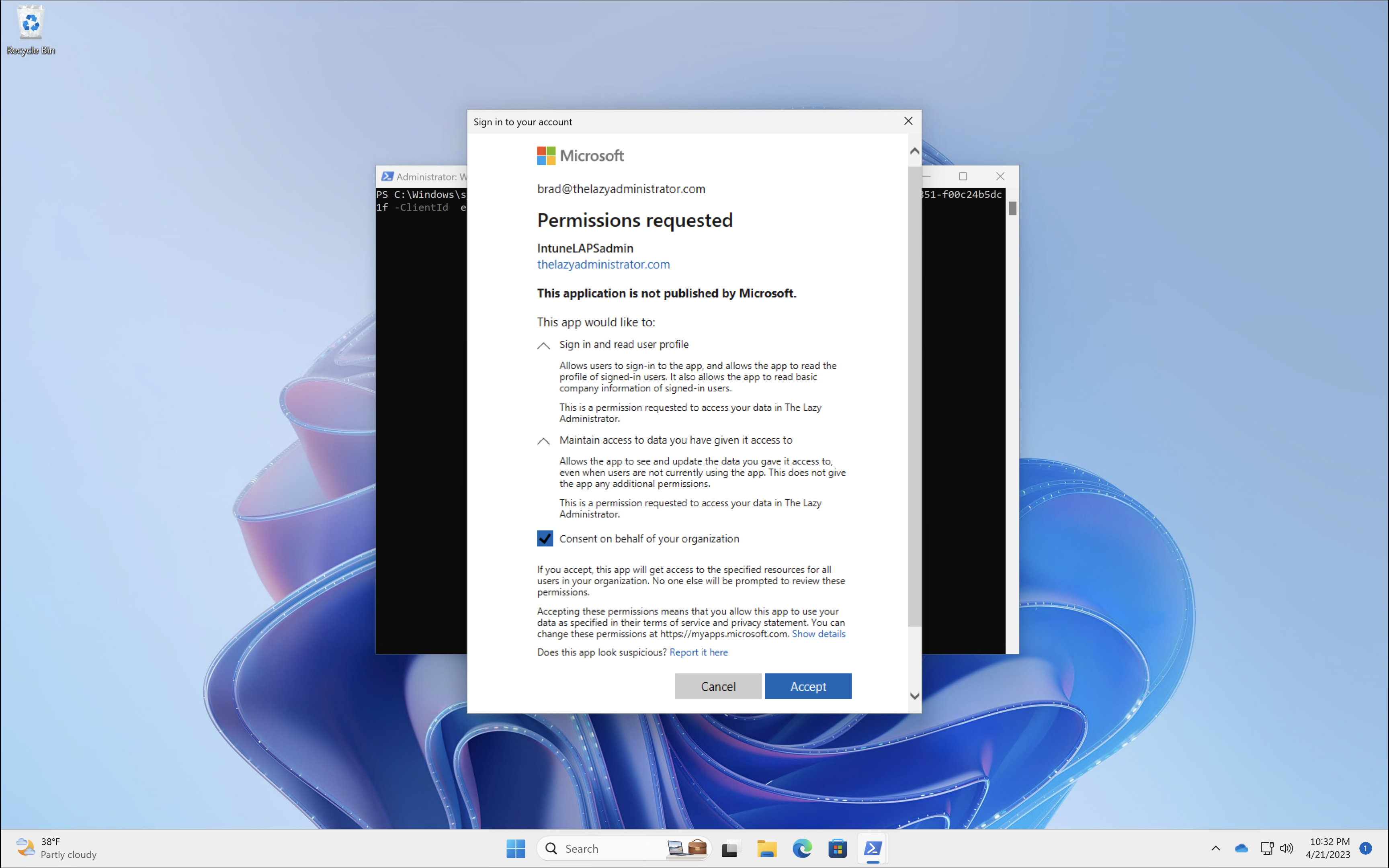
When logging into the first time, you may need to accept the permission prompt.
Once it has authenticated you will be presented with a welcome message welcoming you to the Microsoft Graph API.
To get the LAPS password information of a device you will need the device ID (found in the Azure AD Portal). Once you have the device ID, run the following command
Get-LapsAADPassword -DeviceIds 8155b933-9cfa-4d86-ba50-dd72ca6579db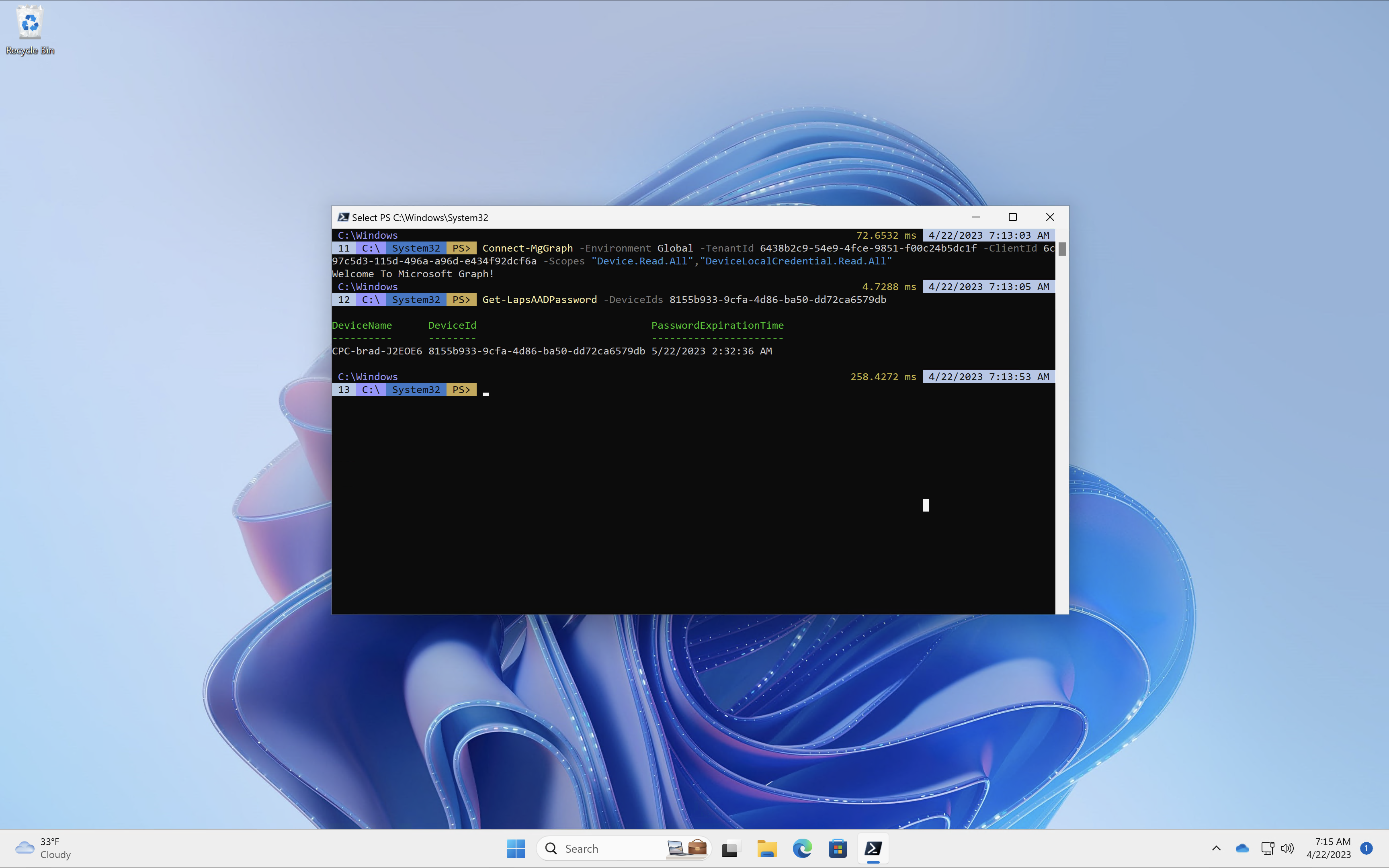
Notice how the information returned does not include the device password. If you granted the permission ‘DeviceLocalCredential.Read.All’ you can run the following command to include the LAPS password for the device.
Get-LapsAADPassword -DeviceIds 8155b933-9cfa-4d86-ba50-dd72ca6579db -IncludePasswords -AsPlainText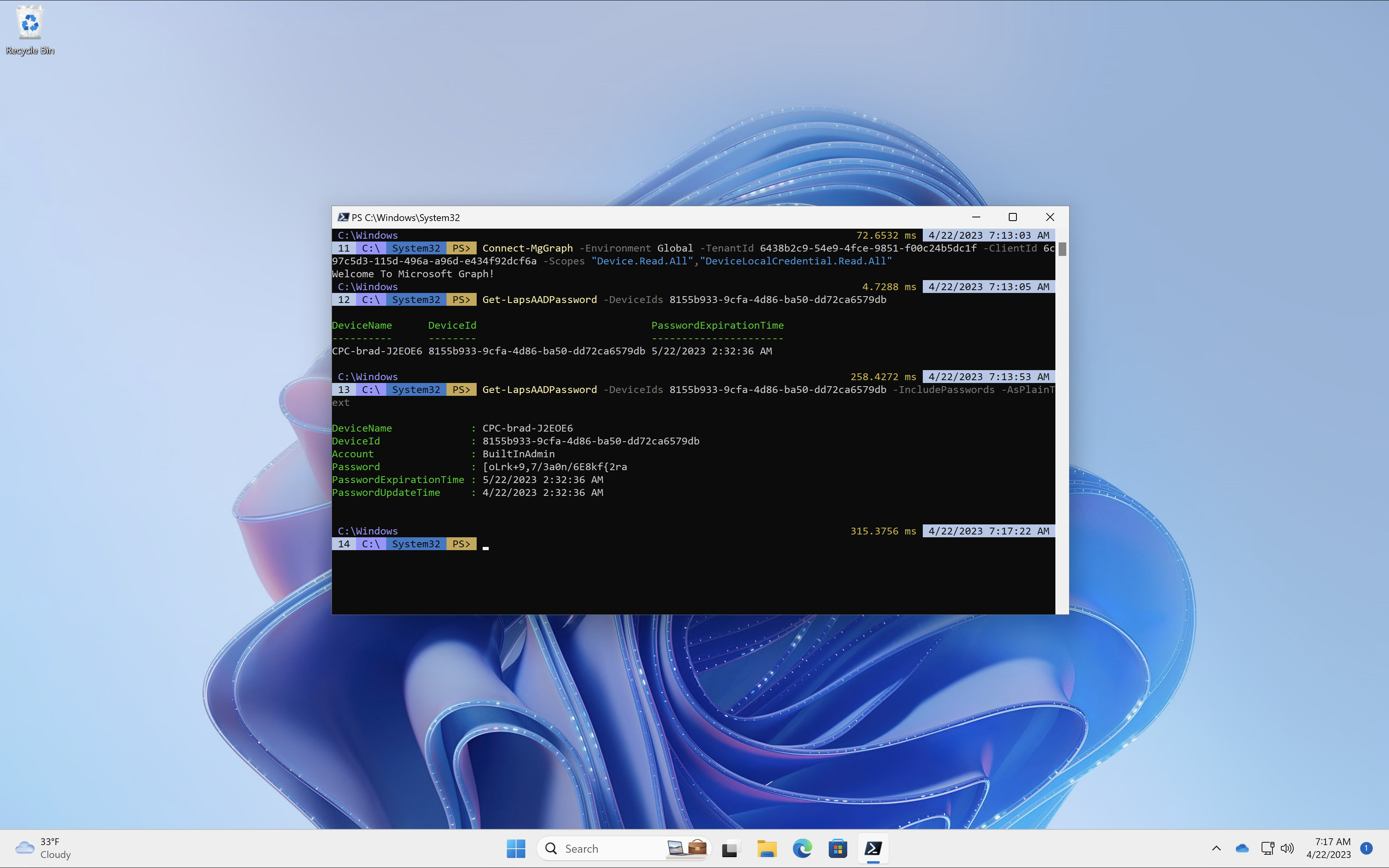
Rotate Passwords
Intune Portal
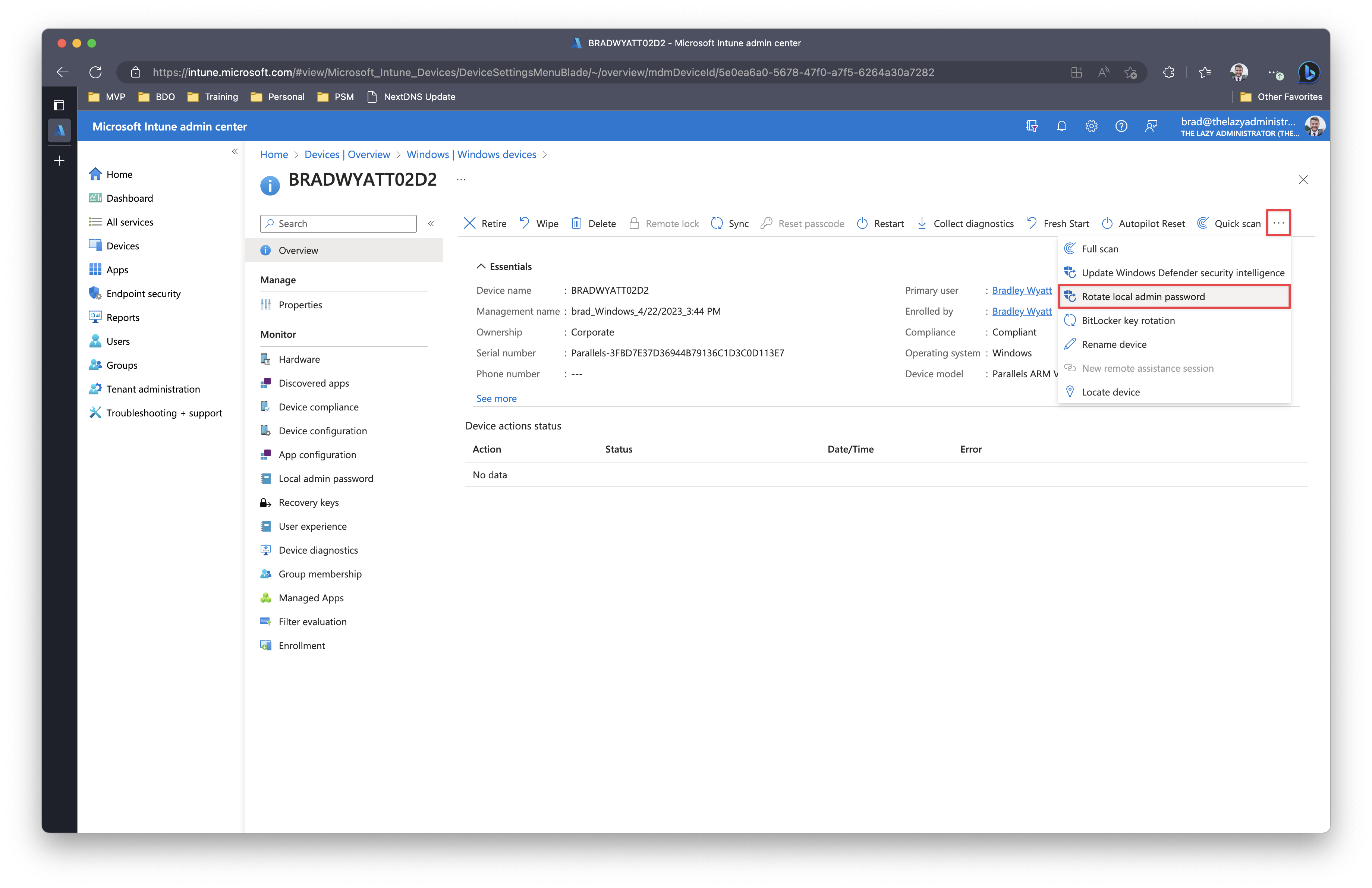
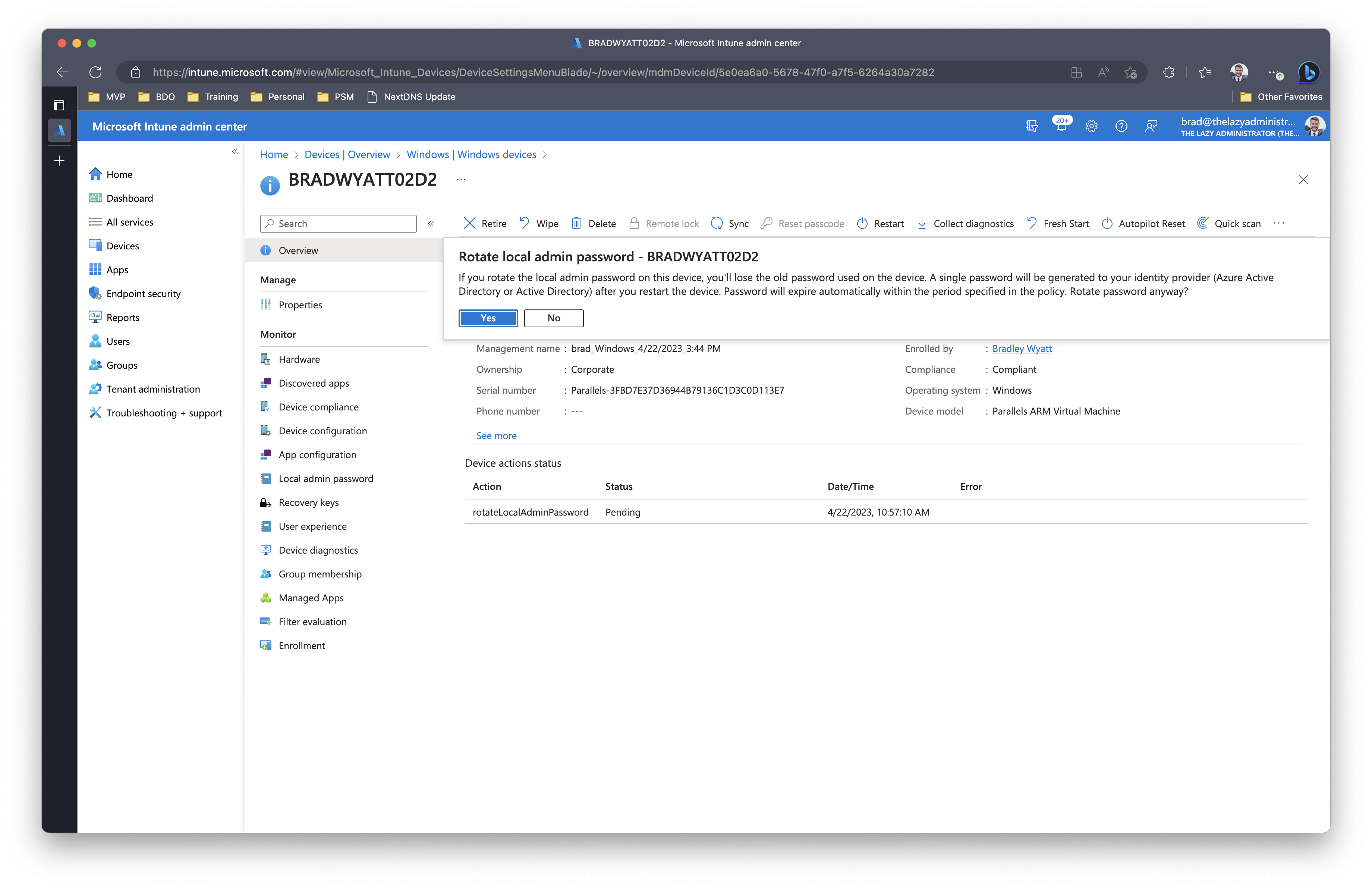
In the Intune Portal, click the device and then click the ellipses in the device overview. From there click Rotate local admin password.
Once the endpoint reboots, the password will be changed.
PowerShell
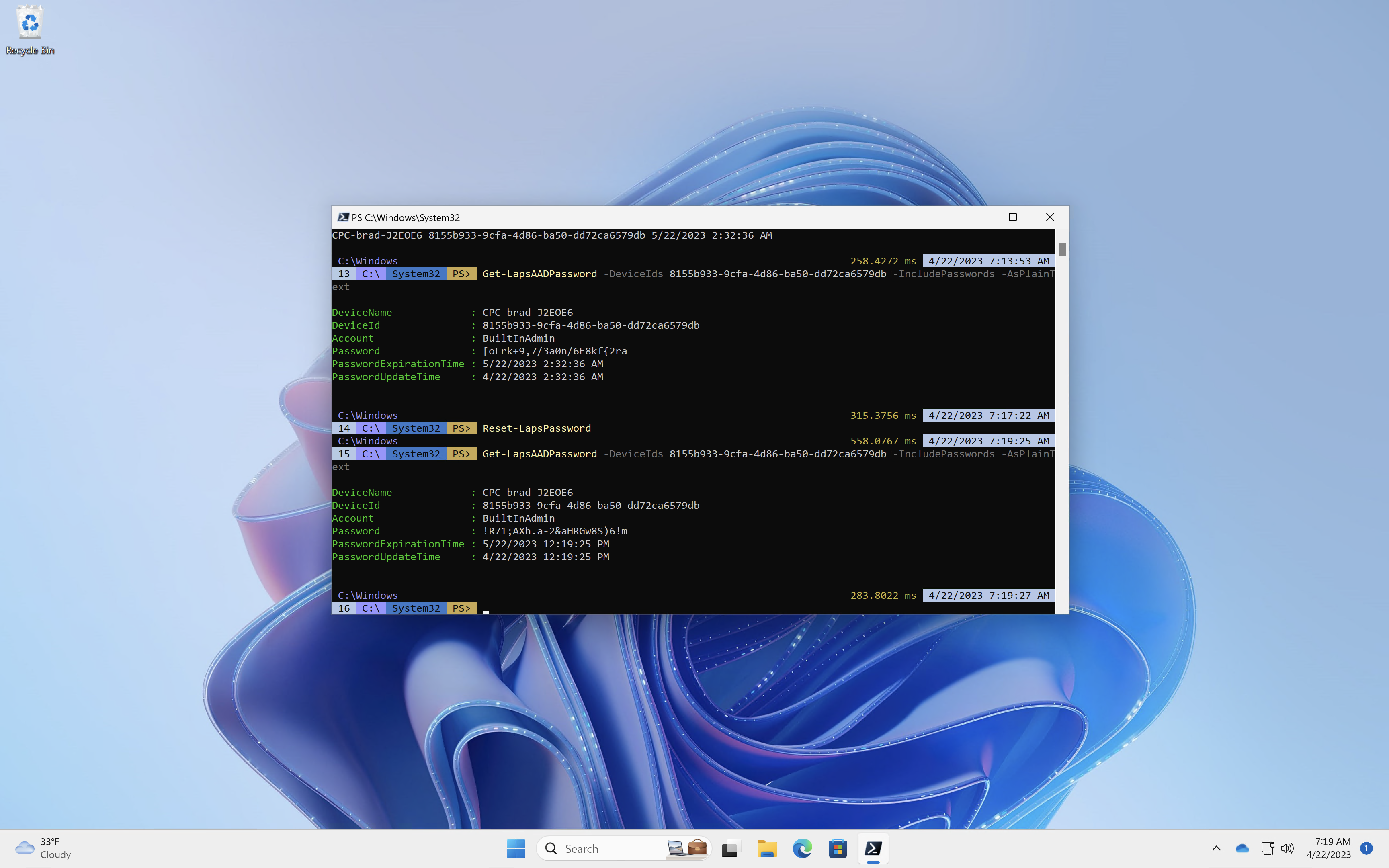
The cmdlet Reset-LapsPassword is ran locally against a machine that is using Windows LAPS. In the example below I am viewing my devices password before and after a rotation to show that it quickly and easily rotated the password.
Manually Force Policy Processing
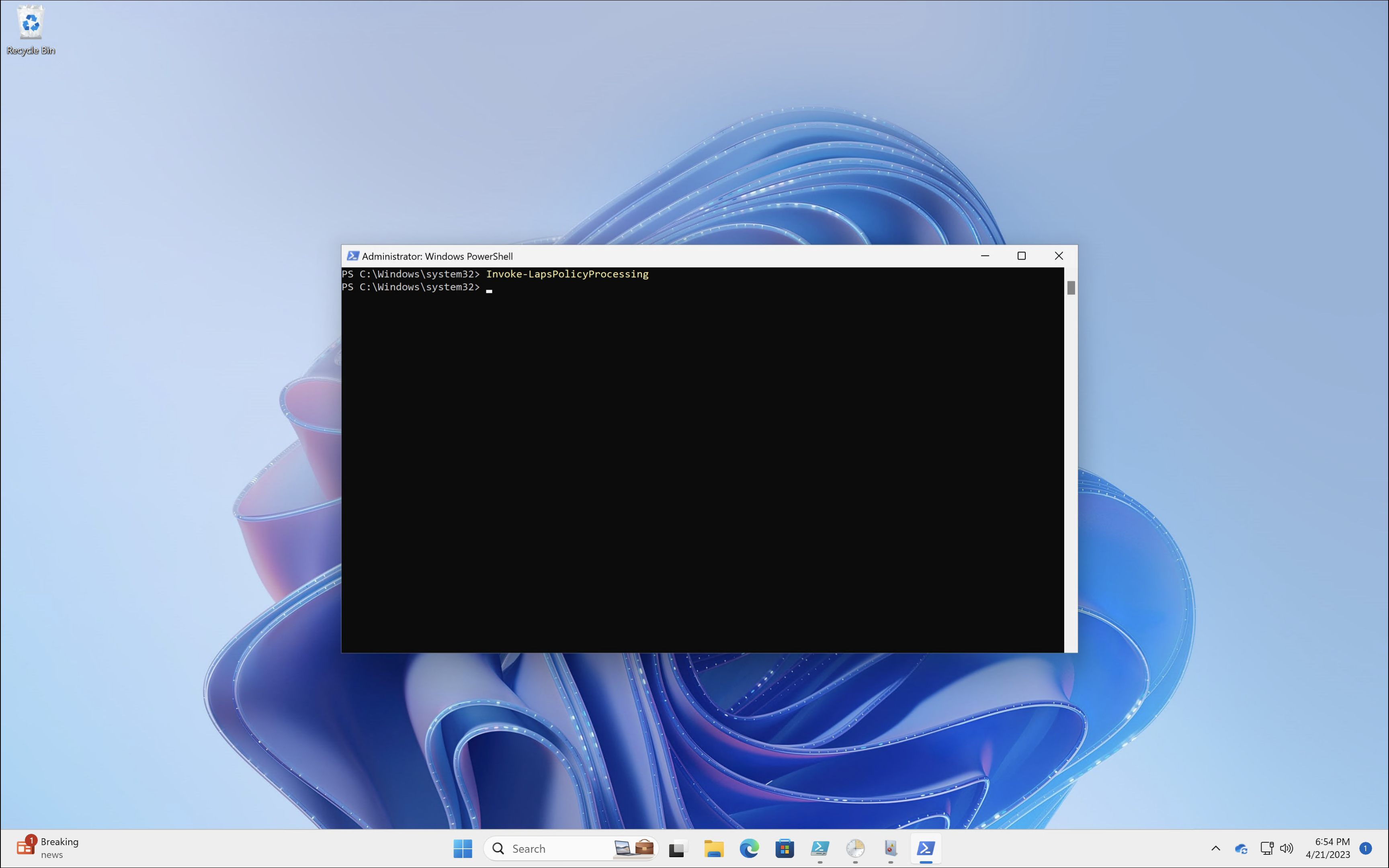
Windows LAPS processes the currently active policy on a periodic basis (every hour). To avoid waiting after you apply the policy, you can run the Invoke-LapsPolicyProcessing PowerShell cmdlet (does require Administrator rights).
Windows LAPS Troubleshooting
Windows LAPS Event Logs
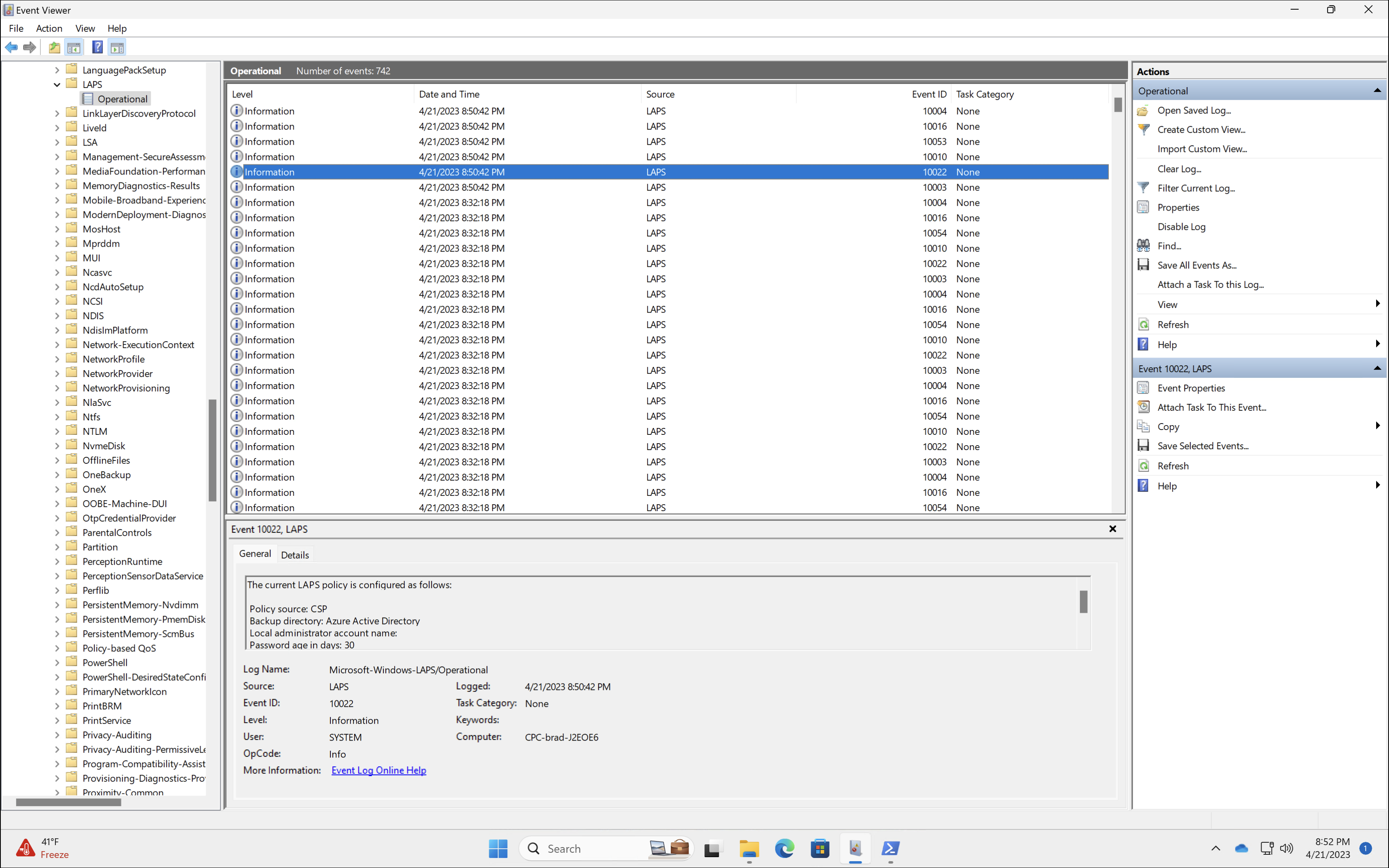
Windows LAPS logs can be found in the Windows Event Viewer at Applications and Services Logs > Microsoft > Windows > LAPS
PowerShell
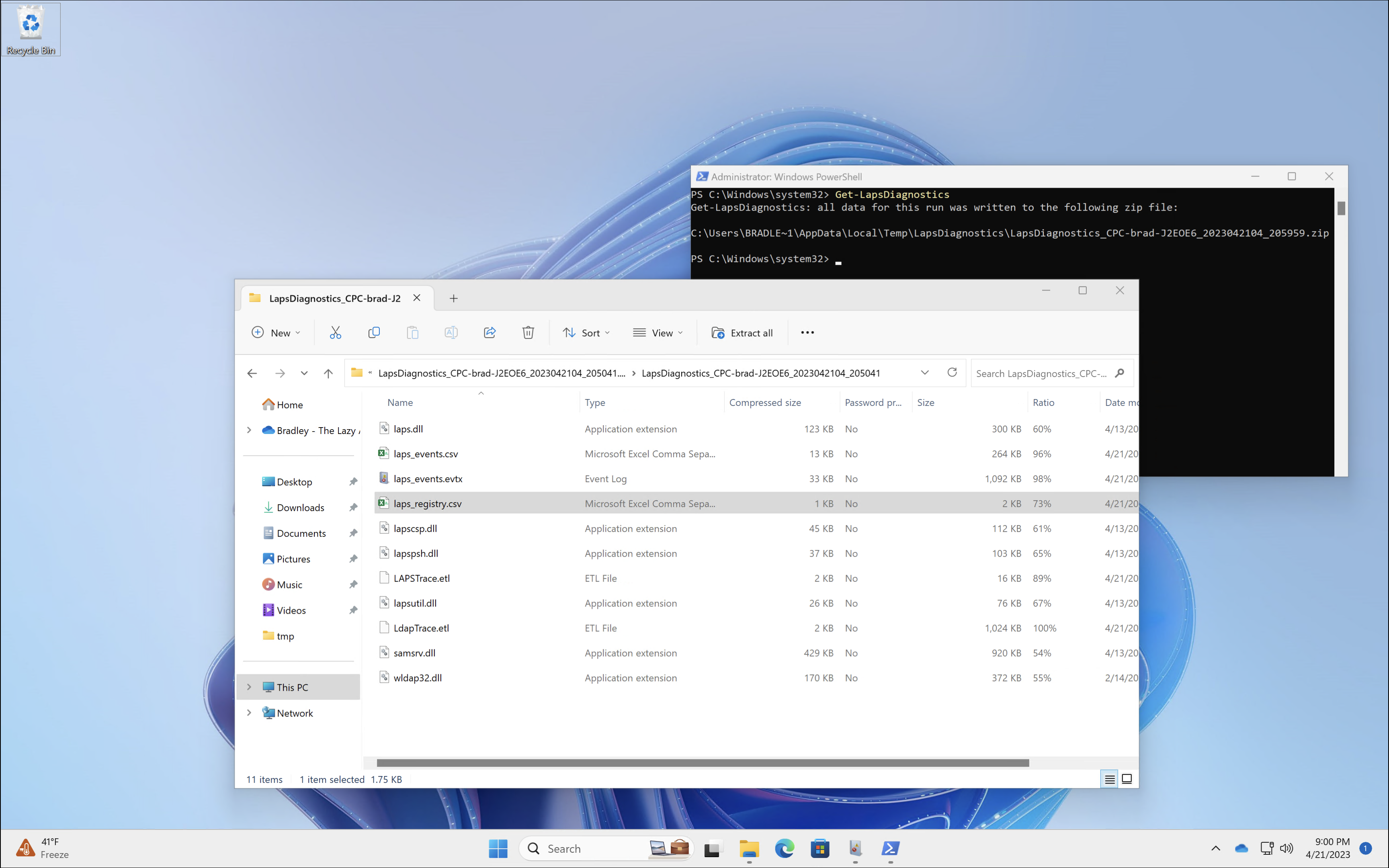
The Get-LapsDiagnostics PowerShell cmdlet collects Windows Local Administrator Password Solution (LAPS) logs and tracing from the local machine. Included in this zip is the current device configuration and an overview of the LAPS Windows Event Logs.
Azure Audit Logs
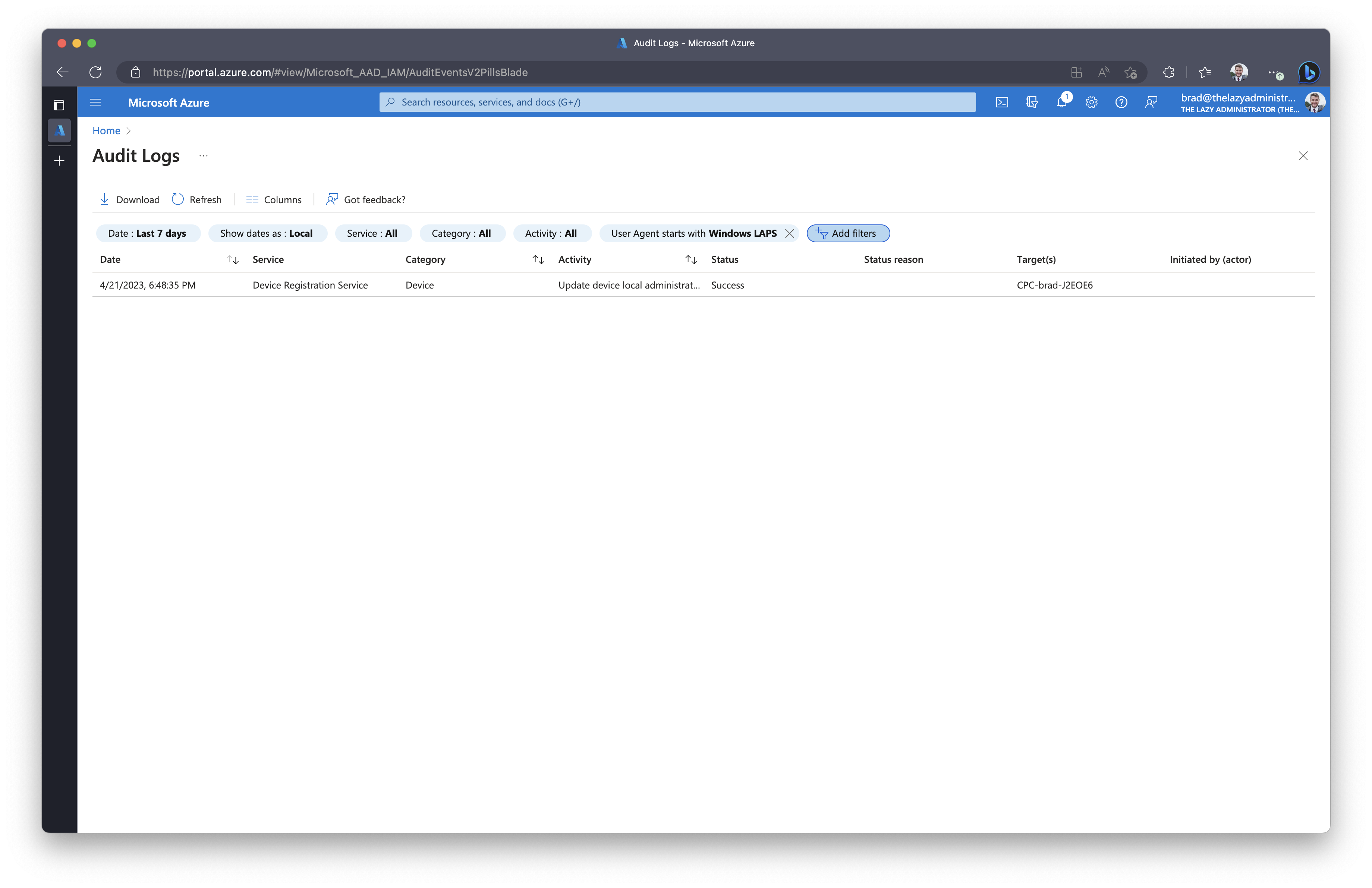
Windows LAPS events are also sent to Azure Audit Logs which can be viewed within the Azure Portal.
My name is Bradley Wyatt; I am a Microsoft Most Valuable Professional and I am currently a Cloud Solutions Architect at PSM Partners in the Chicagoland area.
office365,virtualization,Azure
via The Lazy Administrator https://ift.tt/sbjomFD
April 22, 2023 at 05:36PM
Brad Wyatt
 Stack IT News