Exporting Mailbox Contents to PST with Exchange Online
Exporting to PST is a Horrible Idea, but It’s Sometimes Necessary
On June 8, Microsoft highlighted the “final deprecation of the classic Exchange Admin Center (EAC)” for Exchange Online. Setting a retirement date of June 20, 2023, the announcement seemed a tad rushed, but it marks the end of a process that started in September 2021. Microsoft says that the new EAC has achieved “feature parity.” This means that the new EAC should support the same range of features that its classic counterpart does. It doesn’t mean that the new EAC supports every feature. Much to the chagrin of some, the new EAC lacks the ability to export mailbox contents to a PST.
Some Limited Needs for PSTs
I don’t like PSTs very much. I consider any recommendation to store email in PSTs instead of an online mailbox to be the height of folly. Anyone endorsing such an action needs some strong career advice. But even with my dislike of PSTs, I acknowledge that sometimes a PST is a necessary evil. In Microsoft’s documentation for exporting mailboxes to PST for Exchange Server, they cite two defendable reasons:
- Compliance: You need to provide copies of a mailbox in an industry-readable format for investigation by an authorized party, such as legal advisors.
- Mailbox snapshot: You want to retain a copy of the mailbox at a point in time and keep the mailbox copy in an offline location. For instance, a copy of the mailbox belonging to an employee who leaves the organization. For Exchange Online, it’s better to make the mailbox inactive and keep it online, but if you insist on an offline copy, a PST is the only alternative.
Exchange Server meets the need by using the Mailbox Replication Service (MRS) to process mailbox export requests created through EAC or by running the New-MailboxExportRequest cmdlet. It’s a relatively painless process because MRS is very good at moving mailbox content around.
PST Export for Exchange Online
Alas, Exchange Online doesn’t support mailbox exports, and the New-MailboxExportRequest cmdlet isn’t available in the Exchange Online management module. MRS is present in Exchange Online, and it’s used to move mailboxes around in much the same way as it does on-premises. MRS also handles situations like rough-and-ready cross-tenant mailbox moves. I say this because moving mailboxes is only one small part of tenant-to-tenant migration projects. If you’re involved in anything other than a very small tenant-to-tenant migration project, it’s usually better to invest in a purpose-built toolset like Quest On Demand.
I can’t think of a good technical reason why Microsoft doesn’t support mailbox exports for Exchange Online. However, I can think of two non-technical reasons. First, mailbox exports impose a considerable load on the Exchange server that hosts the active copy of the mailbox. Allowing people to make mailbox export requests might affect the performance of the server, and that’s unacceptable in a multi-tenant environment.
Second, a perfectly acceptable alternative is available in the Microsoft Purview compliance portal. Content searches can export the complete content of a mailbox, including its archive and the contents of Recoverable Items, to a PST. This functionality exists to export the results of content searches to PST for external investigators to review, but it can also be used to create PSTs for your own purposes.
Content searches are part of the Microsoft Purview eDiscovery suite and are included in Office 365 E3 and above. If your tenant doesn’t have Office 365 E3 licenses and you want to use the export to PST facility, you can invest in a couple of licenses for administrative use.
Running a Content Search to Export a Mailbox
Running a content search to export a single mailbox is simple. Use the following steps:
- Sign-in with an account that’s a member of the eDiscovery Manager role group. This is one of the standard compliance role groups used for role-based access control to compliance solutions. An account that’s a member of the Organization Management role group is another option because it also includes the Compliance search role.
- Create a new content search.
- Select the mailbox that you want to export.
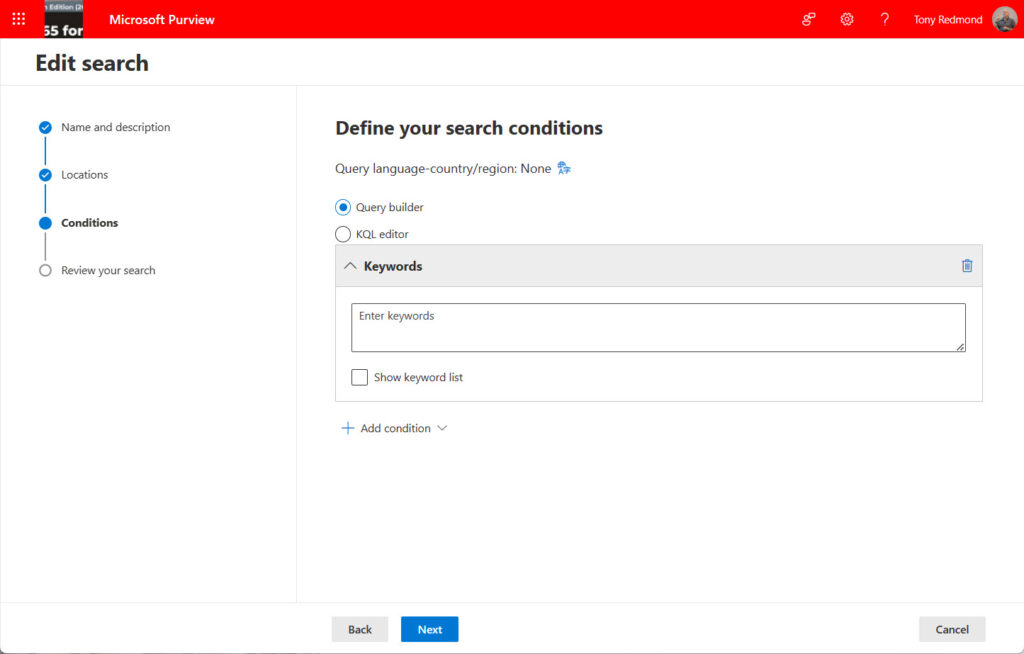
- Don’t add any search conditions. In effect, you’re telling Purview to export every piece of data it can find for the mailbox. The search conditions will look like those shown in Figure 1. Of course, if you want to export a selective part of the mailbox, you can add conditions such as a received date range to find items within that time.
After creating the search, Purview runs an estimated search to report how much data it thinks it can find. An estimated search is just that – it’s a rough estimate based on search indexes. The actual amount found by a search depends on what’s available when the search runs. You can get a rough idea of what a search should find by running the Get-ExoMailboxStatistics cmdlet for the mailbox. Here’s an example showing the cmdlet run against the primary and archive mailbox for a user.
Get-EXOMailboxStatistics -Identity James.Ryan

DisplayName          : James Ryan
MailboxGuid          : 31e2ece4-5426-48e0-8ce2-a96df7c316b3
DeletedItemCount     : 1356
ItemCount            : 3351
TotalDeletedItemSize : 15.2 MB (15,934,123 bytes)
TotalItemSize        : 361.3 MB (378,824,532 bytes)

Get-EXOMailboxStatistics -Identity James.Ryan -Archive

DisplayName          : In-Place Archive -James Ryan
MailboxGuid          : a59d39a8-d513-44ee-9c40-0846ffcf1a2a
DeletedItemCount     : 27043
ItemCount            : 2127
TotalDeletedItemSize : 1.933 GB (2,075,611,144 bytes)
TotalItemSize        : 410.7 MB (430,667,529 bytes)
The figures reported by the cmdlet might not match up with those reported by the content search, but they will be in the same ballpark. That’s OK because the acid test of any export is what a search finds and exports. Factors like deduplication also influence the final numbers.
When Purview returns with the estimated results, you can start the export. There’s no need to preview search results or consult search statistics because you’re searching a single mailbox for everything in it.
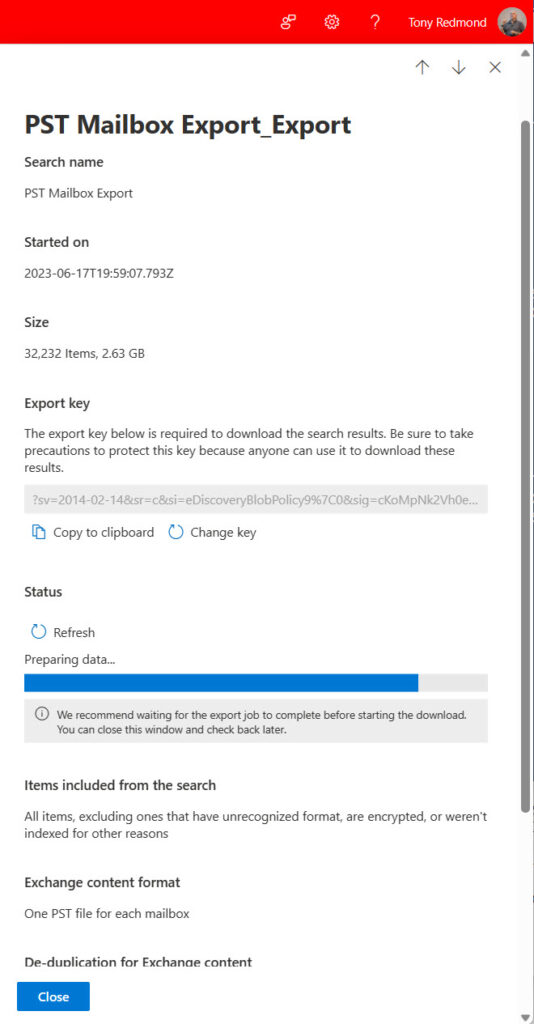
When you start an export, Purview runs a full search and extracts what it finds to a secure location in Azure blob storage. Purview generates a key to allow access to the exported data. The key looks something like this:
?sv=2014-02-14&sr=c&si=eDiscoveryBlobPolicy9%7C0&sig=cKoMpNk2Vh0ezfgHBfbf9XAacjZJnqre0zRRiFgkUe8%3D
Note the key because it’s needed by the content search download utility to identify and access the data found by the search and move it to PSTs. The easiest way is to copy the key from the Export job details to the Windows clipboard (Figure 2) and paste it into a document for later reference.
Exporting to PST
After Purview moves the mailbox data to the secure location in Azure blob storage, you can download it to a local workstation. Azure keeps the exported data for seven days. If you don’t download the data before this period expires, you must rerun the search to refresh the results.
To download from Azure, open the export job (in the content search section of the compliance portal) and select Download results. This invokes a special program called the Microsoft Office 365 eDiscovery Export Tool (Figure 3) that Purview downloads and runs automatically (if you use Edge). Afterward, you’ll find the tool listed as an installed program in Control Panel, and can remove the program if you want.
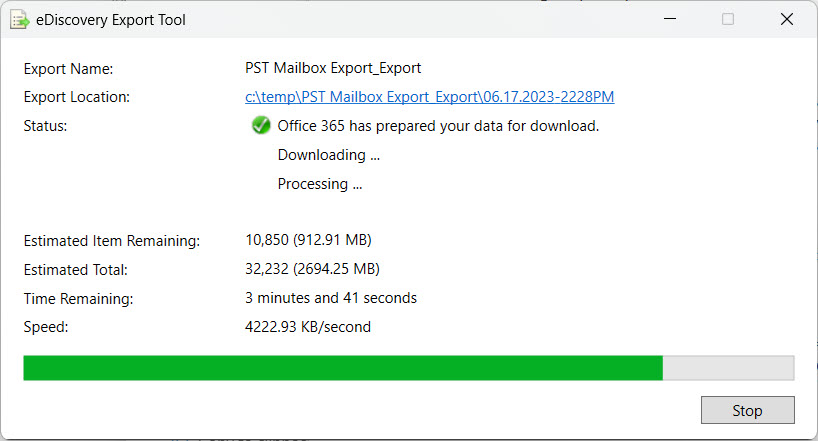
Obviously, the export tool can take a little while to download and process large mailboxes. After launching the tool, it’s a good opportunity to go away and have a coffee.
Dealing with PST Output
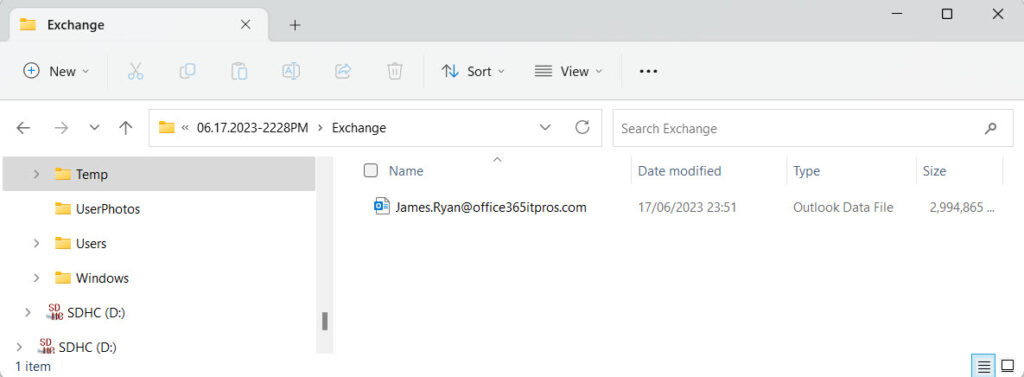
The PST generated by the eDiscovery export tool is stored in a folder in the target location. In my example, I used c:\temp\ as the target, and the tool generated a folder named after the date and time of the export job. Within this folder, you’ll find a Results worksheet listing all the exported items. You’ll also see that the tool creates a folder for Exchange, and in that folder, we find the output PST (Figure 4).
Exchange Online automatically decrypts messages protected by Microsoft Information Protection (sensitivity labels). Protected attachments aren’t decrypted.
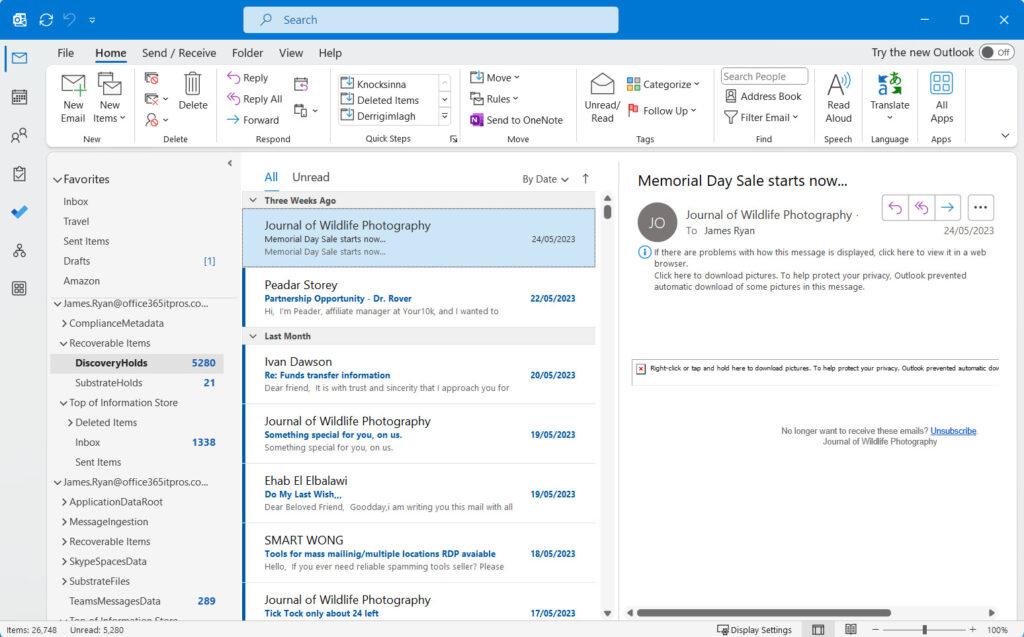
Exhibiting one of the less desirable attributes of PST files, any Outlook for Windows client can open the PST created by the eDiscovery export tool and read everything contained within. The PST contains separate sets of folders for the primary and archive mailboxes and includes folders like Recoverable Items that users don’t normally see (Figure 5). This underlines the investigative nature of the PSTs generated by eDiscovery. If you want to give the PST to the user who owns the mailbox, remember to remove the information that they don’t usually see.
Test and Verify
That’s about it. If you’re interested in using the export to PST feature, I recommend that you read the Microsoft documentation (or an excellent eBook I know of) and do some testing with a trial tenant. It’s not wise to test on a production tenant because you’re dealing with real user information with all the consequent complications that might ensue. Apart from anything else, exporting the results of content searches covers much more than dealing with creating a PST copy of someone’s mailbox, so understanding how the process works will come in handy when the need arises to run content searches for real.
exchange
via Practical 365 https://ift.tt/vESZcP2
June 21, 2023 at 03:27PM
Tony Redmond
 Stack IT News