Azure Backup: How to configure e-mail notifications for Backup Alerts
Using Azure Backup service alerting is an efficient way to monitor your Azure backup jobs and keep your cloud backup items data safe and secure.
One of the features you can enable, is to create email notifications whenever a Critical or Warning backup alert occurs. Whenever an alert is raised, an email is send to notify the user(s) who’s email address(s) are specified, or to the users in a specified distribution group, like the Backup operators group.
Currently no Informational alert can be generated by the Azure Backup Service. If you want to configure alerts for like example successful backup jobs you need to use Log Analytics.
To give an example, you can receive an email notification for the following Critical backup alert: “A delete Backup data alert has been activated”

In the case that a destructive operation like “Delete Backup data” is triggered, an automatically generated email is send to subscription owners, admins and co-admins, even in the case that no notification emails are configured for the Recovery Services vault.
Also keep in mind that in the following situations (exceptions) no notifications email(s) will be sent:
- If notifications are configured with an hourly digest, and an alert is raised and resolved within that same hour.
- When a backup job is explicitly canceled by a user.
- If a second backup job fails because the original backup job is still in progress.
- The VM backup jobs fails because the backed-up VM is removed and does not longer exists.
Configure in the Azure Portal
Setting up Backup Alerts inside the Azure Portal is quiet easy.
At the moment you cannot configure this option with Azure PowerShell, Azure CLI or via an ARM Template.
First you need to browse to the Recovery Services vault and open it. Then click Backup Alerts under the Monitoring section.

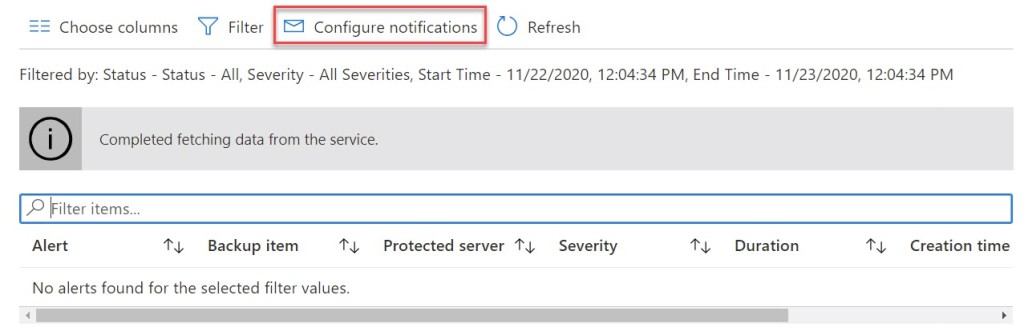
On the Backup Alerts blade click Configure notifications.
Then switch Email notifications to On and enter the email addresses or distribution group(s) in the Recipients (Email) field. Use a semi-colon ( ; ) to separate multiple recipient email addresses.
Choose if you want the notifications to be Per Alert or in an Hourly Digest. The difference between the two, is that the Per Alert option will send an email for every triggered alert and that the Hourly Digest option will check for alerts every hour and then send an email with the active alerts.
At the bottom, select the severity of alerts (Critical and/or Warning ) you want to be notified about (Critical and/or Warning) and click Save to save your settings.


An email will be send to the specified email address(es) or/and distribution group(s) when the Azure Backup email alerts are configured successfully.

Conclusion
Configuring e-mail notifications for Backup Alerts is an efficient way to be notified whenever a Critical or Warning Backup alert occurs. At the moment you can only configure this trough the Azure Portal.
Azure,microsoft
via Wim Matthyssen https://wmatthyssen.com
November 23, 2020 at 03:35PM
wmatthyssen
 Stack IT News