SSL/TLS connection issue troubleshooting test tools
In last blog, I introduced how SSL/TLS connections are established and how to verify the whole handshake process in network packet file. However capturing network packet is not always supported or possible for certain scenarios. Here in this blog, I will introduce 5 handy tools that can test different phases of SSL/TLS connection so that you can narrow down the cause of SSL/TLS connection issue and locate root cause.
curl
Suitable scenarios: TLS version mismatch, no supported CipherSuite, network connection between client and server.
curl is an open source tool available on Windows 10, Linux and Unix OS. It is a tool designed to transfer data and supports many protocols. HTTPS is one of them. It can also used to test TLS connection.
Examples:
1. Test connection with a given TLS version.
curl -v https://pingrds.redis.cache.windows.net:6380 –tlsv1.0
2. Test with a given CipherSuite and TLS version
curl -v https://pingrds.redis.cache.windows.net:6380 –ciphers ECDHE-RSA-NULL-SHA –tlsv1.2
Success connection example:
Fail connection example due to either TLS version mismatch. Not supported ciphersuite returns similar error.
Failed due to network connectivity issue.
openssl
Suitable scenarios: TLS version mismatch, no supported CipherSuite, network connection between client and server.
openSSL is an open source tool and its s_client acts as SSL client to test SSL connection with a remote server. This is helpful to isolate the cause of client.
- On majority Linux machines, OpenSSL is there already. On Windows, you can download it from this link: https://chocolatey.org/packages/openssl
- Run Open SSL
- Windows: open the installation directory, click /bin/, and then double-click openssl.exe.
- Mac and Linux: run openssl from a terminal.
- Issue s_client -help to find all options.
Command examples:
1. Test a particular TLS version:
s_client -host sdcstest.blob.core.windows.net -port 443 -tls1_1
2. Disable one TLS version
s_client -host sdcstest.blob.core.windows.net -port 443 -no_tls1_2
3. Test with a given ciphersuite:
s_client -host sdcstest.blob.core.windows.net -port 443 -cipher ECDHE-RSA-AES256-GCM-SHA384
4. Verify if remote server’s certificates are trusted.
Success connection example:
Fail connection example due to TLS mismatch:
Fail connection example due to network connectivity:
Online tool
https://www.ssllabs.com/ssltest/
Suitable scenarios: TLS version mismatch, no supported CipherSuite.
This is a free online service performs a deep analysis of the configuration of any SSL web server on the public Internet. It can list all supported TLS versions and ciphers of a server. And auto detect if server works fine in different types of client, such as web browsers, mobile devices, etc.
Please note, this only works with public access website. For internal access website will need to run above curl or openssl from an internal environment. And it only supports domain name and does not work with IP address.
Web Browser:
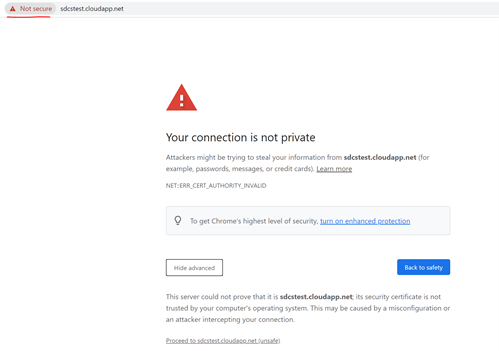
Suitable scenarios: Verify if server certificate chain is trusted on client.
Web Browser can be used to verify if remote server’s certificate is trusted or not locally:
- Access the url from web browser.
- It does not matter if the page can be load or not. Before loading anything from the remote sever, web browser tried to establish SSL connection.
- If you see below error returned, it means certificate is not trusted on current machine.
Certutil
Suitable scenarios: Verify if server certificate on client, verify client certificate on server.
Certutil is a tool available on windows. It is useful to verify a given certificate. For example verify server certificate from client end. If mutual authentication is implemented, this tool can also be used to verify client certificate on server.
The command auto verifies trusted certificate chain and certificate revocation list (CRL).
Command:
certutil -verify -urlfetch <client cert file path>
https://docs.microsoft.com/en-us/windows-server/administration/windows-commands/certutil#-verify
Next blog, I will introduce solutions for common causes of SSL/TLS connection issues.
office365,Azure,microsoft
via Microsoft Tech Community https://ift.tt/2cKGgvU
March 28, 2021 at 12:21PM
Shi_Ding
 Stack IT News